


Hardware components | ||||||
 |
| × | 1 | |||
| × | 1 | ||||
| × | 1 | ||||
Software apps and online services | ||||||
 |
| |||||
 |
| |||||
I have a few Sonoff WiFi switches installed at home, I wrote about it last month LINK. Meanwhile, I saw that WolkAbout released Arduino library for connecting to its platform.....so, knowing that Sonoff is Arduino compatible I merged these two, bingo :-). I wrote custom firmware for Sonoffs which directly connects to WolkAbout.
In this post, I'm going to explain how to insert your parameters in this custom firmware, upload it to Sonoff and control it over WolkAbout.
Steps for ReproducingSTEP 1 - Create an account and add device on WolkAboutGo to WolkAbout SignIn page and create account.
Upload template.json file into Devices/Device templates and than create device on WolkAbout. This will provide you with key & password.
Donwload/clone repo that I attached in this post. And than Open sonoff-wolkabout-firmware.ino in Arduino IDE. This file is located in sonoff-wolkabout-firmware folder.
Insert your wifi credentials here:
const char* ssid = "wifi_ssid";
const char* wifi_pass = "wifi_password";
Insert key & password given on WolkAbout platform here:
const char *device_key = "some_key";
const char *device_password = "some_password";
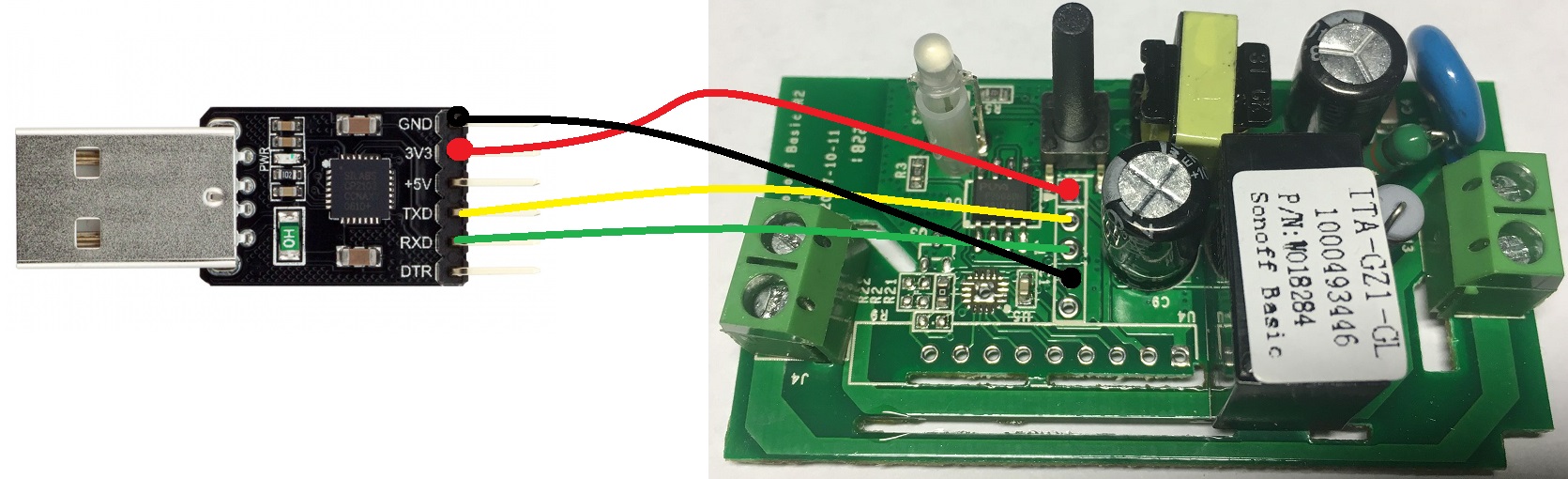
Open Sonofff case and connect USB to TTL converter using jumper wires to Sonoff board like it is presented on picture below
Upload this firmware from Arduino IDE to Sonoff. IMPORTANT: Hold down reset switch on Sonoff(only presented switch on the board) while connecting USB to your PC. This will take Sonoff board into bootloader mode and will enable uploading firmware.
STEP 4 - Wire Sonoff with your deviceBring back Sonoff into case and wire it to AC main supply or any device that you want to control, in my case it was lamp. WARNING: you will face HIGH VOLTAGE!
NOTE: Don't connect any device that needs more power than 2.3kW. This basic Sonoff version can deliver 10A at 230V AC. Sonoff has a verison that can deliver 16A at 230V AC, so apply this calculation and be carefull!
STEP 5 - Control SonoffCreate dashboard on WolkAbout platform, add actuator widget and now you will be able to control Sonoff WiFi switch.
If Sonoff is ON than Green Led will also be ON, and in the opposite if off.
*this guide is also available in GiHub repo README.
Conclusionvoilà


Comments