


Hardware components | ||||||
 |
| × | 1 | |||
 |
| × | 1 | |||
 |
| × | 1 | |||
 |
| × | 1 | |||
 |
| × | 1 | |||
Software apps and online services | ||||||
 |
| |||||
| ||||||
| ||||||
You want to control your lights from where you are? How do you know what technology to use? Is it going to be that Hard? Oh God! enough of these questions and I'm already scared. So BoltIot is a beautiful platform which answers all your questions in simpler manner. Now, imagine you are relaxing on your bed and now you want to switch off the lights.Let's say the switch board is too far from you and you don't want to move from your place.So instead of getting down from the bed and switching off the light, this platform helps you to switch off with the help of your voice...Sounds pretty cool right. So, the main objective here is controlling home appliances with your mobile device. With the help of this voice controlled system you can control your home appliances from anywhere around the world..Building of this project is very simple.Now, lets see the overview of the procedure..
Working Vedio of Controlling of LED's using Google Assistant:
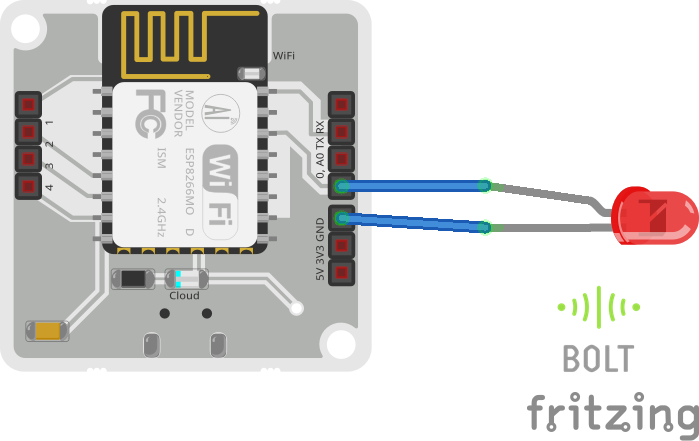
HARDWARECONNECTIONS:
step 1 : Take one leg of resistor and wrap it around the longer leg of LED i.e, positive leg.
step 2: Insert the negative leg of LED into ground pin of Bolt.
step 3 :Insert other leg of resistor in digital pin 0 of Bolt.
step 4: With the help of USB cable connect wifi module to laptop or plug board.
API_KEY and DEVICE_ID:Login to your bolt cloud account. You can find your DEVICE_ID on Dashboard. For collecting API Key switch to API tab on the cloud.Now it will look like this.
Click on the clipboard button to copy the API_KEY. Note the API_KEY and DEVICE_ID values for further use.
GPIO Control Command:Led is an output device.It shows the output in the form of light.
The structure of the command is:
https://cloud.boltiot.com/remote/API_KEY/digitalWrite?pin=PIN_NUMBER&state=HIGH/LOW&deviceName=DEVICE_ID
Using this command we can either switch on/off the light.
Replace API_KEY with api_key value in bolt cloud.Replace PIN_NUMBER by number to which digital pin you have connected the end of resistor. If you want the device to be On then keep the state of the device as HIGH in the command else set it to LOW. Replace the DEVICE_ID with the device_id available on your Bolt cloud.
Using IFTTT creating an Applet that combines Google Assistant and WebHooks:Go to IFTTT on web and login via Gmail or Facebook or Create a new account.
Click on create button to create a new applet.
Click on +This to create a trigger.
Choose Google Assistant and select, Say a Simple Phrase
After filling the details then click on Trigger button.
Now click on +that button to trigger
After that select Webhooks and make a web request
Enter the command that is mentioned in step 3.Method will be GET.Content type will be Application/json.
Click on create action button present below.
Finally click on the finish button present in the last step.
Similarly create a new applet to make the light off.The process is almost similar to that. Here you will change the state to LOW i.e. state=LOW in your code.Also, add a suitable phrase to switch off the LED.
That's it...Now you have done.You can see two applets on ITFFF.
Now wake your Android phone by saying "OK Google" and say the phrase you had set while creating the trigger to see the magic happen.


Comments