



Hardware components | ||||||
 |
| × | 1 | |||
 |
| × | 1 | |||
 |
| × | 1 | |||
Software apps and online services | ||||||
 |
| |||||
| ||||||
| ||||||
Story:
1.Introduction:
This project is about controlling the light with your own voice using google assistant. Many times we may fail to turn off the lights, we can now off the lights or any appliances using this project by just saying "ok google, turn off the lights" and also on the lights by saying "ok google, turn on the lights".
2.Steps for building the project:
step 1:Hardware Connections:
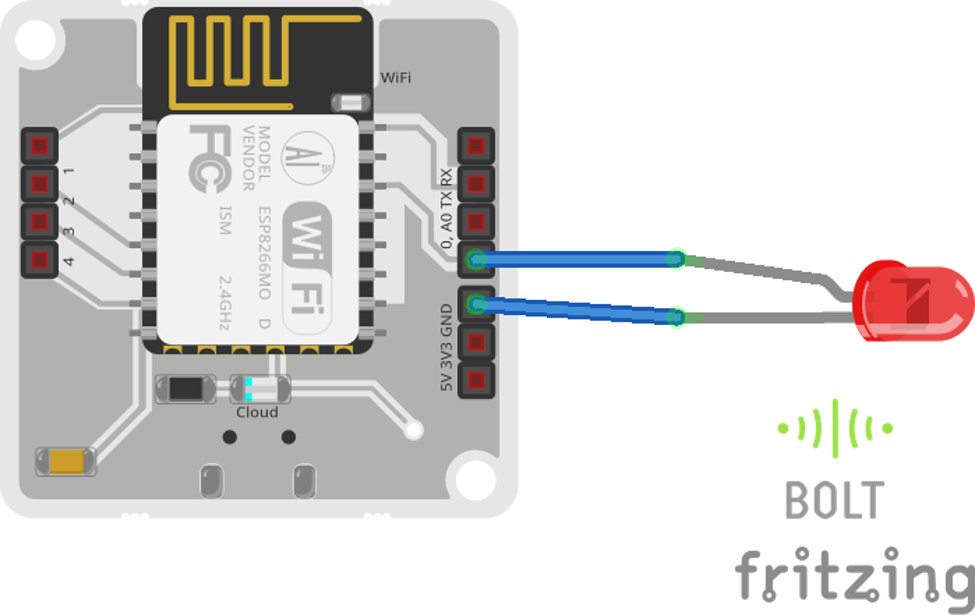
Plug the longer end of the LED in the pin 0 of Bolt wifi module and shorter end to the ground pin (GND), and power on the Bolt WIFI.
step 2:Make a note of the Bolt API key and device id:
You can find the API key in https://cloud.boltiot.com/ -> API
You can find the device id in https://cloud.boltiot.com/ -> Devices
step 3:Create the GPIO control command:
Since LED is a digital output device, we will need to get a Digital Write command that can be sent to Bolt over the Internet to switch on the LED.
The structure of the command is:
https://cloud.boltiot.com/remote/API_KEY/digitalWrite?pin=PIN_NUMBER&state=HIGH/LOW&deviceName=DEVICE_ID
The parameters that you need to replace are:API_KEY: You can get it from API tab on cloud dashboard.PIN_NUMBER: Pin to which you have connected the LED. Values can be either 0, 1, 2, 3 or 4HIGH/LOW: This value indicates if you want to turn on/off the LED. HIGH will turn it on, LOW will turn it off.DEVICE_ID: The id of your device. You can get it from cloud dashboard.
The sample command to turn the led ON connected to device having ID BOLTXXXXXXXX to PIN 0 is:
step 4:IFTTT integration using Google Assistant and WebHooks:
Go to IFTTT and sign up with google.
Click on '+This' to create the trigger.
Choose Google Assistant -> Say Specific Phrase
Type the phrase you want to trigger the action. Make sure to specify the trigger command in different ways for example I used
a) Turn the lights on
b) Turn on the lights
c) Lights on please
Click on 'Create Trigger'
Click on '+That'
Select Webhooks and then Make a web request.
Enter the API URL you got in the previous Step. Make sure that you change the API Key and device name.
Method will be GET
Content type will be Application/json
Here is how your screen will look like
Click on 'Create Action' and then Click on 'Finish'
Stepsto turn OFF the LED
Now do the same process for a command to switch of the LED. Here you will change the state to LOW i.e. state=LOW in your code. Here is a sample of the code. Also, add a suitable phrase to switch off the LED.
Now wake your Android phone by saying "OK Google" and say the phrase you had set while creating the trigger to see the magic happen.


Comments