



Hardware components | ||||||
 |
| × | 1 | |||
 |
| × | 1 | |||
 |
| × | 1 | |||
 |
| × | 1 | |||
Software apps and online services | ||||||
 |
| |||||
 |
| |||||
| ||||||
| ||||||
In this generation, People are too busy in their work even they forget to turn OFF the light before going to bed. Think about the scenario when one of your sibling forget to turn OFF the light and by mistakely Parents Scold you. This make us feel bad, Right.!
Now we overcome this problem using "Automatic Light Detection And SMS Alert System". This System sends an alert to user if someone turn OFF or ON the lights. Sounds Good.., Let's get started..!
Follow these Steps for building this Projects Easily:-
Step 1: Login in Bolt Cloud
Step 2: Login to your Ubuntu Server
- For Window User :-- Create Free Account on Digital Ocean (you can create digital ocean account here https://www.digitalocean.com/)
- Now click on Create button and choose the 64-bit Ubuntu 16.04.6.
- Choose Data Centre Region as nearest to you.
Note: Digital Ocean will Charge According to your plan. You can deactivate the Account if It is not usable.
Step 3: Create Free Account on Twilio
- Twilio is a third-party SMS functionality provider. Fill up the necessary details in Sign-up form and create account.
- Choose language as python,
- Which product would you want to use :- SMS
- What are you Building:-Account Notification
- Verify your mobile number and clicks on Product and choose two checkboxes for Programmable SMS and Phone numbers
- Give name to your project, now your project created.click on project to see accounts information. you see Account Sid And Auth Tocken as shown in picture, Copy that for further references.
Step 4: Installation of Putty
- Putty is an SSH and telnet client, developed originally by Simon Tatham for the Windows platform. Putty is open source software that is available with source code and is developed and supported by a group of volunteers. You can download Putty here.(https://www.putty.org/)
- Now Copy IP address of your Ubuntu Server (You'll find on Digital Ocean Dashnoard)
- Open Putty and Paste that IP address and Open.
- Login to Your Ubuntu Server Using Id And Password (Digital Ocean ID And Password). You'll See a Dis[play like this picture shown below:-
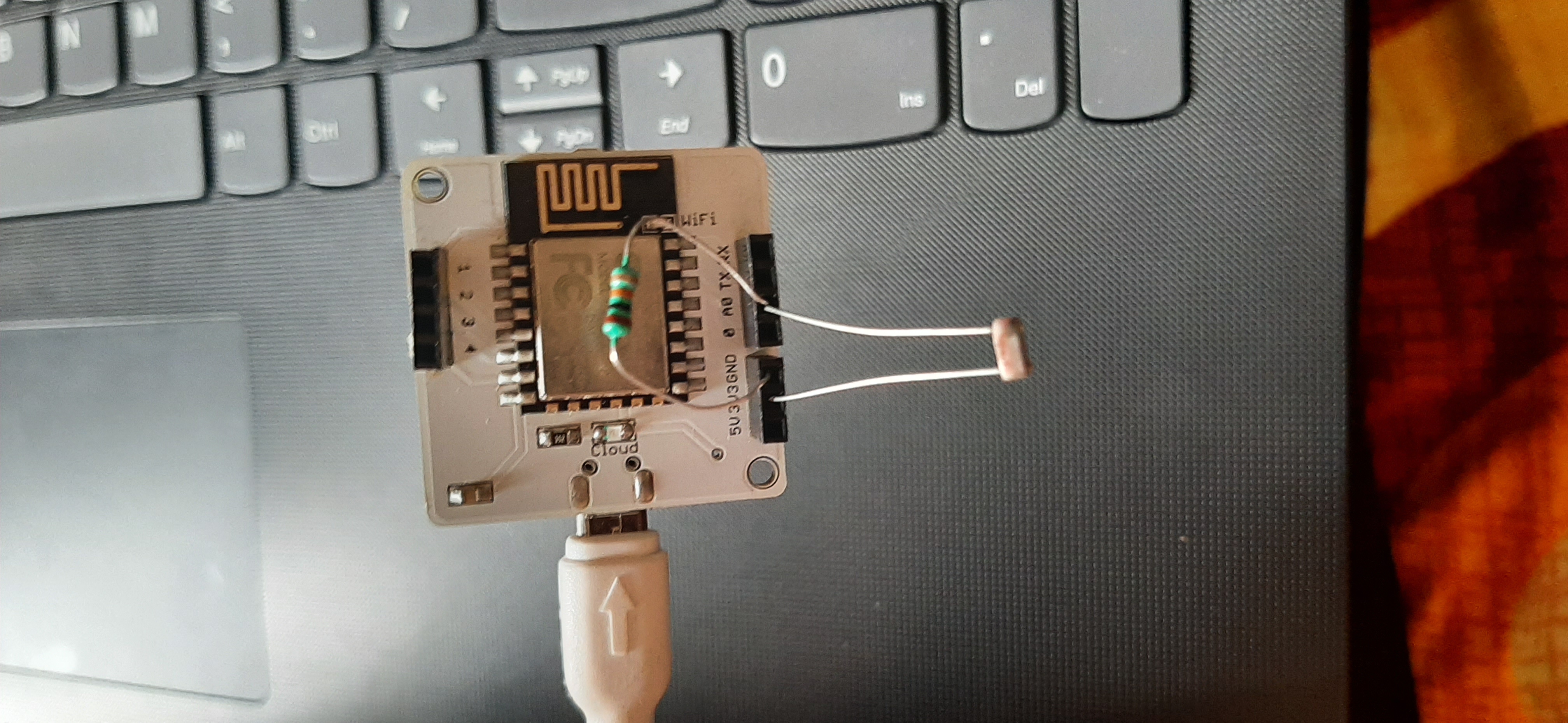
Step 5: Hardware Connection (You'll find on Schematics Diagram)
- Connect one pin of LDR to Analog Pin of Bolt Wifi Module and another pin to 3v3 pin.
- Connect One leg of 10k ohm Register to Gnd pin and other leg to A0 pin.
- Hurry We completing the Hardware Connection. Now All we have to do is writing Code.
- Step 6: Login to Ubuntu Server as followed by Step 4. Follow These Steps one by one:--
- Make directory named Light_Detection and make a file named conf.py in this folder. To do so write following command.
mkdir Light_Detection
sudo nano conf.py- After executing above command. you'll redirected to new window.
- Write Following Command
SSID = 'You can find SSID in your Twilio Dashboard'
AUTH_TOKEN = 'You can find  on your Twilio Dashboard'
FROM_NUMBER = 'This is the no. generated by Twilio. You can find this on your Twilio Dashboard'
TO_NUMBER = 'This is your number. Make sure you are adding +91 in beginning'
API_KEY = 'This is your Bolt Cloud account API key'
DEVICE_ID = 'This is the ID of your Bolt device'
FRAME_SIZE = 10
MUL_FACTOR = 6- Write Details Accordingly and save it by ctrl + X and the Y.
- Make another file named light_detection.py
- Paste the code provided in Code section and Save it (You can save By Ctrl + X)
Step 6: Power Up your Bolt and Run light_detection.py file by following Command
sudo python3 light_detection.py- Its Collects 10 data of Surrounding Intensity present in the room. The message you see as showin in figure below
- After 10 data you'll see the value currently present in the room If you slowly move light near LDR nothing will happen, similarly when you move far away from LDR nothing Will Show up. It's Like Normal for Bolt.
- But When Something anomaly is happening in Data means suddenly changing of light intensity the you'll get a sms alert "Someone Turn OFF or ON the lights"
- That's It.. Now You're Ready to Rock...!
Output : Output is show in figure below:--
So as you see, In simple steps You'll made a Automatic Light Detection And SMS Alert System.
This is Overview Of Project that how it should work.


Comments