


Hardware components | ||||||
 |
| × | 1 | |||
1. When using a Raspberry Pi, you need to issue text commands in a Terminal.
2. You want to copy a file using a Terminal session.
3. You need to rename a file by using a Terminal session
4. You want to run an editor from the command line to change a config file.
5. You want to view the contents of a small file without editing it.
6. You want to create a one-line file without having to use an editor.
7. You want to create a new directory by using the Terminal.
8. You want to delete a file or directory using the Terminal.
All Solution Terminal raspberry pi Step by step
Solution-1 Starting a Terminal Session :
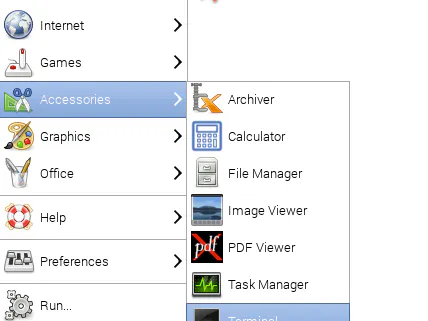
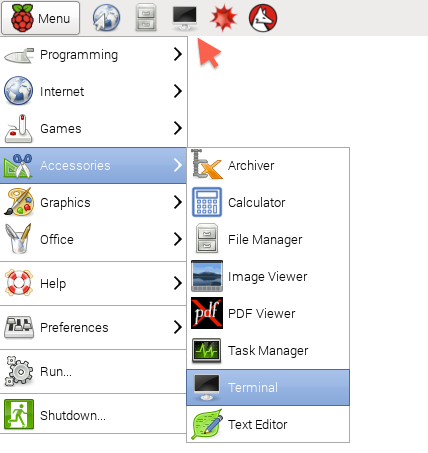
Select the LX Terminal icon at the top of the Raspberry Pi Desktop, or select the Terminal menu option on the Start menu in the Accessories group
When the LX Terminal starts, it is set to your home directory (/home/pi). You can open as many Terminal sessions as you want. It is often useful to have a couple of sessions open in different directories so that you don’t have to constantly switch directories using cd
Solution-2 Copying a File or Folder:
You can copy files by using the File Manager and its copy and paste menu options The simplest example of copying in a Terminal session is to make a copy of a file within your working directory. The cp command is followed first by the file to copy, and then by the name to be given to the new file.
For example, the following example creates a file called myfile.txt and then makes a copy of it with the name myfile2.txt. You can find out more about the trick of creating a file using the > command
$ echo "hello" > myfile.txt
$ ls
myfile.txt
$ cp myfile.txt myfile2.txt
$ ls
myfile.txt myfile2.txt
Although in this example, both file paths are local to the current working directory, the file paths can be anywhere in the filesystem where you have to write access. The following example copies the original file to an area /tmp, which is a location for temporary files. Do not put anything important in that folder.
$ cp myfile.txt /tmpNote that in this case, the name to be given to the new file is not specified, just the directory where it is to go. This will create a copy of myfile.txt in /tmp with the same name of myfile.tmp. Sometimes, rather than copying just one file, you may want to copy a whole directory full of files and possibly other directories. To copy such a
directory, you need to use the -r option (for recursive). This will copy the directory and all its contents
$ cp -r mydirectory mydirectory2Whenever you are copying files or folders, if you do not have permission, the result of the command will tell you that. You will need to either change the permissions of the folder into which you are copying or copy the files with superuser privileges
Solution-3 Renaming a File or Folder:
Use the mv command to rename files and directories. The mv (move) command is used in a similar way to the cp command, except that the file or folder being moved is simply renamed rather than a duplicate being made. For example, to simply rename a file from my_file.txt to my_file.rtf, you use
$ mv my_file.txt my_file.rtfthe command:
Changing a directory name is just as straightforward, and you don’t need the recursive -r option you used when copying because changing a directory’s name implicitly means that everything within it is contained in a renamed directory.
Solution-4 Editing a File:
Use the editor nano included with most Raspberry Pi distributions. To use nano, simply type the command nano followed by the name or path to the file that you want to edit. If the file does not exist, it will be created when you save it from the editor.
However, this will only happen if you have to write permissions in the directory where you are trying to write the file. From your home directory, type the command nano my_file.txt to edit or
create the file nano my_file.txt. Figure 3-4 shows the nano in action.
You cannot use the mouse to position the cursor; use the arrow keys instead. The area at the bottom of the screen lists a number of commands that you access by holding down the Ctrl key and pressing the letter indicated. Most of these are not that useful. The ones that you are likely to use most of the time are:
Ctrl-X
Exit. You will be prompted to save the file before nano exits.
Ctrl-V
Next page. Think of it as an arrow pointing downward. This allows you to move through a large file one screen at a time.
Ctrl-Y
Previous page.
Ctrl-W
Where is? This allows you to search for a piece of text. There are also some fairly crude cut-and-paste type options there, but in practice, it’s easier to use the normal clipboard from the menu that you access with a right-click.
Using this clipboard also allows you to copy and paste text between other
windows such as your browser. When you’re ready to save your changes to the file and exit nano, use the command Ctrl-X. Type Y to confirm that you want to save the file. nano then displays the filename as the default name to save the file under. Press
Enter to save and exit. If you want to abandon changes you have made, enter N in place of Y.
Solution-5: Viewing the Contents of a File:
Use the cat or more commands to view the file. For example:
$ more myfile.txtThis file contains some text
The cat command displays the whole contents of the file, even if it is longer than will fit on the screen. The more command just displays one screen of text at a time. Press the
space bar to display the next screen.
Solution-6: Creating a File Without Using an Editor
Use the > and echo commands to redirect what you type on the command-line to a file.
For example:
$ echo "file contents here" > test.txt
$ more test.txt
file contents here
Solution-7 Creating a Directory:
The mkdir command will create a new directory. To create a directory, use the mkdir command. Try out the following example:
$ cd ~
$ mkdir my_directory
$ cd my_directory
$ ls
You need to have write permission in the directory within which you are
trying to create the new directory.
Solution-8 Deleting a File or Directory:
The rm (remove) command will delete a file or directory and its contents. It
should be used with extreme caution.
Deleting a single file is simple and safe. The following example will delete
the file my_file.txt from the home directory:
$ cd ~
$ rm my_file.txt
$ ls
You need to have write permission in the directory within which you are
trying to carry out the deletion.
You can also use the * wildcard when deleting files. This example will
delete all the files starting with my_file. in the current directory:
$ rm my_file.*You could also delete all the files in the directory by typing:
$ rm *If you want to recursively delete a directory and all its contents, including
any directories that it contains, you can use the -r option:
$ rm -r mydirReference book
2.Wireless keyboard and mouse
3. Raspberry Pi 7″ Touch Screen Display
4. Raspberry Pi 4 b Power Supply
2. Programming the Raspberry Pi, Second Edition: Getting Started with Python
3.DK Workbooks: Raspberry Pi Projects
4. Raspberry Pi For Kids-Dummies
5. Raspberry Pi Electronics Projects for Evil Genius
7. Learning Computer Architecture with Raspberry Pi
8. Learning Python with Raspberry Pi
10. Programming for Beginners: Python Programming and Raspberry Pi: 2 Books in One


Comments