Renjini Jayakumar
Published © GPL3+

Control Lights using Buttons

If you like to control whole lights in your house using some buttons, then try this.

BeginnerFull instructions provided2 hours372
Control Lights using Buttons

Things used in this project

Hardware components

LED (generic)
LED (generic)
×3
Resistor 330 ohm
Resistor 330 ohm
×3
Jumper wires (generic)
×4
Bolt WiFi Module
Bolt IoT Bolt WiFi Module
×1
USB-A to Mini-USB Cable
×1
Breadboard (generic)
×1

Software apps and online services

Bolt IoT Android App
Bolt Cloud
Bolt IoT Bolt Cloud

Story

Read more

Schematics

Step 1:

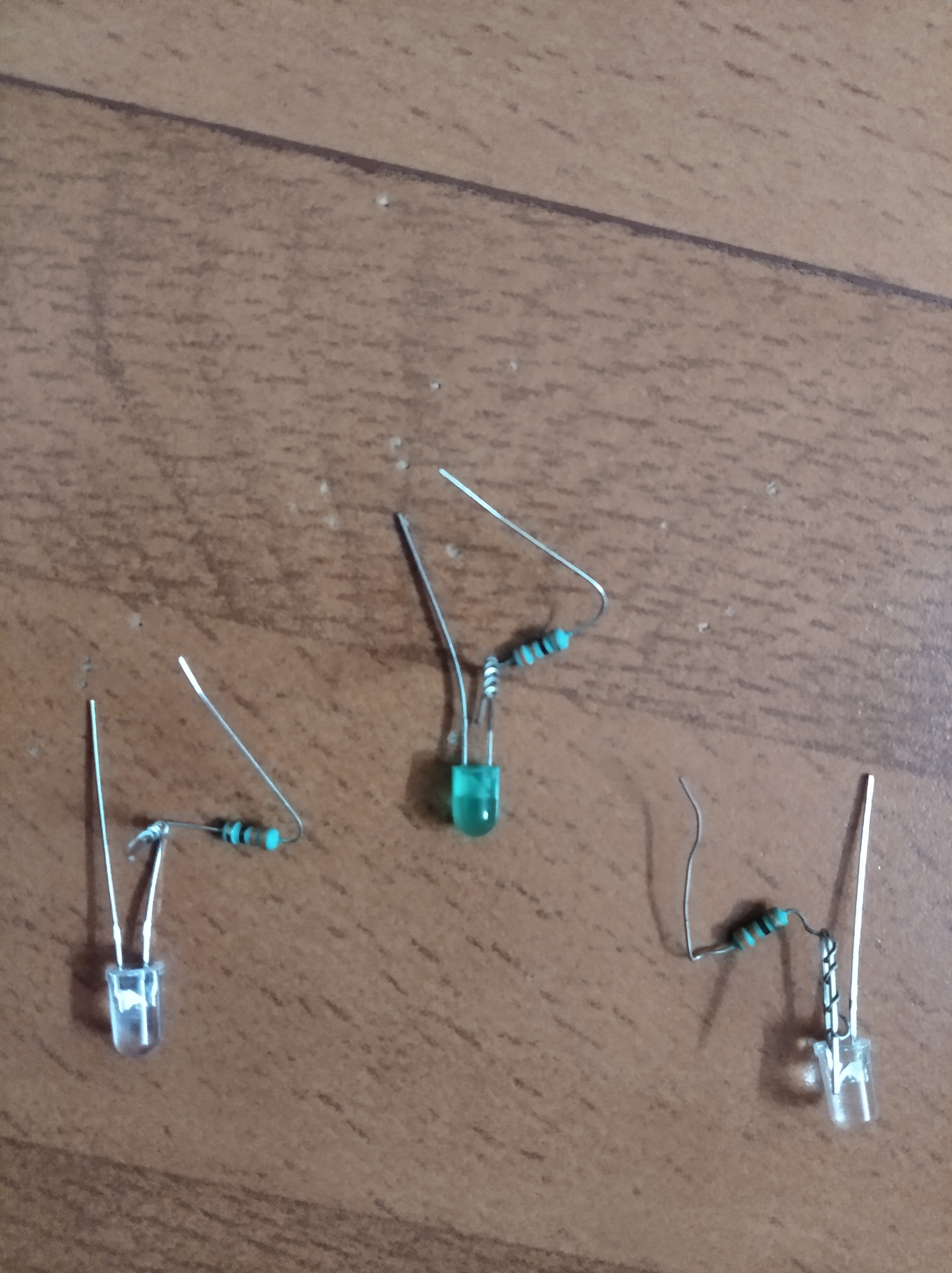
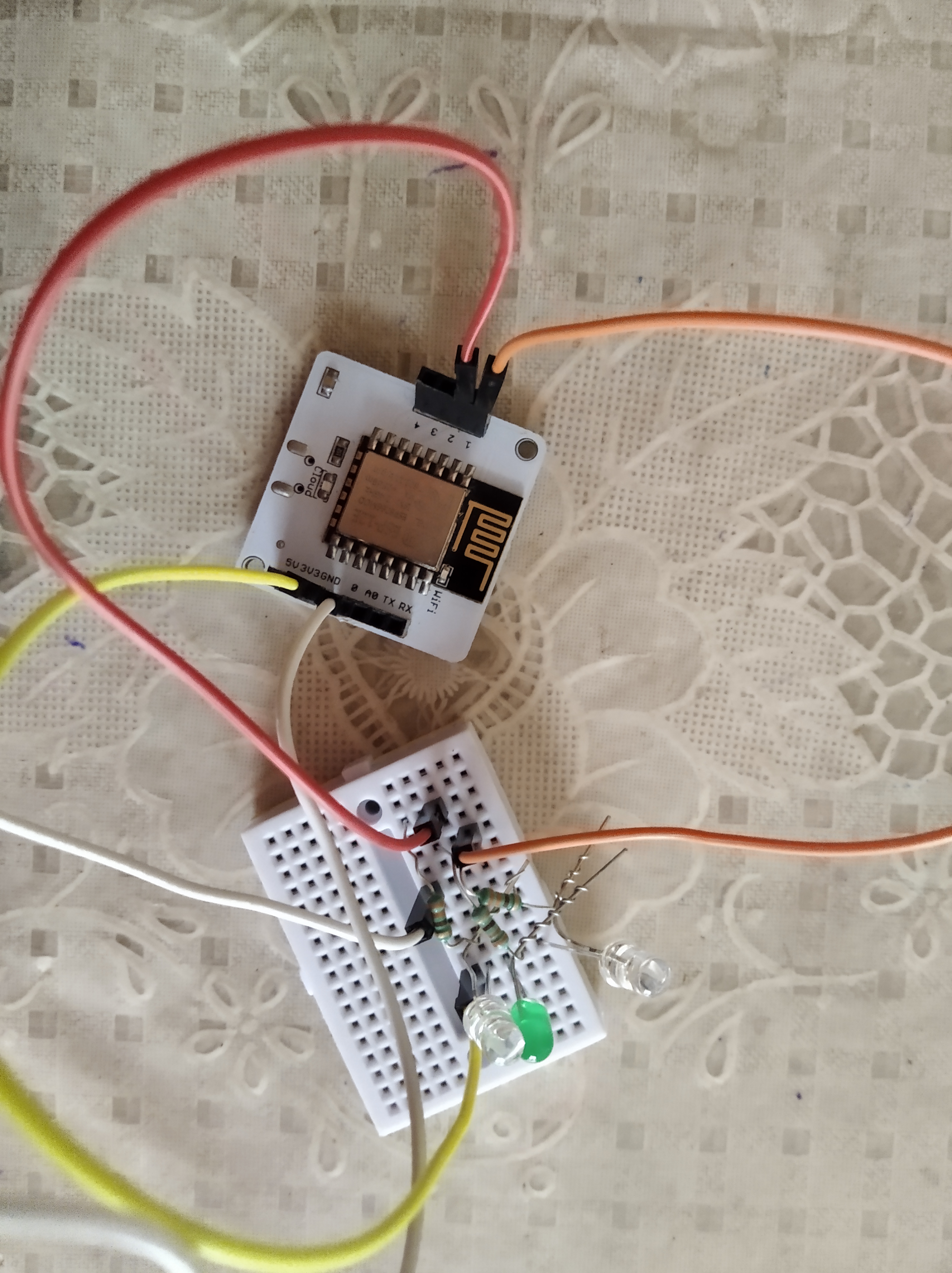
Take three LED s and wrap the longer leg of each LED with 330 ohms resistor as shown below.

Step 2:

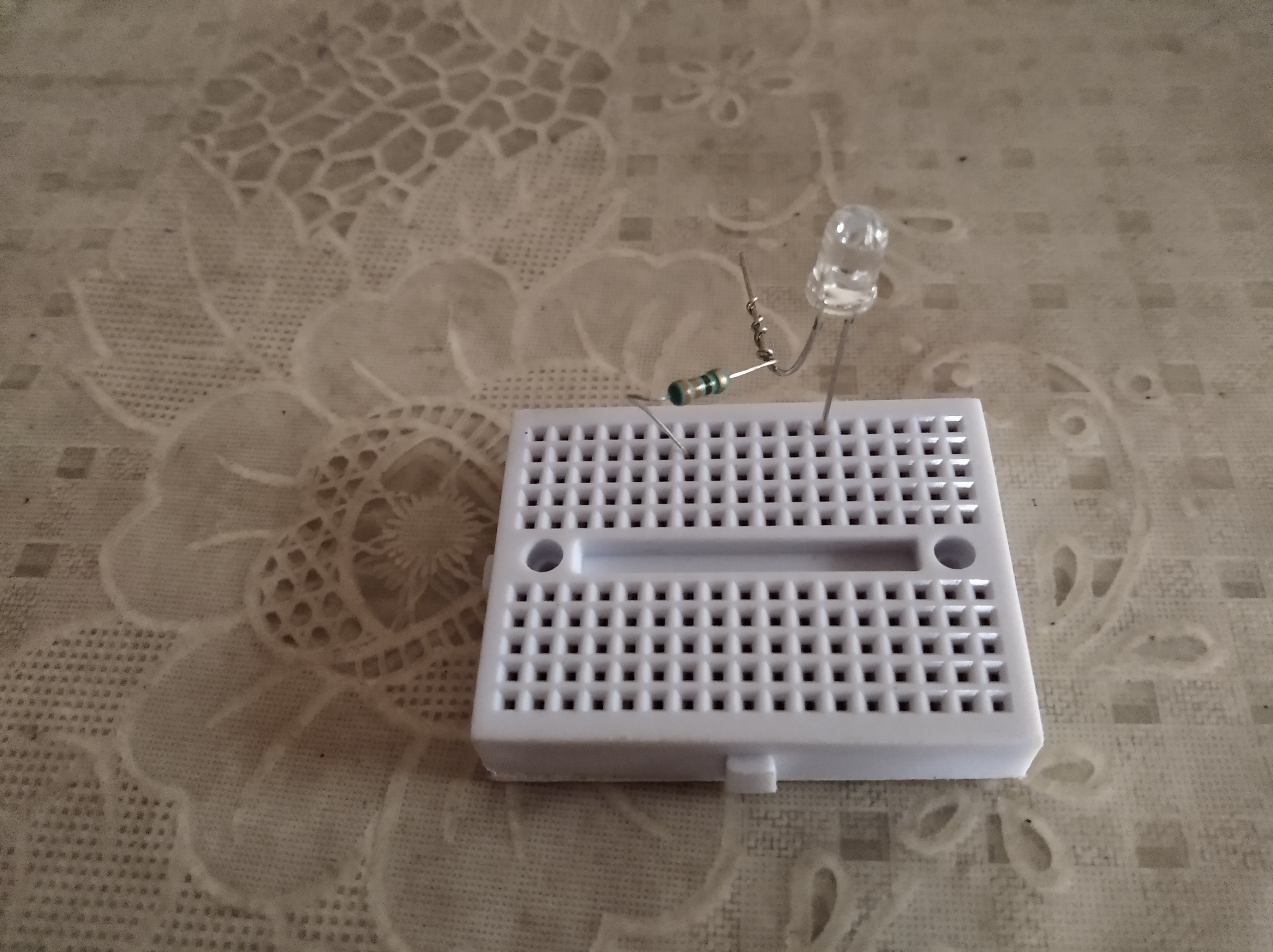
Connect the shorter leg of LED and The other leg of resistor to the breadboard and leave the wrapped legs free.

Step 3:

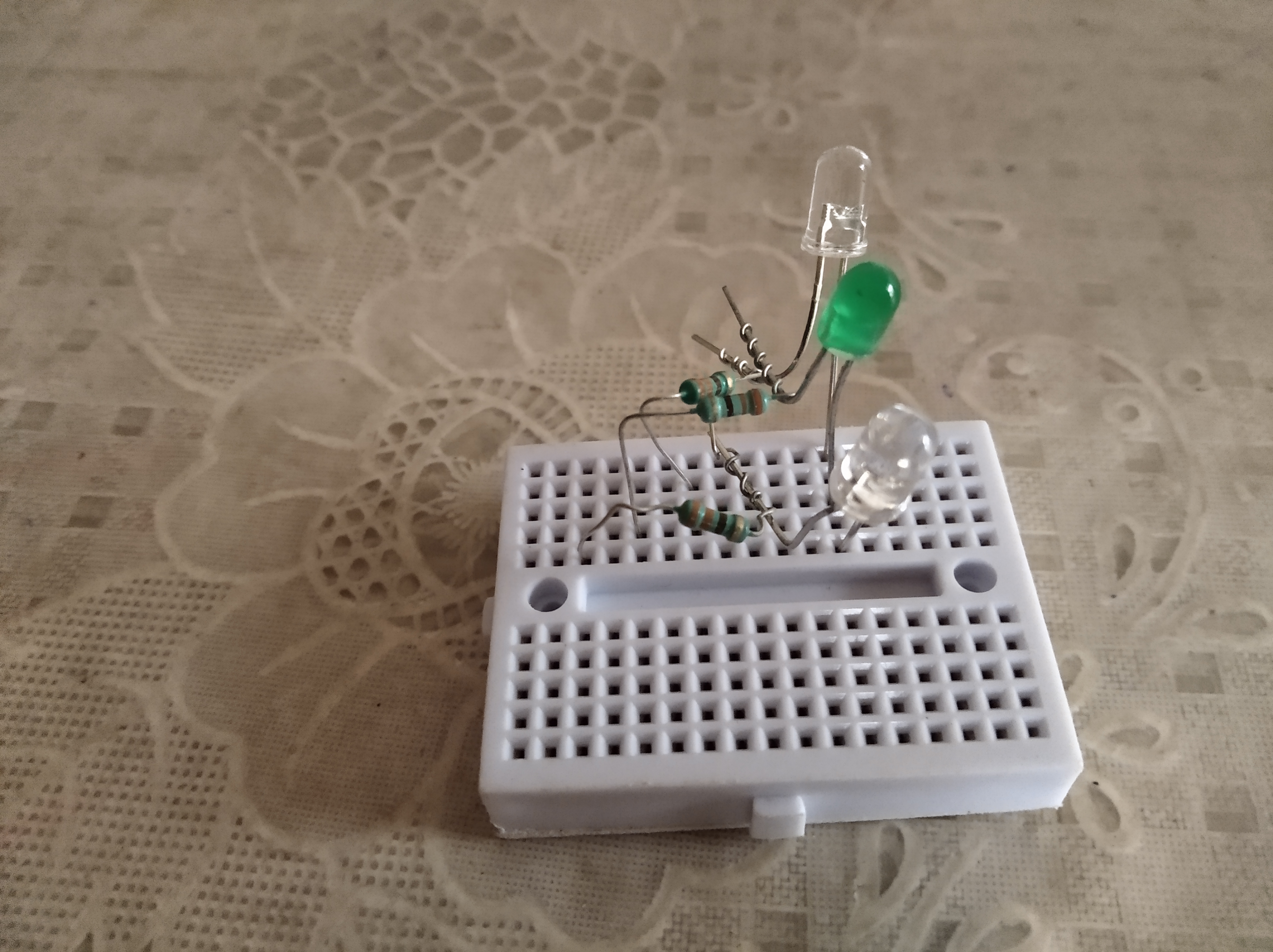
Connect rest two LED s in the breadboard in such a way that the shorter LED legs are in the same line vertically and connect the legs of corresponding resistors in separate rows.

Step 4:

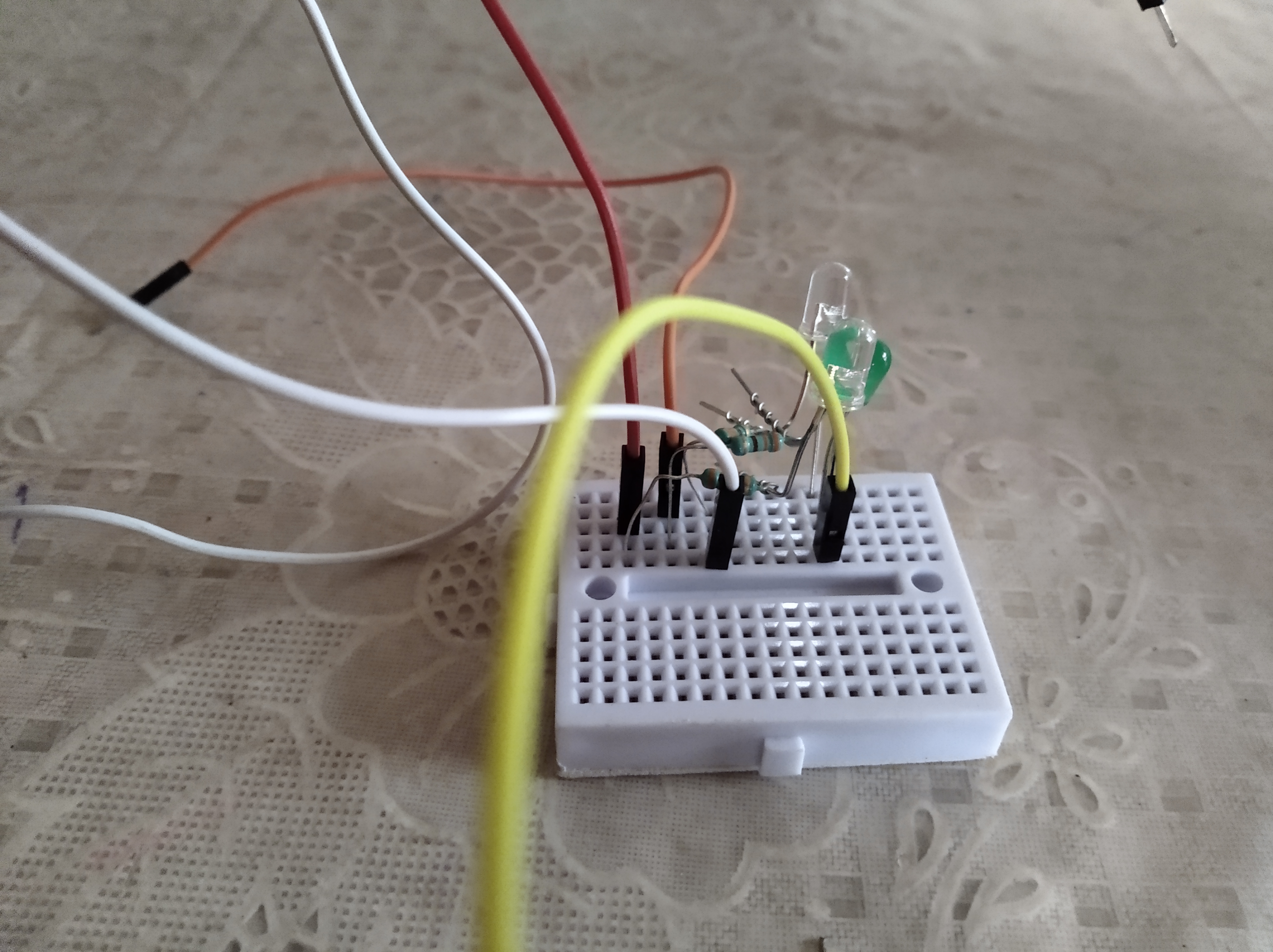
Connect male to male jumper wires in such a way that only one wire is connected vertically along with the LED s and the three resistors are connected to separate wires each as shown in figure.

Step 5:

Connect each wires to ground (gnd) pin, GPIO pins like 0, 1, 2 of Bolt wifi module as shown in figure.

Step 6:

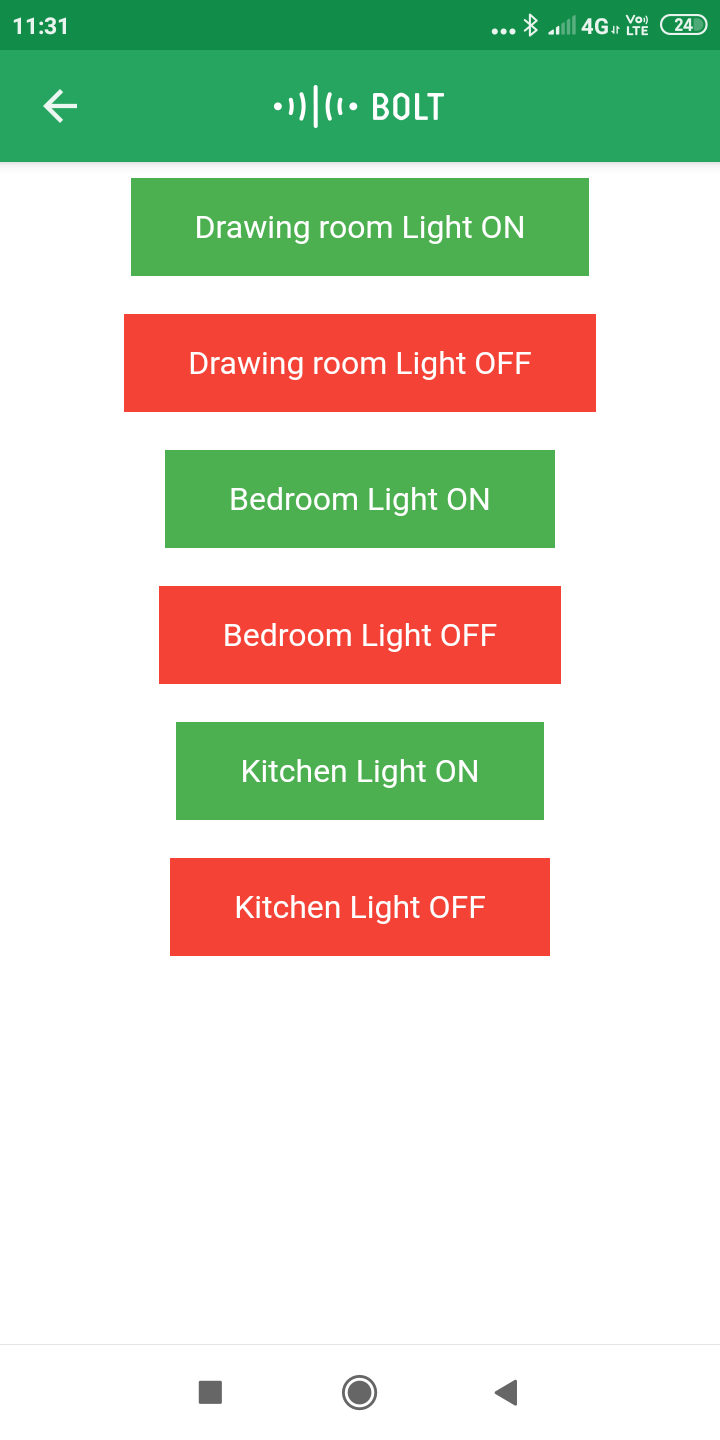
Connect the bolt device to the supply and after writing the code which is explained in the code section in the bolt cloud, just view the device page in the Dashboard. The view will be similar to the below given image.

Step 7:

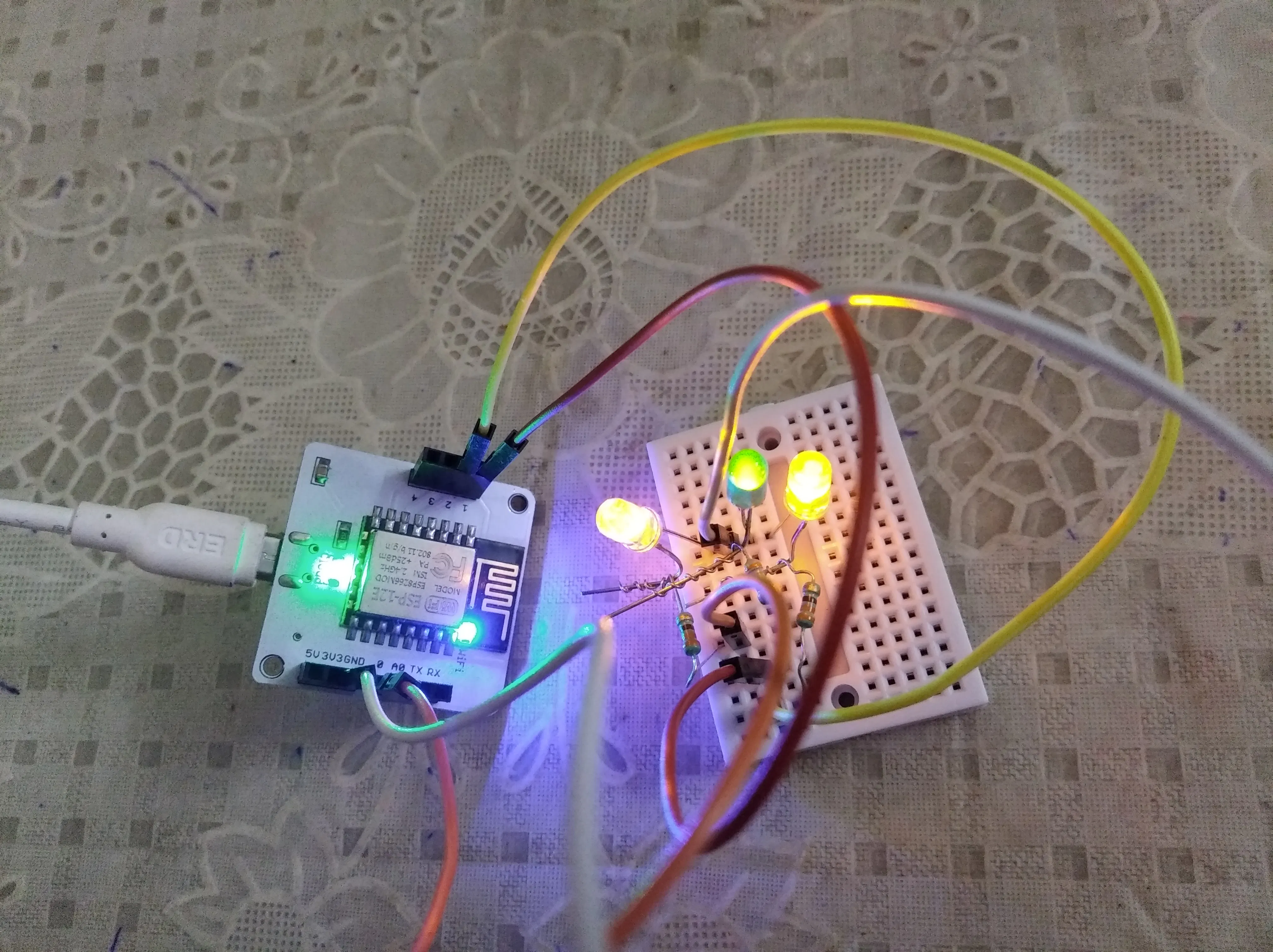
While Clicking the buttons which we have created, the outputs will be similar to below image.

Code

html code

HTML
The code is written in the bolt cloud platform. In the head tag we are introducing the script tag and inside it we will be setting the type as javascript text and we need to insert our own API key and Device name inside the script tag. Inside the style tag which is also written inside the head tag , we will be setting the features of buttons using CSS. Then inside body tag, we will be adding functions of each buttons using the inbuilt function like digitalWrite. Inside the digitalWrite function, the first parameter is the GpIO pin number where the one resistor is connected. Next parameter is the HIGH or LOW of the corresponding LED. Like this the rest code goes for rest two LED s and corresponding resistors.
<html>
    <head>
        <title>Bolt IoT Platform</title>
        <script type = "text/javascript" src = "https://cloud.boltiot.com/static/js/boltCommands.js"></script>
        <script type = "text/javascript">setKey('{{ApiKey}}','{{Name}}');</script>
        <style>
        .button{
            background-color:#4CAF50;
            border:none;
            color:white;
            padding:15px 32px;
            text-align:center;
            text-decoration:none;
            display:inline-block;
            font-size:16px;
        }
        .button2{background-color:#f44336;}
        .button3{background-color:#4CAF50;}
        .button4{background-color:#f44336;}
        .button5{background-color:#4CAF50;}
        .button6{background-color:#f44336;}
        </style>
    </head>
    <body>
        <center>
         <button class = "button" onclick = "digitalWrite(0,'HIGH');">Drawing room Light ON</button><br><br>
         <button class = "button button2" onclick = "digitalWrite(0,'LOW');">Drawing room Light OFF</button><br><br>
         <button class = "button button3" onclick = "digitalWrite(1,'HIGH');">Bedroom Light ON</button><br><br>
         <button class = "button button4" onclick = "digitalWrite(1,'LOW');">Bedroom Light OFF</button><br><br>
         <button class = "button button5" onclick = "digitalWrite(2,'HIGH');">Kitchen Light ON</button><br><br>
         <button class = "button button6" onclick = "digitalWrite(2,'LOW');">Kitchen Light OFF</button>
        </center>
    </body>
</html>    

Credits

Renjini Jayakumar
1 project • 0 followers

Comments