


Software apps and online services | ||||||
 |
| |||||
 |
| |||||
Advancements in cryptanalysis and hacking techniques are constantly reducing the cost of accessing your data without your authorization, making it easier and more attractive for different sides to get it.
I’m not going to get into details about the motivation of each side and the goals they’re trying to achieve by obtaining your data. Instead, I would like to focus on the solution to that problem.
In my opinion, the only way to keep your data private is to raise the cost of unauthorized access to it as high as possible. Ideally — raise it so high that it would significantly outweigh any potential reward for the third party.
To raise the cost of unauthorized access to your data — I’ve developed Midbar.
Midbar is a hardware data vault. Unlike hardware authentication devices, it can store your login credentials, credit card information, notes, and phone numbers. Midbar encrypts your data and requires a master password and, in some cases, four additional RFID cards to access it. With Midbar, you don’t have to worry about memorizing the login credentials and credit card information for the services you use. It does that for you.
Compared to software vaults, Midbar provides more security because it does not have thousands of other processes running alongside it, significantly contributing to making it almost invulnerable to side-channel attacks. Additionally, Midbar utilizes sophisticated integrity verification and superencryption features.
The integrity verification feature ensures that any corruption or unauthorized modification of your data will not go unnoticed. Superencryption is a safeguard that would be useful in case a highly improbable black swan event renders one of the major encryption algorithms (AES or Serpent) insecure. Even after such an event, your data would still be encrypted with one secure and two “somewhat semi-secure” encryption algorithms, providing an extra layer of protection.
As for why this project is called Midbar — Midbar (מדבר) is a Hebrew word that means “pasture, ” “uninhabited land, ” “wilderness, ” “large tracts of wilderness (around cities), ” and “desert.” I had two reasons for choosing the word Midbar as the name of this project. First — while working on my previous projects, I noticed that the so-called “device that keeps your personal data secure in an encrypted form” market is pretty much a “desert around the oasis of the password manager market.” Second — I couldn’t find a better word to describe this project. At first, I wanted to call it a “Password Vault, ” but it’s more than that. So, I decided to call it Midbar.
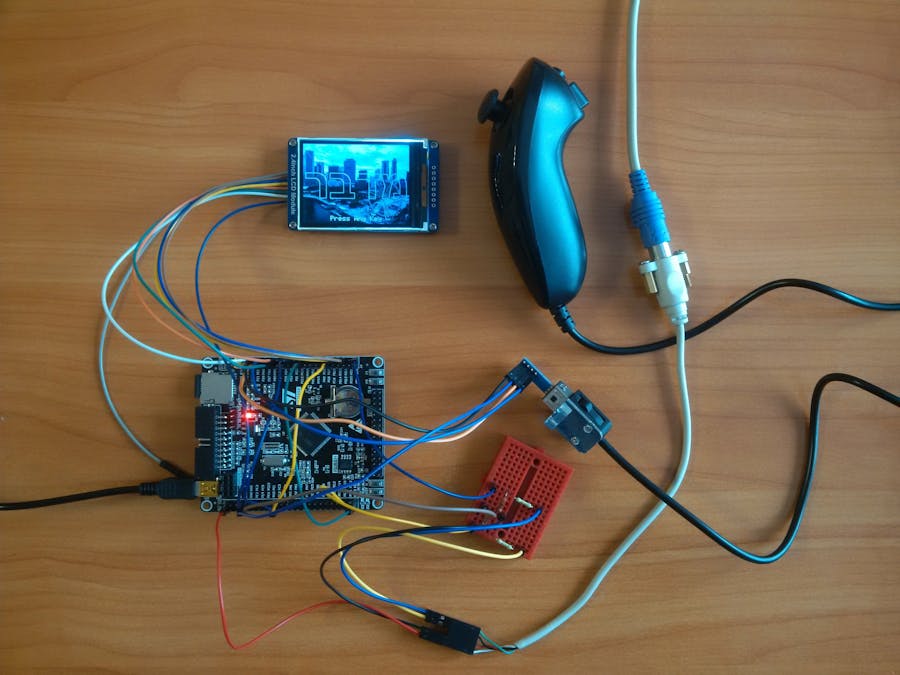
The Midbar (STM32F407VET6 Version) V2.0 is the first version of Midbar that can simultaneously handle the PS/2 keyboard and the Nintendo Wii Nunchuk.
You can also read this tutorial on Instructables and Medium.
*Attention! It’s not a beginner project. I assume you’re already familiar with the STM32F407VET6 microcontroller and know how to flash it. You can find a more beginner-friendly version of Midbar here.
Supplies- STM32F407VET6 x1
- 2.4 Inch TFT LCD with ILI9341 x1
- Micro SD Card x1
- PS/2 Keyboard x1
- PS/2 port x1
- 4.7k resistors x2
- 2.7k resistors x2
- Nintendo Wii Nunchuk x1
- WiiChuck Nunchuck Adapter (PCB Board) x1
The “3DES + AES + Blowfish + Serpent” encryption algorithm in cipher block chaining mode first appeared in the Midbar V2.5. And since then has been utilized by the Midbar (Raspberry Pi Pico Version),Midbar V3.0,Midbar V4.0,KhadashPay V2.0,Midbar (Raspberry Pi Pico Version) V2.0,KhadashPay V2.0 (Raspberry Pi Pico Version),Midbar V5.0,Midbar (STM32F401CCU6 Version),KhadashPay V3.0 (STM32F401CCU6 Version),KhadashPay V3.0,Midbar (STM32F401CCU6 + Arduino Uno Version),KhadashPay V3.5,Black Swan V2.0,Midbar (Teensy 4.1 Version),Hash Latch,Midbar (Teensy 4.1 Version) V2.0,Midbar (ESP8266 Version) V2.0,Midbar (STM32F407VET6 Version),Midbar (STM32F407VET6 + Arduino Uno Version),DIY IoT Data Vault With Google Firebase (Midbar Firebase Edition V1.0), and DIY IoT Payment System With Google Firebase (KhadashPay Firebase Edition V1.0).
Although the “3DES + AES + Blowfish + Serpent” encryption algorithm ain’t exactly what I would call “a cryptographically weak encryption algorithm, ” operating it in a weird derivation of the ECB mode, the way it was done by the Midbar V2.0 wasn’t the best idea that I had. Even though that wouldn’t’ve allowed the attacker to produce the legitimate ciphertext by swapping the blocks within the ciphertext, an attacker could still make a legitimate ciphertext by replacing the nth block of the ciphertext N1 with the nth block of the ciphertext N2. To fix that vulnerability (instead of just notifying the user that the decrypted ciphertext might’ve been forged), I made the “3DES + AES + Blowfish + Serpent” encryption algorithm work in CBC mode. So, if an attacker replaces a block of ciphertext, they spoil not just that block but also the subsequent one.
I’ll be honest with you, the bit-flipping attack “kinda works, ” but I doubt that it would ever go unnoticed because of the “HMAC-SHA256”-based integrity verification feature
And let’s not forget that this encryption algorithm performs the operation called superencryption.
As defined by NIST, superencryption is an encryption operation for which the plaintext input to be transformed is the ciphertext output of a previous encryption operation.
Such organization of the encryption algorithms makes a combined encryption algorithm that is at least as strong as the strongest one in the cascade, has a longer key, might be more resistant to some attacks, and might produce a ciphertext with higher entropy. Anyway. It won’t hurt to have an additional layer of security (or several of them).
Integrity VerificationThe Midbar (STM32F407VET6 Version) V2.0 is the sixteenth version of Midbar that verifies the integrity of the whole record. So, the legitimate ciphertexts moved between the cells aren’t much of a threat to it.
The integrity verification feature of Midbar is based on “HMAC-SHA256.” When you enter data into Midbar, it consolidates all the data into a single string, computes a tag for that string, and saves the newly computed tag in encrypted form. When you decrypt your data, Midbar also decrypts the previously saved tag and computes a new one for the decrypted data. It then compares both tags. If they don’t match — Midbar notifies you that the integrity verification failed.
Download FirmwareYou can download the firmware for Midbar from one of these sources.
SourceForge: https://sourceforge.net/projects/midbar/
GitHub: https://github.com/Northstrix/Midbar
If you just need the firmware for the device alongside the RNG, then I would advise you to download the archive that weighs roughly 2 Mb from SourceForge.
But if you need the firmware for all versions of Midbar alongside the extra code, photos, and diagrams, in that case, I would advise you to download the 292 MB archive from GitHub.
Download and Install the LibrariesAdafruit_ILI9341: https://github.com/adafruit/Adafruit_ILI9341
Adafruit-GFX-Library: https://github.com/adafruit/Adafruit-GFX-Library
Adafruit_BusIO: https://github.com/adafruit/Adafruit_BusIO
PS2KeyAdvanced: https://github.com/techpaul/PS2KeyAdvanced
PS2KeyMap: https://github.com/techpaul/PS2KeyMap
NintendoExtensionCtrl: https://github.com/dmadison/NintendoExtensionCtrl
The process of unpacking libraries is typical. You can unpack the content of the archive into the folder: …\Arduino\libraries. Or open the Arduino IDE, click to the Sketch -> Include Library -> Add.ZIP Library… and select every archive with libraries.
Other required libraries are already present in one way or another.
Generate KeysTo make the unauthorized deciphering of your data computationally infeasible — It is crucial to generate your own keys and never reuse them
It’s entirely up to you how to generate the keys. I can only offer you an option to do so.
I’ve modified one of my previous projects to work as a random number generator, the generated output seems “random enough” for me, but I haven’t run any tests. So, I can’t guarantee that it’s random.
Use it at your own risk!
To generate the keys — launch gen.exe from the “STM32F407VET6 Version\V2.0\Untested RNG” folder and click the “Generate keys for Midbar” button. The background turns from dark gray to light gray when you press that button.
Modify the FirmwareOpen the “Firmware.ino” file from the “STM32F407VET6 Version\V2.0\Firmware” folder, and then replace my keys with those you’ve generated.
You can also change the number of available slots for your data by modifying the value in the “#define MAX_NUM_OF_RECS 999” line, as well as the background color of the inactive elements by modifying the value of the “current_inact_clr” variable.
The are also two lines that you should pay attention to:
- “bool stick_up_to_add_char = true;”
- “bool c_functions_as_enter = true;”
By default, Midbar adds character to the input when you put the stick up, and deletes the character when you put the stick down. You can swap these actions if you set the value of the “stick_up_to_add_char” to false.
By default, the “C” button functions as if it was “Enter” on the keyboard, and the “Z” button functions as if was “Esc” on the keyboard. You can swap them if you set the value of the “c_functions_as_enter” to false.
Flash STM32F407VET6Upload the modified firmware from the “STM32F407VET6 Version\V2.0\Firmware” folder into STM32F407VET6.
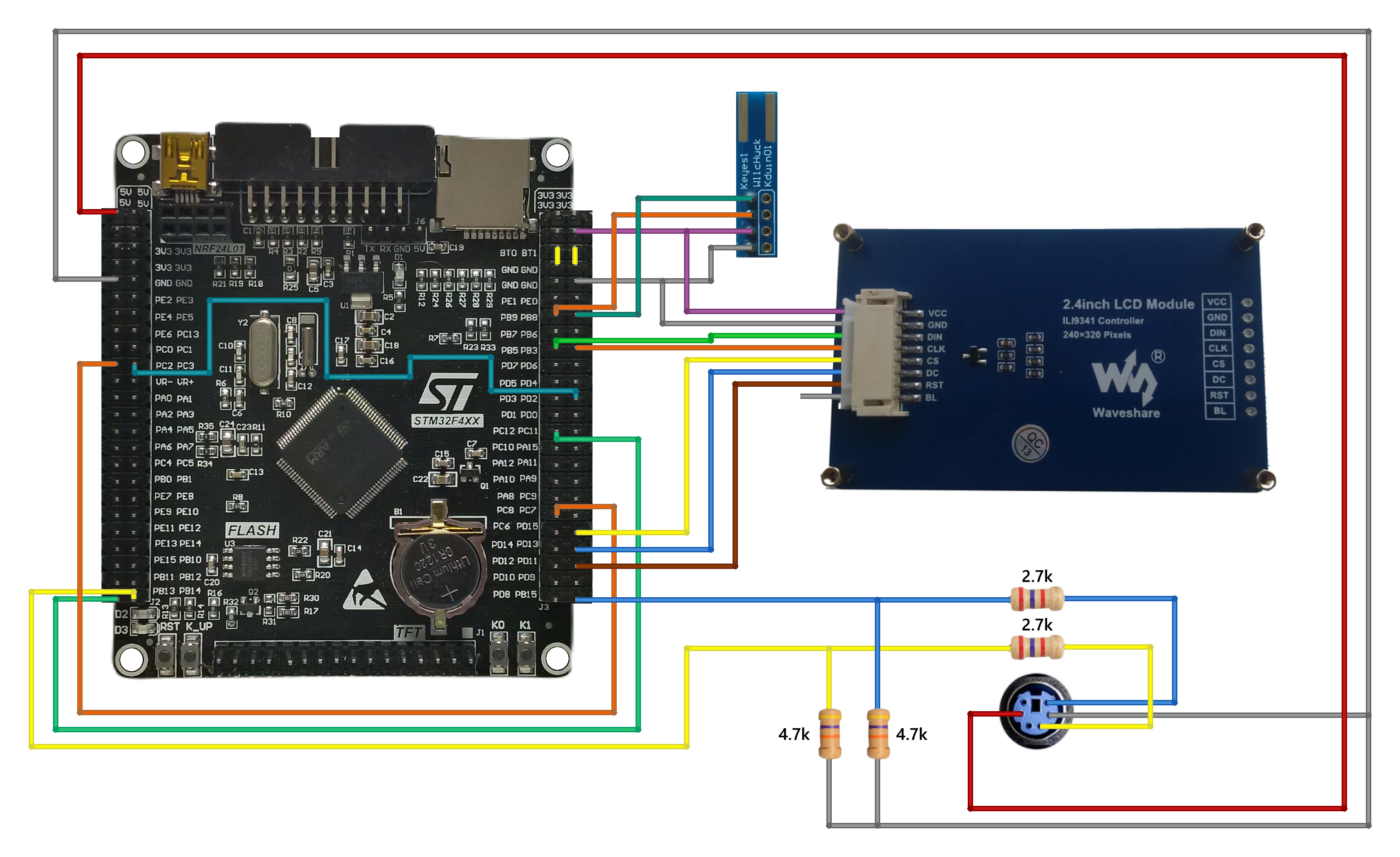
Assemble MidbarAssemble the circuit and insert a Micro SD card formatted to the FAT32 filesystem into the STM32F407VET6’s built-in SD card slot. When it comes to the “BL” pin of the ILI9341 display, different versions of the display have different requirements on what to do with it. Some versions specify that it must be connected to the +3.3V, some require it to be grounded, and others allow you to leave it unconnected.
Power the Midbar UpAfter powering the Midbar up, you should see the word “מדבר” alongside the “Press Any Key” inscription.
The Midbar (STM32F407VET6 Version) V2.0 can store up to two 320x240 lock screens in its memory.
Press any key on the PS2 keyboard or any button on the Nintendo Wii Nunchuk to get to the next tab.
*Credit for the photos:
Photo by Levi Meir Clancy on Unsplash
Photo by Wes Hicks on Unsplash
Photo by Mikhail Nilov on Pexels
Photo by Nicole Reyes on Unsplash
Photo by Javier Quiroga on Unsplash
Set Master PasswordTo use the Midbar, you first need to set the master password.
You can’t change your master password without performing the factory reset first!
Midbar won’t be able to decrypt your data without your master password because the keys for the encryption algorithms are partially derived from it. Perhaps it won’t even unlock without the correct master password.
When you’re done entering your master password, press either the “Enter” or the “ESC” key on the PS/2 keyboard.
As for the Nintendo Wii Nunchuk:
- The “C” button acts as the “Enter” key on the PS/2 keyboard.
- The “Z” button acts as the “Esc” key on the PS/2 keyboard.
- The stick acts as the arrows on the PS/2 keyboard.
So, whether I would be referring to the keys on the PS2 keyboard, note that I also refer to their Nunchuk equivalent.
After you’ve unlocked the vault and got to the main menu:
- Press the “↓” (DOWNWARDS ARROW) key on the PS/2 keyboard to go down the menu.
- Press the “↑” (UPWARDS ARROW) key on the PS/2 keyboard to go up the menu.
- Press either the “Enter” key on the PS/2 keyboard to open the selected menu.
- While in the submenu, press either the “Esc” or the “Backspace” key on the PS/2 keyboard to return to the main menu.
While entering a text in a tab:
- Press “Enter” on the PS/2 keyboard to continue.
- Press the “Esc” button on the PS/2 keyboard to cancel the current operation.
The Midbar (STM32F407VET6 Version) V2.0 utilizes the 3DES + AES + Blowfish + Serpent encryption algorithm in CBC mode with an integrity verification feature alongside the SD card to keep your data safe and organized.
To add a login:
- Select the “Logins” line in the main menu;
- Press the “Enter” key on the PS/2 keyboard;
- Select the “Add” line;
- Press the “Enter” key on the PS/2 keyboard;
- Choose the slot you want to put the login to by pressing the “←” (Leftwards Arrow) and “→” (Rightwards Arrow) keys on the PS/2 keyboard;
- Press the “Enter” key on the PS/2 keyboard;
- Enter the title;
- Press “Enter” on the PS/2 keyboard;
- Enter the username;
- Press “Enter” on the PS/2 keyboard;
- Enter the password;
- Press “Enter” on the PS/2 keyboard;
- Enter the website;
- Press “Enter” on the PS/2 keyboard.
*All credentials demonstrated here are entirely fictitious. Any similarity to actual credentials is purely coincidental.
View LoginTo view a login:
- Select the “Logins” line in the main menu;
- Press the “Enter” key on the PS/2 keyboard;
- Select the “View” line;
- Press the “Enter” key on the PS/2 keyboard;
- Choose the slot from which you want to view the login by pressing the “←” (Leftwards Arrow) and “→” (Rightwards Arrow) keys on the PS/2 keyboard;
- Press the “Enter” key on the PS/2 keyboard;
- Press the “↑” (Upwards Arrow) key on the PS/2 keyboard or pull the stick on the Nintendo Wii Nunchuck up to print the record to the serial terminal.
*All credentials demonstrated here are entirely fictitious. Any similarity to actual credentials is purely coincidental.
Edit LoginTo edit a login:
- Select the “Logins” line in the main menu;
- Press the “Enter” key on the PS/2 keyboard;
- Select the “Edit” line;
- Press the “Enter” key on the PS/2 keyboard;
- Select the login you would like to edit by pressing the “←” (Leftwards Arrow) and “→” (Rightwards Arrow) keys on the PS/2 keyboard;
- Press the “Enter” key on the PS/2 keyboard;
- Enter the new password;
- Press “Enter” on the PS/2 keyboard.
*All credentials demonstrated here are entirely fictitious. Any similarity to actual credentials is purely coincidental.
Delete LoginTo delete a login:
- Select the “Logins” line;
- Press the “Enter” key on the PS/2 keyboard;
- Select the “Delete” line;
- Press the “Enter” key on the PS/2 keyboard;
- Select the login you would like to delete either by pressing the “←” (Leftwards Arrow) and “→” (Rightwards Arrow) keys on the PS/2 keyboard;
- Press the “Enter” key on the PS/2 keyboard.
The process of working with records of other types is very similar to the process of working with logins.
Hash StringThe Midbar utilizes two hash functions: SHA-256 and SHA-512.
If you’re not familiar with the hash functions, let me give you a simple explanation of what the hash function is.
A hash function is a mathematical function that takes some data as an input and produces a fixed-size, unique output value, known as a hash. The hash function always produces the same output given the same input.
To hash a string:
- Select the “Hash Functions” line in the main menu;
- Press the “Enter” key on the PS/2 keyboard;
- Select the “SHA-256” or “SHA-512” line depending on the hash function you’d like to use;
- Press the “Enter” key on the PS/2 keyboard;
- Enter the string you’d like to hash;
- Press “Enter” on the PS/2 keyboard.
*Some photos used in this tutorial were taken from the tutorial for Midbar (STM32F407VET6 Version) because, with the exception of the lock screens, the GUI didn’t change.
Find a Good Use for MidbarWith all of its flaws, Midbar offers you a lot of options to choose from.
If you want the cheap and easy-to-assemble Midbar, assemble the Midbar (ESP8266 Version) V2.0.
If you wish for a version of Midbar that can emulate the PS/2 keyboard, pay attention to the Midbar (Teensy 4.1 Version) V2.0.
Or if you desire to have a vault that can handle the PS/2 keyboard and Nintendo 64 controller at the same time, I suggest you take a closer look at Midbar (STM32F407VET6 + Arduino Uno Version), and so on and so forth.
And while Midbar is no guarantee of world peace or social harmony, I do believe that it’s an important contribution to the protection of your data from unauthorized access.
I think it’s also worth mentioning that Midbar’s source code is distributed under the MIT license. That grants you the freedom to customize, adapt, and modify Midbar according to your needs and preferences. In other words, you can create your own version of Midbar or use it as a starting point for building new projects without the need for external permission.
If you found this tutorial to be useful, please consider sharing it.
Thank you for reading this tutorial.



Comments