


Hardware components | ||||||
| × | 1 | ||||
| × | 1 | ||||
 |
| × | 1 | |||
| × | 1 | ||||
 |
| × | 2 | |||
 |
| × | 7 | |||
| × | 3 | ||||
 |
| × | 2 | |||
| × | 1 | ||||
| × | 1 | ||||
Software apps and online services | ||||||
 |
| |||||
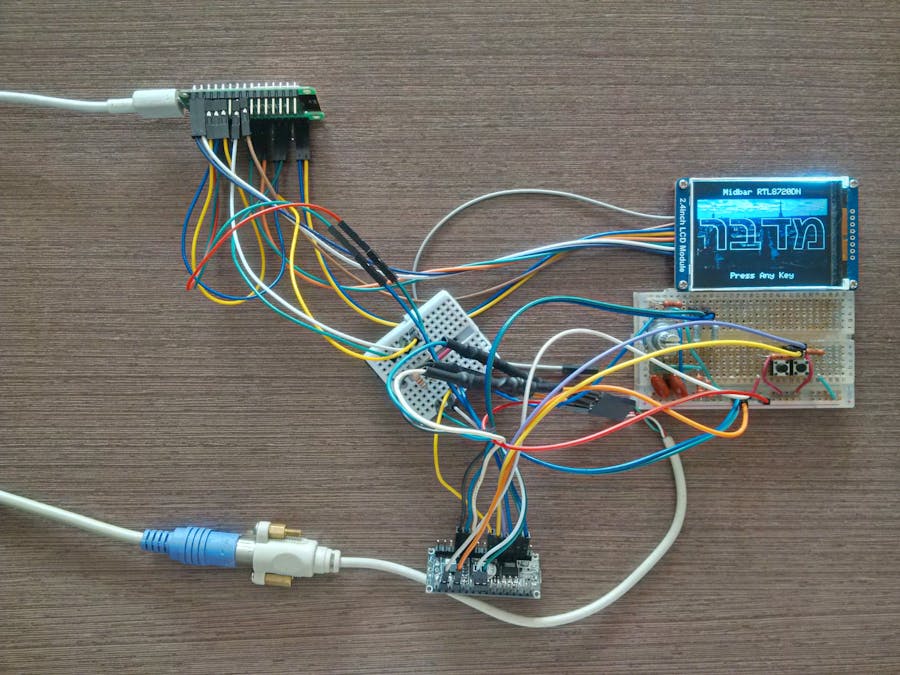
Recently, I got my hands on the RTL8720DN development board. After spending some time testing the board’s capabilities, I made a decision to make an RTL8720 version of Midbar. During the development process, I’ve discovered that although this board is equipped with a decent library for the ILI9341 display and has enough memory for several lock screens, it doesn’t seem to have a functioning random number generator, and it lacks the support for the rotary encoder and the PS/2 keyboard. To compensate for these insufficiencies, I paired the RTL8720DN with Arduino and made the Arduino handle the input devices and random number generation.
Eventually, I developed a version of Midbar that can store sixteen login credentials and ten credit cards in the RTL8720DN’s flash, all encrypted by the “AES + Blowfish” encryption algorithm in the cipher block chaining (CBC) mode.
As for why this project is called Midbar — Midbar (מדבר) is a Hebrew word that means “pasture, ” “uninhabited land, ” “wilderness, ” “large tracts of wilderness (around cities), ” and “desert.” I had two reasons for choosing the word Midbar as the name of this project. First — while working on my previous projects, I noticed that the so-called “device that keeps your personal data secure in an encrypted form” market is pretty much a “desert around the oasis of the password manager market.” Second — I couldn’t find a better word to describe this project. At first, I wanted to call it a “Password Vault, ” but it’s more than that. So, I decided to call it Midbar.
You can also read this tutorial on Instructables and Medium.
AES + Blowfish Encryption Algorithm in CBC ModeInitially, I wanted to use the “3DES + AES + Blowfish + Serpent” encryption algorithm to encrypt and decrypt the user data. Unfortunately, the RTL8720DN refused to work with the implementation of the Serpent that I’m familiar with. Therefore I’ve changed the encryption algorithm for that version of Midbar.
The “AES + Blowfish” encryption algorithm in cipher block chaining mode encrypts the data in 128-bit blocks. To reduce the size of the record stored in the RTL8720DN’s flash, I’ve allotted a single IV for a record.
Flash PartitioningI’ve learned from the mistakes I made in the Midbar (ESP8266 Version) and Midbar (Teensy 4.1 Version) V2.0 and partitioned Flash better this time. Additionally, I have optimized the usage of the encryption algorithm to reduce the amount of space taken up by ciphertexts.
For comparison:
Midbar (ESP8266 Version) was only able to store eight login credentials and four credit cards;
Midbar (Teensy 4.1 Version) V2.0 was able to store sixteen login credentials (in its EEPROM);
Midbar (RTL8720DN Version) is able to store sixteen login credentials and ten credit cards in its Flash.
EEPROM Integrity CheckSince there’s not much space available in the RTL8720DN’s flash, I’ve decided not just to allot a single IV for a record but also to verify the integrity of the whole flash area utilized by the Midbar instead of individually verifying the integrity of each record.
That feature came from Midbar (Teensy 4.1 Version) V2.0.
Prepare the SoftwareYou need to set up the Arduino IDE before flashing the RTL8720DN. You can read about it here:
https://www.amebaiot.com/en/amebad-bw16-arduino-getting-started/
Download FirmwareYou can download the firmware for Midbar from one of these sources.
SourceForge: https://sourceforge.net/projects/midbar/
GitHub: https://github.com/Northstrix/Midbar
If you just need the firmware for the device alongside the RNG, then I would advise you to download the archive that weighs less than 2Mb either from SourceForge or the code section down below.
But if you need the firmware for all versions of Midbar alongside the extra code, photos, and diagrams, in that case, I would advise you to download the 224 MB archive from GitHub.
Download and Install the LibrariesEncButton: https://github.com/GyverLibs/EncButton
PS2KeyAdvanced: https://github.com/techpaul/PS2KeyAdvanced
PS2KeyMap: https://github.com/techpaul/PS2KeyMap
The process of unpacking libraries is typical. You can unpack the content of the archive into the folder: …\Arduino\libraries. Or open the Arduino IDE, click to the Sketch -> Include Library -> Add.ZIP Library… and select every archive with libraries.
Other required libraries are already present in one way or another.
Generate KeysTo make the unauthorized deciphering of your data computationally infeasible — It is crucial to generate your own keys and never reuse them
It’s entirely up to you how to generate the keys. I can only offer you an option to do so.
I’ve modified one of my previous projects to work as a random number generator, the generated output seems “random enough” for me, but I haven’t run any tests. So, I can’t guarantee that it’s random.
Use it at your own risk!
To generate the keys — launch gen.exe from the “RTL8720DN Version\V1.0\Untested RNG” folder and click the “Generate keys for Midbar” button. The background turns from dark gray to light gray when you press that button.
Modify FirmwareOpen the “Firmware_for_RTL8720DN.ino” file from the “RTL8720DN Version\V1.0\Firmware_for_RTL8720DN” folder, and then replace my keys with those you’ve generated.
Upload the Modified Firmware Into RTL8720DNUpload the modified firmware from the “RTL8720DN Version\V1.0\Firmware_for_RTL8720DN” folder into RTL8720DN.
Flash ArduinoUpload firmware from the “RTL8720DN Version\V1.0\Firmware_for_Arduino” folder into Arduino.
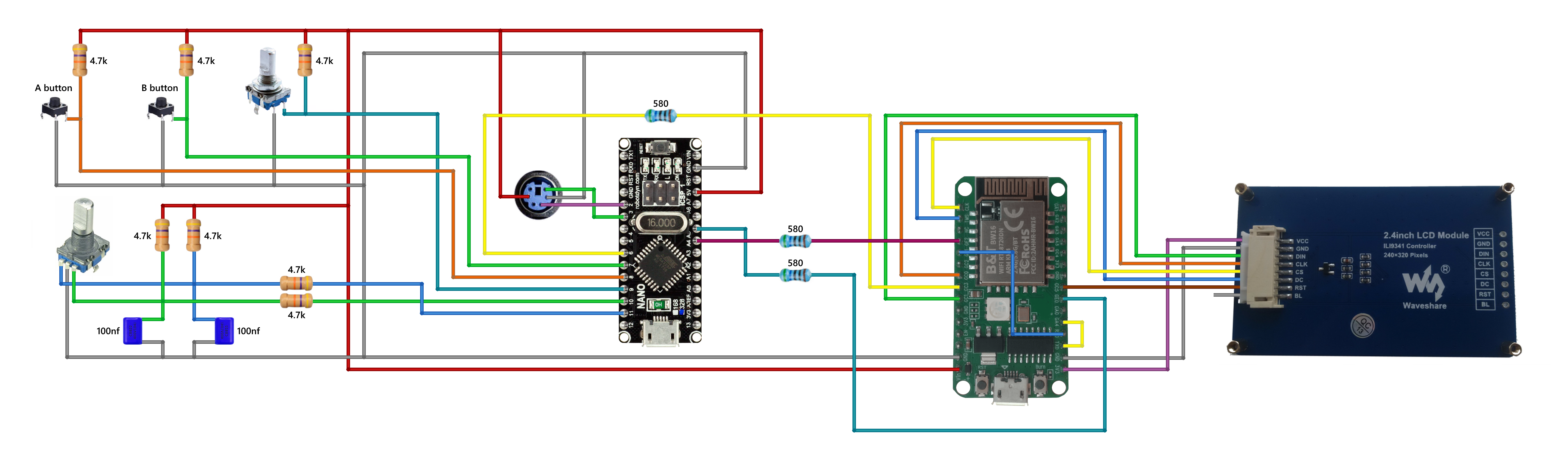
Assemble MidbarAssembling the Midbar shouldn’t be hard. In my opinion, the most tangled part of the process is to connect the encoder with its periphery the right way.
As for the possible component replacements:
- You can replace 4.7k resistors with 2.2k — 10k resistors;
- And you can replace the capacitors with 22nf — 100nf capacitors.
After powering the Midbar up, you should see the word “מדבר” alongside the “Midbar RTL8720DN” and “Press Any Key” inscriptions.
Press any key to get to the next tab.
*Credit for photos:
Photo by Jakob Rosen on Unsplash
Photo by Robert Bye on Unsplash
Image by JORGE TAPIA from Pixabay
Photo by Samuel Agbetunsin on Unsplash
Photo by Morgan Petroski on Unsplash
Photo by Tommaso Scalera on Unsplash
Photo by Micah Camper on Unsplash
Photo by Albert Stoynov on Unsplash
Photo by Claudio Schwarz on Unsplash
Set Master PasswordTo use the Midbar, you first need to set the master password.
You can’t change your master password without performing the factory reset first!
Midbar won’t be able to decrypt your data without your master password because the keys for the encryption algorithms are partially derived from it. Perhaps, it won’t even unlock without the correct master password.
When you’re done entering your master password, either quad-click the encoder button or press the “Enter” on the PS/2 keyboard.
After you’ve unlocked the vault and got to the main menu:
- Either turn the rotary encoder to the right or press the “↓” (DOWNWARDS ARROW) key on the PS/2 keyboard to go down the menu.
- Either turn the rotary encoder to the left or press the “↑” (UPWARDS ARROW) key on the PS/2 keyboard to go up the menu.
- Press either the “A” button or the “Enter” key on the PS/2 keyboard to open the selected menu.
- While in the submenu, press either the “B” button or the “Esc” key on the PS/2 keyboard to return to the main menu.
While entering a text in a tab:
- Either quad-click the encoder button four or press “Enter” on the PS/2 keyboard to continue;
- Either quintuple-click the encoder button (click it five times in quick succession) or press the “Esc” button on the PS/2 keyboard to cancel the current operation.
*If the hex value decreases when you rotate the encoder to the right, I would advise you to swap the wires connected to the Arduino’s “10” and “11” pins.
Add LoginAs I’ve mentioned earlier in this tutorial, this version of Midbar has the ability to store up to 16 login credentials.
To add a login:
- Select the “Logins” line in the main menu;
- Press either the “A” button or the “Enter” key on the PS/2 keyboard;
- Select the “Add” line;
- Press either the “A” button or the “Enter” key on the PS/2 keyboard;
- Choose the slot you want to put the login to either by rotating the encoder or by pressing the “←” (Leftwards Arrow) and “→” (Rightwards Arrow) keys on the PS/2 keyboard;
- Press either the “A” button or the “Enter” key on the PS/2 keyboard;
- Enter the username;
- Either quad-click the encoder button or press “Enter” on the PS/2 keyboard;
- Enter the password;
- Either quad-click the encoder button or press “Enter” on the PS/2 keyboard;
- Enter the website;
- Either quad-click the encoder button or press “Enter” on the PS/2 keyboard.
*All credentials demonstrated here are entirely fictitious. Any similarity to actual credentials is purely coincidental.
View LoginTo view a login:
- Select the “Logins” line in the main menu;
- Press either the “A” button or the “Enter” key on the PS/2 keyboard;
- Select the “View” line;
- Press either the “A” button or the “Enter” key on the PS/2 keyboard;
- Choose the slot you want to view login from either by rotating the encoder or by pressing the “←” (Leftwards Arrow) and “→” (Rightwards Arrow) keys on the PS/2 keyboard;
- Press either the “A” button or the “Enter” key on the PS/2 keyboard;
- Press either the “A” key on the PS/2 keyboard or the “A” button to print the record to the serial terminal.
*All credentials demonstrated here are entirely fictitious. Any similarity to actual credentials is purely coincidental.
Delete LoginTo delete a login:
- Select the “Logins” line;
- Press either the “A” button or the “Enter” key on the PS/2 keyboard;
- Select the “Delete” line;
- Press either the “A” button or the “Enter” key on the PS/2 keyboard;
- Select the login you would like to delete either by rotating the encoder or by pressing the “←” (Leftwards Arrow) and “→” (Rightwards Arrow) keys on the PS/2 keyboard;
- Press either the “A” button or the “Enter” key on the PS/2 keyboard.
The process of working with credit cards is very similar to the process of working with logins.
Find a Good Use for MidbarSure, Midbar (RTL8720DN Version) isn’t perfect, has some flaws, and involves a bit odd workaround that allows it to function. But nevertheless, it’s a fully functional tool for storing your login credentials and credit cards in an encrypted form.
And while Midbar is no guarantee of world peace or social harmony, I do believe that it’s an important contribution to the protection of your data from unauthorized access.
I think it’s also worth mentioning that Midbar’s source code is distributed under the MIT license. That grants you the freedom to customize, adapt and modify Midbar according to your needs and preferences. In other words, you can create your own version of Midbar or use it as a starting point for building new projects without the need for external permission.
If you found this tutorial to be useful, please consider sharing it.
Thank you for reading this tutorial.



_3u05Tpwasz.png?auto=compress%2Cformat&w=40&h=40&fit=fillmax&bg=fff&dpr=2)

Comments