


Hardware components | ||||||
_ztBMuBhMHo.jpg?auto=compress%2Cformat&w=48&h=48&fit=fill&bg=ffffff) |
| × | 1 | |||
 |
| × | 1 | |||
 |
| × | 1 | |||
Software apps and online services | ||||||
| ||||||
Hand tools and fabrication machines | ||||||
| ||||||
- Difficulty: Beginner
- Time: 10 minutes
- Target Audience: Beginners, Students, and Educators
__________________________________________________
1. The "Hello World" of HardwareEvery journey into the world of electronics starts with a single step: making an LED blink. Traditionally, this requires buying an Arduino board, a breadboard, some jumper wires, and an LED, plus downloading heavy IDE software.
What if you don't have the hardware yet, or you're a teacher trying to assign this to 50 students remotely?
Today, we are going to build and code this exact circuit entirely in the browser using Ayantrik—a lightweight, browser-based electronics simulator built for Indian engineering realities.
_________________________________________________
2. Virtual Components NeededInside the Ayantrik workspace, you'll need to grab the following from the component library *(Note: Ayantrik actually has 49+ components including advanced sensors and logic gates, but we'll stick to the basics for now)*:
- 1x Arduino Uno R3
- 1x LED** (Color of your choice)
- 1x Resistor** (220 Ω to protect the LED)
Virtual Breadboard (Optional but recommended for clean wiring)
___________________________________________________
3. Wiring the Circuit1. Open the Workspace: Head over to Ayantrik.in/lab and start a new project.
2. Place the Components: Drag the Arduino, Breadboard, LED, and Resistor onto your canvas.
3. Make the Connections:
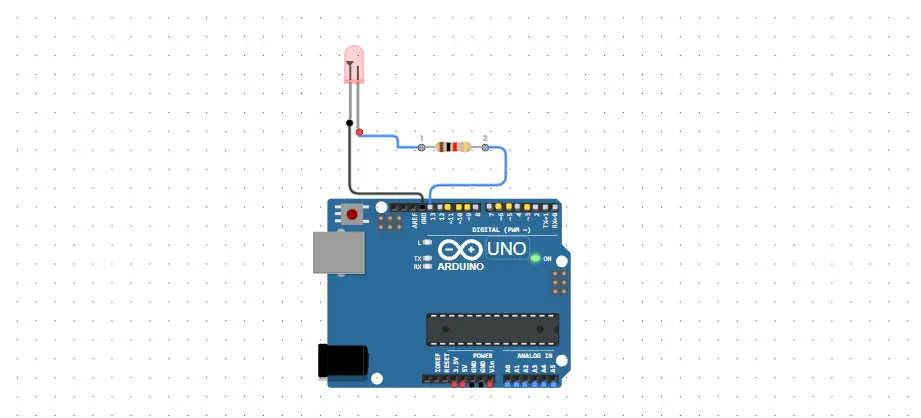
- Connect the Anode (longer leg) of the LED to one end of the Resistor.
- Connect the other end of the Resistor to Digital Pin 13 on the Arduino.
- Connect the Cathode (shorter leg) of the LED directly to the GND (Ground) pin on the Arduino.
(Tip: In Ayantrik, you can simply drag wires between the terminal points. The UI makes it impossible to cross-wire incorrectly!)
___________________________________________________
4. Writing the Arduino CodeAyantrik has an integrated code editor with syntax highlighting. Click on the "Code" tab and paste the standard Blink sketch:
void setup() {
// Initialize digital pin 13 as an output.
pinMode(13, OUTPUT);
}
void loop() {
digitalWrite(13, HIGH);  // Turn the LED on
delay(1000);             // Wait for a second
digitalWrite(13, LOW);   // Turn the LED off
delay(1000);             // Wait for a second
}
___________________________________________________
5. Run the Simulation!Hit the Run button. You should immediately see the virtual LED turn on and off every second.
Because Ayantrik runs full engineering-grade simulations instead of just basic animations, if you were to remove the resistor, the platform would accurately simulate the overcurrent and warn you that the LED would blow out in the real world! You also have access to advanced tools like a virtual Oscilloscope right from the sidebar.
____________________________________________________________
6. What's Next? (Educators & Makers)For the Teachers: Stop asking students to send you blurry screenshots of their circuits! If you are assigning this to a class, you can simply Go Live in Ayantrik to generate a Live Session to your students. It allows you to inspect their actual wiring and code, and auto-generates experiment logs for compliance audits.
For the Makers:Blinking an LED is just the warm-up. Are you ready for a real challenge? Try adding an Ultrasonic Sensor and a Servo Motor, or jump into our competitive 5-tiered Challenge Mode.
👉 Launch the Ayantrik Workspace and Browse our 49+ Components
Read the full deep-dive:We published an extended version of this exact tutorial over on our core blog. You can read it and launch the workspace directly from there:
👉 Read the full guide: How to Blink an LED using Ayantrik Lab
Let us know in the comments: What is the first project you ever built with an Arduino?


Comments