

Hardware components | ||||||
_ztBMuBhMHo.jpg?auto=compress%2Cformat&w=48&h=48&fit=fill&bg=ffffff) |
| × | 1 | |||
 |
| × | 1 | |||
 |
| × | 1 | |||
 |
| × | 1 | |||
 |
| × | 1 | |||
Software apps and online services | ||||||
 |
| |||||
Hand tools and fabrication machines | ||||||
 |
| |||||
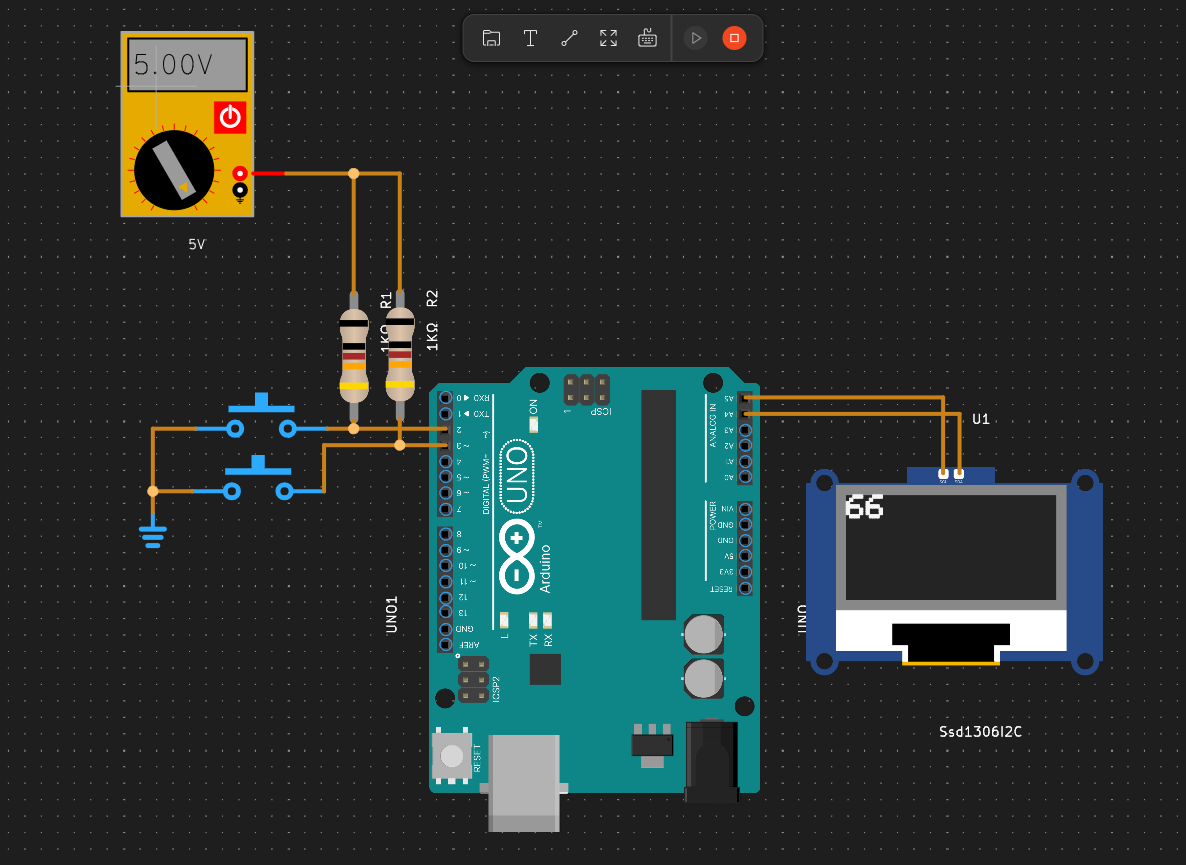
This project utilizes an OLED display alongside two input switches to allow a user to increment two digits displayed on the screen (tens and units). The code consists of setup and loop functions that manage the display and the switch inputs.
Components Required- Arduino Board (e.g., Arduino Uno, Nano)
- OLED Display (based on SSD1306)
- 2 Push Button Switches
- Resistors (if necessary for switches)
- Jumper Wires
- Breadboard (optional)
cpp
#include <Wire.h>
#include <Adafruit_GFX.h>
#include <Adafruit_SSD1306.h>

#define SCREEN_WIDTH 128 // Width of the OLED display in pixels
#define SCREEN_HEIGHT 64  // Height of the OLED display in pixels
#define OLED_RESET -1     // Reset pin (or use -1 for sharing Arduino reset pin)
cpp


#include <Wire.h>
#include <Adafruit_GFX.h>
#include <Adafruit_SSD1306.h>

#define SCREEN_WIDTH 128 // Width of the OLED display in pixels
#define SCREEN_HEIGHT 64  // Height of the OLED display in pixels
#define OLED_RESET -1     // Reset pin (or use -1 for sharing Arduino reset pin)
- The code starts by including necessary libraries to control the OLED display.
- Constants are defined for the display's width, height, and reset pin.
cpp


Adafruit_SSD1306 display(SCREEN_WIDTH, SCREEN_HEIGHT, &Wire, OLED_RESET);
cpp
Adafruit_SSD1306 display(SCREEN_WIDTH, SCREEN_HEIGHT, &Wire, OLED_RESET);
- An instance of
Adafruit_SSD1306is created to manage the OLED display.
cpp
const int switch1Pin = 2; // Pin for switch 1
const int switch2Pin = 3; // Pin for switch 2

int tens = 0; // Initialized tens place to 0
int units = 0; // Initialized units place to 0
cpp


const int switch1Pin = 2; // Pin for switch 1
const int switch2Pin = 3; // Pin for switch 2

int tens = 0; // Initialized tens place to 0
int units = 0; // Initialized units place to 0
- Two pins are declared for the switches, and variables for tens and units are initialized.
cpp
void setup() {
    pinMode(switch1Pin, INPUT_PULLUP);
    pinMode(switch2Pin, INPUT_PULLUP);

    if(!display.begin(SSD1306_SWITCHCAPVCC, 0x3C)) {
        Serial.println(F("SSD1306 allocation failed"));
        for(;;); // Loop forever if allocation fails
    }

    display.clearDisplay();
    updateDisplay();
}
cpp


void setup() {
    pinMode(switch1Pin, INPUT_PULLUP);
    pinMode(switch2Pin, INPUT_PULLUP);

    if(!display.begin(SSD1306_SWITCHCAPVCC, 0x3C)) {
        Serial.println(F("SSD1306 allocation failed"));
        for(;;); // Loop forever if allocation fails
    }

    display.clearDisplay();
    updateDisplay();
}
In the setup function:
- The pins for the switches are set to input mode with internal pull-up resistors.
- The OLED display is initialized. If it fails, the program will loop indefinitely.
- The display is cleared and updated to show initial values.
- In the
setupfunction:The pins for the switches are set to input mode with internal pull-up resistors.The OLED display is initialized. If it fails, the program will loop indefinitely.The display is cleared and updated to show initial values.
cpp
void loop() {
    // Check first switch
    if (digitalRead(switch1Pin) == LOW) {
        delay(50); // Debouncing delay
        if (digitalRead(switch1Pin) == LOW) {
            tens = (tens + 1) % 10; // Increment tens
            updateDisplay();
            while (digitalRead(switch1Pin) == LOW); // Wait for release
        }
    }

    // Check second switch
    if (digitalRead(switch2Pin) == LOW) {
        delay(50); // Debouncing delay
        if (digitalRead(switch2Pin) == LOW) {
            units = (units + 1) % 10; // Increment units
            updateDisplay();
            while (digitalRead(switch2Pin) == LOW); // Wait for release
        }
    }
}
cpp


void loop() {
    // Check first switch
    if (digitalRead(switch1Pin) == LOW) {
        delay(50); // Debouncing delay
        if (digitalRead(switch1Pin) == LOW) {
            tens = (tens + 1) % 10; // Increment tens
            updateDisplay();
            while (digitalRead(switch1Pin) == LOW); // Wait for release
        }
    }

    // Check second switch
    if (digitalRead(switch2Pin) == LOW) {
        delay(50); // Debouncing delay
        if (digitalRead(switch2Pin) == LOW) {
            units = (units + 1) % 10; // Increment units
            updateDisplay();
            while (digitalRead(switch2Pin) == LOW); // Wait for release
        }
    }
}
- The
loopfunction continuously checks if either switch is pressed, with debounce logic to prevent multiple counts from a single press.
For each switch:
- If pressed, the corresponding digit (tens or units) is incremented and wrapped around using modulo 10.
- The display is updated to reflect the new values.
- For each switch:If pressed, the corresponding digit (tens or units) is incremented and wrapped around using modulo 10.The display is updated to reflect the new values.
cpp
void updateDisplay() {
    display.clearDisplay();
    display.setTextSize(2); // Set text size to 2
    display.setTextColor(SSD1306_WHITE); // Set text color to white
    display.setCursor(0, 0); // Set cursor position
    display.print(tens); // Print tens value
    display.print(units); // Print units value
    display.display(); // Render the display
}
cpp


void updateDisplay() {
    display.clearDisplay();
    display.setTextSize(2); // Set text size to 2
    display.setTextColor(SSD1306_WHITE); // Set text color to white
    display.setCursor(0, 0); // Set cursor position
    display.print(tens); // Print tens value
    display.print(units); // Print units value
    display.display(); // Render the display
}
- The
updateDisplayfunction clears the display, sets the text size and color, positions the cursor, and prints the current tens and units values on the screen.


Comments