



Hardware components | ||||||
 |
| × | 1 | |||
 |
| × | 1 | |||
Software apps and online services | ||||||
 |
| |||||
 |
| |||||
 |
| |||||
Internet Of Things, commonly called IoT is playing a vital role and is widely being used both for industry as well as Domestic needs. The ability to transfer data over the network without requiring human-to-human or human-to-computer interaction has made life so much easier.
One such application of IoT is Home Automation. Being able to control home appliances like Light, Fan, Air Conditioner, etc.. has made work much simpler. This project is a subset of Home Automation. We will be using the BOLT IoT Module along with Google Assistant for Automating an LED. Google Assistant allows us to automate an appliance using voice commands. With this project we can control the LED from anywhere, at any time and all we need is a Smart Phone with a good Internet connection.
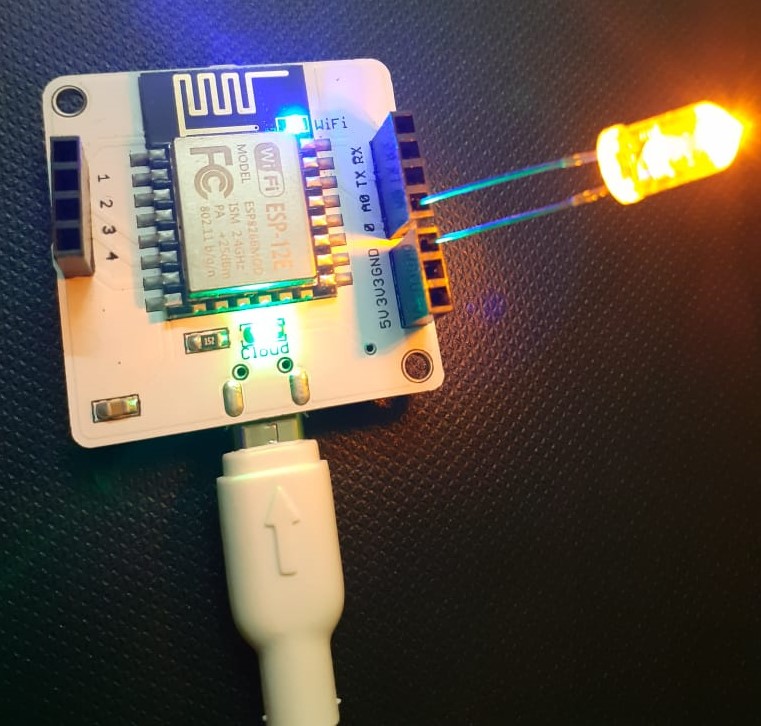
Step 1 : Hardware SetupInsert the longer end of the LED to the PIN 0 of the BOLT module and the shorter end to the GND PIN. Now power on the BOLT module using a 5V adapter.
Login to cloud.boltiot.com and note the ID of your Bolt IoT Module. Now click on the API Tab and note down the API Key provided.
The structure of the command looks like:
https://cloud.boltiot.com/remote/API_KEY/digitalWrite?pin=PIN_NUMBER&state=HIGH/LOW&deviceName=DEVICE_ID
all we need to do is replace the API_KEY with the Key provided to us, mention the PIN to which we connected the LED (in my case PIN 0), mention the State (High/Low), and replace the DEVICE_ID with the ID of out Module.
The sample command to turn the led ON connected to device having ID BOLT14884743 to PIN 0 is:
Note: Do not forget to change the API Key to your own API Key and device ID which you got in the previous step.
Step 4: IFTTT integration using Google Assistant and WebhooksGo to the IFTTT link https://ifttt.com/ and create a new applet.Login using your Gmail account. Make sure you use same account which you'll be using on your mobile to interact with Google Assistant.
Click on 'This' to start creating the applet
Select 'Google Assistant'
Choose 'Say a simple phrase'
Enter the details as mentioned below
Now Click on 'That'
Choose Webhooks
Now select Make a web request.
enter the URL generated before, method as GET, and content type as 'application/json'. Select create action.
Similarly to turn OFF the LED follow the same steps from step 4 except change the commands for Google assistant and enter the URL for LOW mode like the one given below:
Do change the API_KEY and Device ID....
That's it. We are all set to test out project.
Now wake your Android phone by saying "OK Google" and say the phrase you set while creating the trigger to see what happens.


Comments