



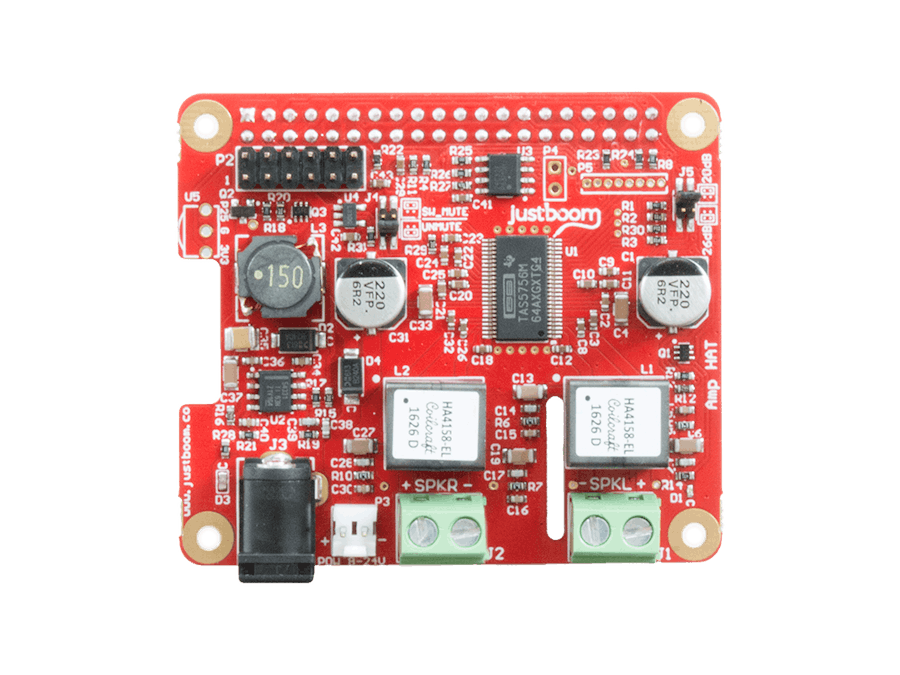
Hardware components | ||||||
 |
| × | 1 | |||
 |
| × | 1 | |||
Software apps and online services | ||||||
 |
| |||||
This guide will show you how to configure ALSA on a Raspbian based OS to merge both stereo signals on one channel. This guide was originally published here.
Remember that the JustBoom Amps’ channels have not been designed to be be bridged. This guide can also be used for the JustBoom DACs.
Create a MONO ALSA configuration fileWhen driving a single speaker the only possibility offered with the JustBoom Amps is to use one of the channels and configure ALSA so that both signals are merged into one.
This guide shows you how to create an ALSA file to direct the output to either the right or the left channel.
This guide has been tested with Raspbian.
Section 1 – Configuration fileStep 1 – Create a file called .asoundrc in your home folder by running:
nano ~/.asoundrc
And copy the following configuration in it:
ctl.!default {
 type hw card sndrpijustboomd
}
pcm.mmap0 {
 type mmap_emul;
 slave {
 pcm "hw:CARD=sndrpijustboomd,DEV=0"
 }
}
pcm.swap {
 type plug
 slave {
 pcm mmap0;
 }
 ttable.0.1 1
 ttable.1.0 1
}
pcm.mono_left {
 type plug;
 slave {
 pcm mmap0;
 }
 ttable.0.0 0.5
 ttable.1.0 0.5
}
pcm.mono_right {
 type plug;
 slave {
 pcm mmap0;
 }
 ttable.0.1 0.5
 ttable.1.1 0.5
}
pcm.!default mono_left
#pcm.!default mono_right
#pcm.!default swap
Save the file and exit nano. (CTRL^O then CTRL^X)
Step 2 – At this point you should already see three new PCM devices. Run:
aplay -L
And you should see something similar to the following:
null
 Discard all samples (playback) or generate zero samples (capture)
pulse
 PulseAudio Sound Server
mmap0
swap
mono_left
mono_right
sysdefault:CARD=sndrpijustboomd
 snd_rpi_justboom_dac,
 Default Audio Device
dmix:CARD=sndrpijustboomd,DEV=0
 snd_rpi_justboom_dac,
 Direct sample mixing device
dsnoop:CARD=sndrpijustboomd,DEV=0
 snd_rpi_justboom_dac,
 Direct sample snooping device
hw:CARD=sndrpijustboomd,DEV=0
 snd_rpi_justboom_dac,
 Direct hardware device without any conversions
plughw:CARD=sndrpijustboomd,DEV=0
 snd_rpi_justboom_dac,
 Hardware device with all software conversions
We have added a swap device which invert the channels so that left goes to right and right to left.
Section 2 – Test the configurationTo test the configuration we can use either aplay or omxplayer. Run the following command for aplay and remember that it will only be able to play WAV files.
aplay -D mono_left <filename.wav>
This should play through the left speaker.
Similarly for omxplayer run:
omxplayer -o alsa:mono_left <filename.wav>
If you want the configuration to apply system wide you will need to create a file under /etc instead of the .asoundrc mentioned above. As the folder is not writable by the user Pi you will need to run the command as root.
sudo nano /etc/asound.conf



Comments