



Hardware components | ||||||
| × | 1 | ||||
Software apps and online services | ||||||
 |
| |||||
Using the myCobot 280 robotic arm from Elephant Robotics, I built a system capable of detecting a basketball, picking it up, and executing throws toward a basketball hoop. To achieve this, I trained a computer vision model on Edge Impulse using a freely available dataset from VisionDatasets.com. This enables the robot to understand its environment in real time, recognize the ball, and react accordingly.
The goal of this project is not just to create something fun and visually engaging, but also to demonstrate how accessible tools and datasets can be used to build intelligent, real-world robotic applications. In the following sections, I'll walk through the hardware setup, model training process, and implementation details behind teaching a robot how to play basketball.
myCobot 280 (M5Stack version)The myCobot 280 (M5Stack version) from Elephant Robotics is a compact 6-DOF robotic arm designed for education, prototyping, and light automation tasks. It offers a good balance between affordability and functionality, making it suitable for projects involving robotics, AI, and computer vision.
The arm provides precise joint control, a lightweight structure, and flexible integration options through Python APIs and serial communication. Its modular design allows different end-effectors and sensors to be easily attached depending on the use case.
For this project, I equipped the myCobot 280 with a gripper to pick up the basketball and a camera to enable real-time visual detection. This combination allows the robot to both perceive its environment and physically interact with objects, forming the foundation of the basketball-playing system.
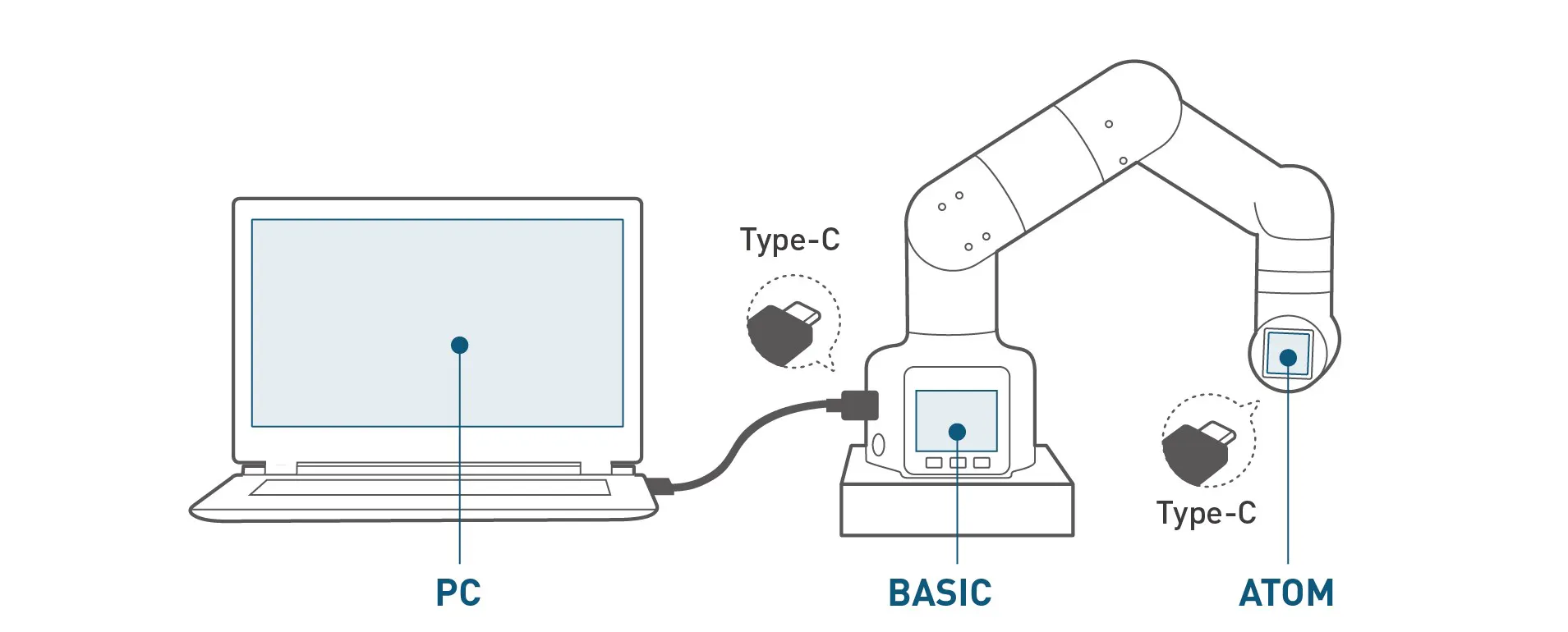
To get started with the robot, it is recommended to install myStudio, the official development environment provided by Elephant Robotics. It can be downloaded from the Elephant Robotics website and is used for firmware management, calibration, and basic control of the robotic arm.
The myCobot 280 can be easily controlled using Python, which makes it very accessible for rapid prototyping. To get started, you can install the official Python library using pip:
pip install pymycobotOnce installed, you can connect to the robot and send basic movement commands. A simple example looks like this:
from pymycobot import MyCobot280
import time

# Set the port
mc = MyCobot280('COM7', 115200)

# Move arm to starting position
mc.send_angles([0, 0, 0, 0, 0, 0], 50)
time.sleep(2)

# Open gripper - range, speed
mc.set_gripper_state(100, 50)

# Close gripper - range, speed
time.sleep(1)
mc.set_gripper_state(0, 50)
These simple commands allow you to control joint angles and the gripper, making it straightforward to use the robotic arm.
Synthetic Dataset for Computer VisionTo train a reliable computer vision model, the first requirement is a suitable dataset containing labeled examples of the target object, in this case a basketball.
For this project, I used a freely available dataset from VisionDatasets.com, provided by syntheticAIdata. The dataset includes pre-labeled images of balls in different positions and with different backgrounds, which makes it a solid starting point for training an object detection model without the need to manually collect and annotate data. VisionDatasets also offers integration with the Edge Impulse platform, allowing you to quickly transfer data and start working on your project.
Using an existing dataset significantly speeds up development and allows you to focus on model training and deployment rather than data preparation. It also shows how publicly available resources can be used to build practical AI-driven robotics applications quickly.
I used the "Sports Balls" dataset, a curated collection of photorealistic images of common sports balls designed to support reliable computer vision model training and evaluation.
The dataset contains thousands of labeled images generated under diverse conditions. Each image varies in lighting, background, and positioning to support robust model generalization in real-world environments.
Edge Impulse ProjectTo train the computer vision model, I used the Edge Impulse platform, which provides an end-to-end pipeline for building and deploying edge AI models.
Start by creating a new project in Edge Impulse:
- Log in to your Edge Impulse dashboard
- Click Create new project
- Enter a project name, for example “myCobot280-basketball”
- In the project settings, set the labeling method to Bounding boxes (object detection)
To quickly populate the dataset, I used the built-in integration between VisionDatasets.com and Edge Impulse.
- Log in to the VisionDatasets dashboard
- Search for the “Sports Balls” dataset
- Review the dataset details such as description, preview images, number of images, classes, and license
- Click Upload to Edge Impulse
In the upload dialog, provide the following:
- Edge Impulse API Key(available in your Edge Impulse project under Dashboard → Keys → API Keys)
- Image volume(number of images to upload)
- Image resolution(for example 96×96, 320×320, 512×512, or 1024×1024)
- Classes to include(for this project, only the basketball class was selected)
This integration significantly simplifies the data ingestion process, allowing you to transfer labeled data directly into your Edge Impulse project and start building your model immediately.
Click Upload to start the transfer. After upload, you'll see a success confirmation.
You can also use Download to export the dataset locally for inspection.
Explore and Train Your ModelAll imported data in Edge Impulse can be viewed and managed in the "Data acquisition" tab, where you can browse uploaded samples, check their labels, and verify that your training and testing datasets are correctly organized.
From this tab, you can also split your data into training and testing sets, ensuring proper model validation and balanced performance evaluation.
With the dataset prepared, developers can create an impulse in Edge Impulse, configure the processing and learning blocks, and generate features for training. Once feature generation is complete, the model can be trained using Edge Impulse's built-in training tools to learn from the synthetic dataset.
Testing Computer VisionAfter training the model, the next step is to validate its performance and ensure it can reliably detect the basketball in real-world conditions.
For this project, I used the FOMO (Faster Objects, More Objects) model in Edge Impulse, which is optimized for efficient object detection on edge devices. FOMO works by detecting object locations without heavy bounding box computations, making it lightweight and fast, which is ideal for real-time robotic applications.
Edge Impulse provides built-in tools for testing and evaluation. Using the Live Classification feature, the model can be tested directly with a camera feed, allowing you to observe predictions in real time. This is useful for verifying that the model correctly detects the basketball and draws bounding boxes around it.
During testing, it is important to evaluate how well the model performs under different conditions such as lighting changes, background clutter, and varying distances from the camera. In my case, the model was able to consistently detect the basketball with good accuracy, even when the position and orientation of the ball changed.
If the detection results are not satisfactory, additional data can be collected or existing data can be refined to improve performance. Iterating on the dataset and retraining the model is a key part of building a robust computer vision system.
Once the model performs reliably, it can be integrated with the robotic arm to guide the pick-and-throw actions.
Throw the BallTo release the ball during the throwing motion, I used a separate Python thread to control the gripper while the robotic arm was already moving. This makes it possible to open the gripper at the same time as the arm executes its motion, instead of waiting for the movement to finish first. In practice, the arm begins moving to the target throw position with send_angles(...), and immediately after that, a thread starts the operate_gripper() function, which opens the gripper and releases the ball mid-motion. This simple threaded approach helps create a smoother and more dynamic throwing action.
import threading
import time

def operate_gripper():
 # 0 = open, 80 = speed
 mc.set_gripper_state(0, 80)
 print("Gripper opening...")

# Prepare the gripper thread
gripper_thread = threading.Thread(target=operate_gripper)

# Start the arm movement
print("Arm moving to throw position...")
mc.send_angles([-20, -40, 0, 0, 0, 50], 100)

# Start gripper release during movement
gripper_thread.start()

# Wait if needed
time.sleep(2)
gripper_thread.join()
Whether the release happens at exactly the right moment depends on timing, so in practice you may need to fine-tune the delay or motion speed to match your throw trajectory.
Final WordsThis project shows how combining robotics, computer vision, and edge AI can turn a simple robotic arm into something unexpectedly fun and interactive. With tools like Edge Impulse and ready-to-use datasets, building intelligent systems is more accessible than ever.
Of course, like any real athlete, this robot didn't get everything right on the first try. There was plenty of trial and error, missed shots, and "why, oh why, did it throw there?" moments. But that's part of the process and honestly part of the fun.



Comments