


Hardware components | ||||||
| × | 1 | ||||
| × | 1 | ||||
| × | 1 | ||||
| × | 1 | ||||
 |
| × | 1 | |||
 |
| × | 1 | |||
 |
| × | 1 | |||
Software apps and online services | ||||||
| ||||||
 |
| |||||
 |
| |||||
| ||||||
| ||||||
Starting to automate my home and looking for solutions, I found out that making myself my own home IoT system was cheaper all the way.
Node Setup***Install ch-341 driver so ESplorer recognizes your NodeMCU***
*** DOWNLOAD FROM HERE http://www.wch.cn/downloads/file/5.html ***
Flash your nodeMCU first:
- Download firmware from attachments here or get your firmware from https://github.com/giulianfrisoni/NodeMCU-MQTT-Home-Automation/tree/master/nodeMCU-Firmware
- Use pyflasher to flash your nodeMCU get it from here: https://github.com/marcelstoer/nodemcu-pyflasher/releases
- Connect your nodeMCU via microusb to computer and in pyflasher browse to firmware.bin file and click on flash nodeMCU. WAIT TILL FINISHED.
Depending on what use you will give your node:
- For switch node, use: NodeMCU, relay and power supply.
- For touch node, use: NodeMCU, TTP223 and power supply.
- For temperature node, use: NodeMCU, DHT11/22 and power supply.
I recommend to first connect you node on a test pcb and then when it working weld it.
For power suppy, you can use the VIN and GND pins connected to a 5V supply or use the micro USB connector on the NodeMCU.
Use ESplorer to Upload Code to NodeMCU***Install ch-341 driver so ESplorer recognizes your NodeMCU***
*** DOWNLOAD FROM HERE http://www.wch.cn/downloads/file/5.html ***
There are 4 .lua files in the repository. Use the init.lua code to configure the connection of the NodeMCU to WiFi. Also change what file you are going to use at the end of init.lua in do.file("<file to use next>").
Depending on what use you will select for your NodeMCU, you have 3 files:
- main_switch.lua: To use as switch of lights or electronic devices, define topic and mqtt credentials in it.
- main_touch.lua: to use a node as an wirelesss touch button, define topic and mqtt credentials.
- main_temperature.lua: To use node as sensor of temperature and humidity. configure mqtt credentials and topic.
Now that we have our code lets open it with ESplorer and change Wifi and MQTT server credentials to match ours.
Changes to be made on init.lua:
- Change code to match your setup.
- wifi_SSID = "SSID HERE"
- wifi_PASSWORD =PASSWORDHERE
- mqtt_ip="192.168.1.76"
- mqtt_port=1883
- mqtt_topic="home/topic1"
- dofile("main_touch.lua") - Put here what of the 3 main_*.lua you will use on that module.
Changes in main_*.lua files
- pin=4 - enter what pin you will be usign o connect your relay,dht sensor or ttp223 sensor.
Use "Send to ESP" button to run on test your code, once you are sure that your code works, save both init.lua and the main_<temperature,touch,switch>.lua file that you are going to use, remember to change in init.lua the dofile() so it matches what .lua file you are going to run next.
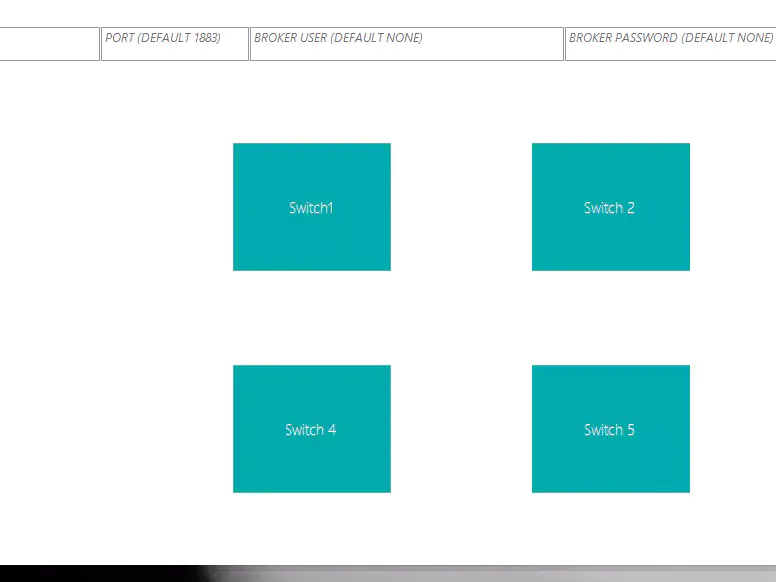
Use IoT Panel to Control Your System and Read Temperature- Connect to MQTT server.
- Define topics in settings of IoT Panel - always click save.
- Start to use.



_3u05Tpwasz.png?auto=compress%2Cformat&w=40&h=40&fit=fillmax&bg=fff&dpr=2)
Comments