



Hardware components | ||||||
 |
| × | 1 | |||
 |
| × | 1 | |||
| × | 1 | ||||
 |
| × | 1 | |||
Software apps and online services | ||||||
 |
| |||||
 |
| |||||
 |
| |||||
As the global population ages, non-invasive health and safety monitoring for the elderly has become a critical need. Traditional wearable devices require constant charging and can be forgotten or rejected by seniors. Cameras, on the other hand, raise serious privacy concerns, especially in bedrooms or bathrooms.This project demonstrates how to build a privacy-safe, contact-free elderly monitoring system using the PSoC 6 AI Evaluation Kit (CY8CKIT-062S2-AI) and its onboard XENSIV BGT60TR13C 60GHz FMCW radar.
By leveraging the ModusToolbox ecosystem and the mtb-example-psoc6-radar-presence code example, this system can reliably detect whether a room is occupied (Macro-presence) and measure tiny chest wall displacements to confirm breathing and vital signs (Micro-presence).
Infineon PSoC 6 AI Evaluation Kit (CY8CKIT-062S2-AI)USB-C Cable (for programming and data streaming)Mounting stand/tripod (to position the kit at chest level)
Software Apps and Online ServicesModusToolbox™ Tools Package (v3.1 or later)
Infineon Radar Fusion GUI(Available via the Infineon Developer Center / Radar Development Kit)Serial Terminal (e.g., Tera Term, PuTTY, or the integrated ModusToolbox terminal)
Step-by-Step ImplementationStep 1:Setting Up the Project in ModusToolboxLaunch the ModusToolbox Project Creator application.Select the PSoC 6 BSPs (Board Support Packages) category and choose the CY8CKIT-062S2-AI kit from the list. Click Next.In the application selection screen, expand the Radar or Peripherals category.Locate and check the Radar Presence Detection example (mtb-example-psoc6-radar-presence).Choose a name for your project (e.g., Elderly_Vital_Sign_Monitor) and click Create.Once the project creation finishes, close the Project Creator and open the ModusToolbox Eclipse IDE. Import the project into your workspace if it doesn't appear automatically.
Understanding the Code and Radar ConfigurationThe firmware utilizes the Infineon Radar Device Driver (RDK) to orchestrate the BGT60TR13C radar chip. It operates as a dual-state machine optimized for both sensitivity and power consumption:
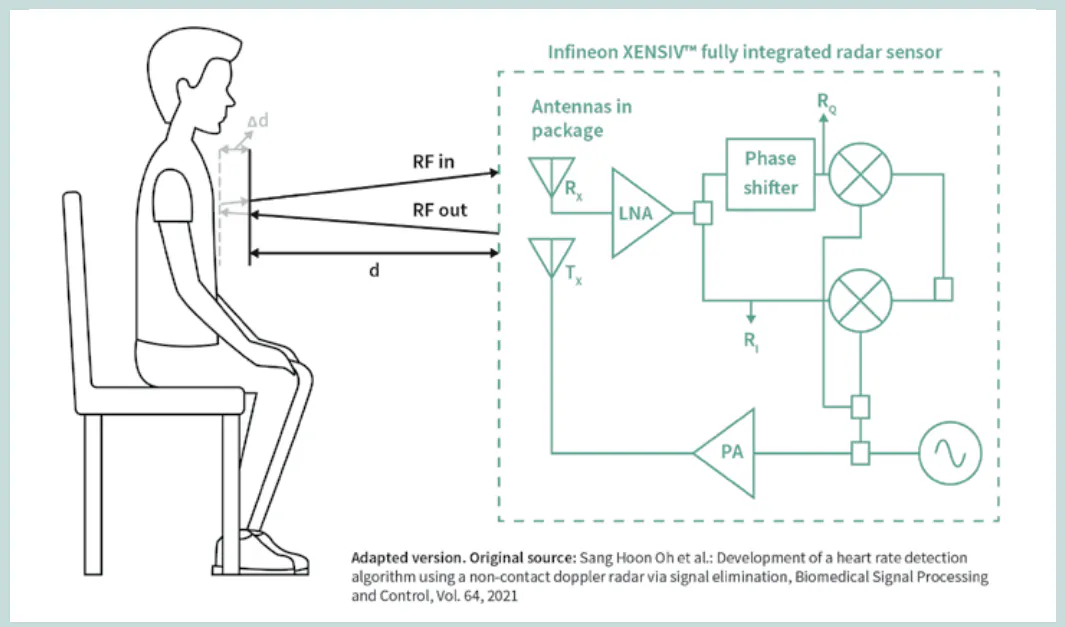
Macro-Presence State: The radar operates at a lower frame rate, monitoring wide-range Doppler shifts to see if someone enters the room.Micro-Presence State: Once a person is detected, the firmware increases the frame rate. It isolates the specific range bin where the user is located and begins analyzing sub-millimeter phase variations.The phase shift over time tracks chest displacement:
The code applies a bandpass filter (0.1\text{ Hz} to 0.5\text{ Hz}) to separate normal breathing frequencies from background ambient noise.
Step 3: Building and Flashing the Firmware1- Connect your PSoC 6 AI Kit to your computer via the USB-C cable using the KitProg3 USB port.2- In the ModusToolbox Eclipse IDE, navigate to the Quick Panel (usually located on the bottom left).3- Under the Launch <Project Name> section, click on Build Application. Ensure the compilation finishes with zero errors.4-Once compiled successfully, click on <Project Name> Program (KitProg3) to flash the binary onto the PSoC 6 MCU.
Step 4: Testing and ValidationTo verify that the system is operating properly and extracting vital signs, you will need to open a serial communication channel with the board.1. Serial Port SetupOpen your preferred Serial Terminal application (e.g., Tera Term).Select the COM port associated with your KitProg3 USB-UART bridge.Configure the serial settings exactly as follows:Baud Rate: 115200Data bits: 8Parity: NoneStop bits: 12. Experimental Setup (Testing Presence)Mount your PSoC 6 AI kit securely on a stable surface facing your testing area. Ensure there are no oscillating fans or moving curtains in the immediate line of sight.
Step 5: Advanced Testing and Validation via Radar Fusion GUIWhile the serial terminal provides numerical data, the Infineon Radar Fusion GUI allows you to see the raw frequency, time-domain signals, and Range-Doppler maps in real time to validate the sensitivity of vital signs detection.
1. Connecting to the GUIClose your serial terminal to free up the hardware communication channel.
- Close your serial terminal to free up the hardware communication channel.
Launch the Radar Fusion GUI software.
- Launch the Radar Fusion GUI software.
The software will scan connected USB endpoints. Select your connected BGT60TR13C / PSoC 6 AI Kit device from the starting dashboard and click Connect.
- The software will scan connected USB endpoints. Select your connected BGT60TR13C / PSoC 6 AI Kit device from the starting dashboard and click Connect.
Navigate to the Raw Data View tab.
- Navigate to the Raw Data View tab.
Sit completely still in front of the sensor. Look closely at the Time Domain channel outputs ($I/Q$ signals). You will notice high-frequency chirps when moving, but while resting, you will see slow, rhythmic modulations superimposed on the signal.
- Sit completely still in front of the sensor. Look closely at the Time Domain channel outputs ($I/Q$ signals). You will notice high-frequency chirps when moving, but while resting, you will see slow, rhythmic modulations superimposed on the signal.
Switch to the Frequency Domain (FFT) plot. The Peak-to-Sidelobe level ratio will cleanly distinguish the specific range bin where your body resides.
- Switch to the Frequency Domain (FFT) plot. The Peak-to-Sidelobe level ratio will cleanly distinguish the specific range bin where your body resides.
3. Analyzing Output Logs (Validation)Scenario A: Empty Room. When no one is in front of the sensor, the terminal log will show a "No Presence" or "Macro-Detection Scan" loop status, meaning the system remains in low-power standby.(Insert your empty room serial terminal screenshot here)Scenario B: Breathing/Vital Sign Verification. Sit stationary directly in front of the sensor (at a distance of 1 to 2 meters) and breathe naturally. The terminal should log a successful state transition from Macro to Micro-Presence, isolate your distance bin, and print out a live estimated respiration rate.
By utilizing the embedded XENSIV™ radar on the PSoC 6 AI Kit alongside the Radar Fusion GUI, we have built and visually verified a non-contact, privacy-safe elderly monitoring profile. The deep range resolution enables the device to discern fine respiratory rhythms from static background clutter, laying a perfect foundation for deploying edge-based fall and health anomaly detectors.



Comments