



Hardware components | ||||||
| × | 1 | ||||
| × | 1 | ||||
 |
| × | 1 | |||
Software apps and online services | ||||||
 |
| |||||
ESP32-S3 Touch GIF Player: Smooth Playback from SD Card
Build a buttery-smooth GIF player using an ESP32-S3 and an ILI9341 touch display! This project reads GIFs directly from an SD card and features a fully functional touch UI.
StoryI wanted to build a standalone GIF player that didn't just slowly draw frames, but actually played GIFs smoothly, like a movie at 30 FPS. To achieve this, I used an ESP32-S3 development board. The key to the smooth performance is the S3's 8MB of PSRAM.
The player reads the GIF files directly from an SD card and uses the PSRAM as a temporary buffer to prepare the frames before pushing them to the display.
This project also features a full touch-controlled user interface! You can tap the sides of the screen to skip between GIFs, or tap the center to open a GIF selector menu where you can choose specific files or toggle an "Autoplay" mode.
Things Used in this ProjectHardware Components:
- ESP32-S3 Development Board: Must have 16MB Flash and 8MB PSRAM.
- ILI9341 Touch Display: With an embedded SD card reader.
- MicroSD Card: Formatted to FAT32.
- Breadboard & Jumper Wires
Software Apps and Online Services:
- Arduino IDE (Version 2.3.8 used in this guide)
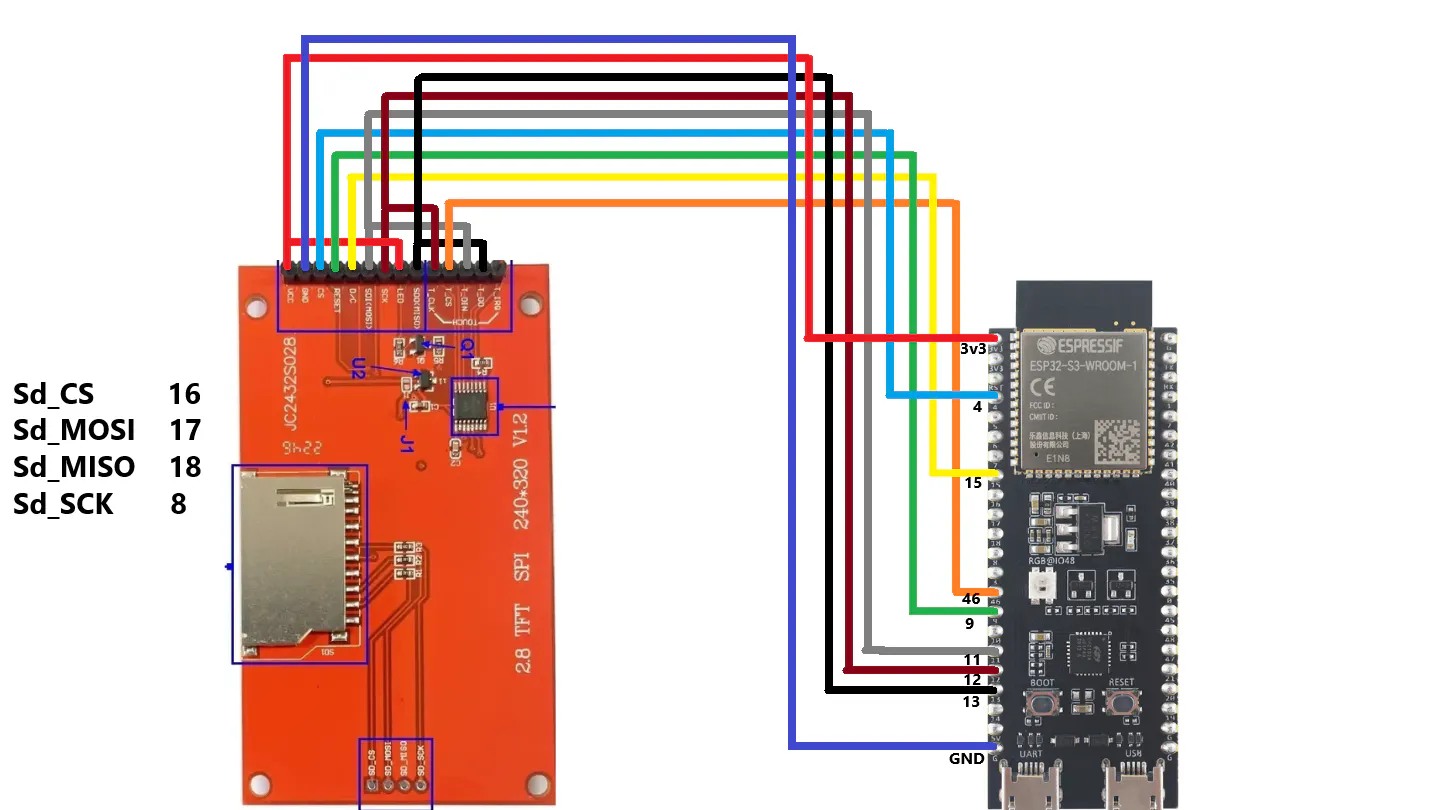
This is a critical step. The TFT display driver and the touch panel driver share the same SPI pins (except for the CS pin). However, the embedded SD card reader uses different SPI pins and a different SPI port.
Note: Carefully refer to the wiring schematic provided in the add to ensure the display, touch, and SD card modules are routed to the correct pins on your specific ESP32-S3 board.
Step 2: Setting up the Arduino IDEIf you don't already have the Arduino IDE, download the latest version (v2.3.8 is recommended).
Because the Arduino IDE doesn't come with ESP32 support out of the box, you need to add it:
Go to File > Preferences.
- Go to File > Preferences.
- Paste the Espressif board manager URL into the "Additional Boards Manager URLs" field.
- Go to the Boards Manager (on the left menu), search for
ESP32, and install it. (Version 3.3.7 was used for this project ).
You need to install two 3rd party libraries via the Arduino Library Manager or GitHub:
- TFT_eSPI: Handles the display and touch inputs. (2.5.43)
- AnimatedGIF: Handles the GIF decoding. (2.2.0)
Configuring TFT_eSPI for the ILI9341: This library requires manual configuration to match your hardware.
- Navigate to your Arduino libraries folder on your PC (usually
Documents/Arduino/libraries/TFT_eSPI). - Open the
User_Setup_Select.hfile (using VS Code or Notepad). - Ensure the User_Setup.h for your setup is uncommented, then save and close.
- Next, open the
User_Setup.hfile and redefine the SPI pins to exactly match your wiring schematic. Save and close.
To ensure the touch UI responds accurately, you must calibrate the screen.
- Open the
touch_calibrateexample sketch from the TFT_eSPI library. - Select your ESP32-S3 development board from the Tools menu.
- Upload the sketch to your board.
- Open the Serial Monitor and set the baud rate to
115200. - Follow the on-screen prompts and tap the 4 corners of the display.
- The Serial Monitor will output your specific calibration values. Copy these lines, as you will need to paste them into the main GIF player script.
- Open the main GIF player script in the Arduino IDE.
- Crucial Tool Configuration: In the Tools menu, ensure that PSRAM is enabled. This gives the board the memory required to buffer the GIF frames.
- Paste your touch calibration values into the designated area of the script.
- Click the Upload button.
(Troubleshooting: If you see a white screen after uploading, double-check your User_Setup.h pin configurations, your tool settings in the IDE, and your physical wiring.)
- Format your MicroSD card to FAT32.
- Ensure your GIFs are sized correctly. The display limit is 320x240 for uncut playback.
- Place all your
.giffiles directly into the root folder of the SD card. - Insert the SD card into the display's embedded reader.
- Press the reset button on your ESP32.
Your GIF player is ready! Use the touch panel to control it:
- Tap Left: Go to the previous GIF.
- Tap Right: Go to the next GIF.
- Tap Center: Open the GIF Selector Main Menu.
- Main Menu: From here, you can select specific files and use the toggle button to switch between Autoplay or Single GIF modes.
Have fun!
Games- Maze Escape:https://play.google.com/store/apps/details?id=com.DsnMechanics.MazeEscape
- Air Hockey:https://play.google.com/store/apps/details?id=com.DsnMechanics.AirHockey
- Click Challenge:https://play.google.com/store/apps/details?id=com.DsNMechanics.ClickChallenge
- Flying Triangels:https://play.google.com/store/apps/details?id=com.DsnMechanics.Triangle
- SkyScrapper:https://play.google.com/store/apps/details?id=com.DsnMechanics.SkyScraper


Comments