


Hardware components | ||||||
 |
| × | 1 | |||
 |
| × | 1 | |||
 |
| × | 2 | |||
Software apps and online services | ||||||
 |
| |||||
| ||||||
| ||||||
I have been using android OS which has a voice assistant named "Google Assistant". Firstly I was fascinated by that and had a thought that I could use that for controlling some things.
I had seen some projects on hackster.io and I got the idea of how I can use Google Assistant to control the room lighting. So I decided to execute a small project by using Google Assistant in combination with the BOLT module. I can control the my home lighting from anywhere in the world. This can benefit us in a way by saving electricity and more other benefits in day-to-day life.
STEP1:HardwareConnections
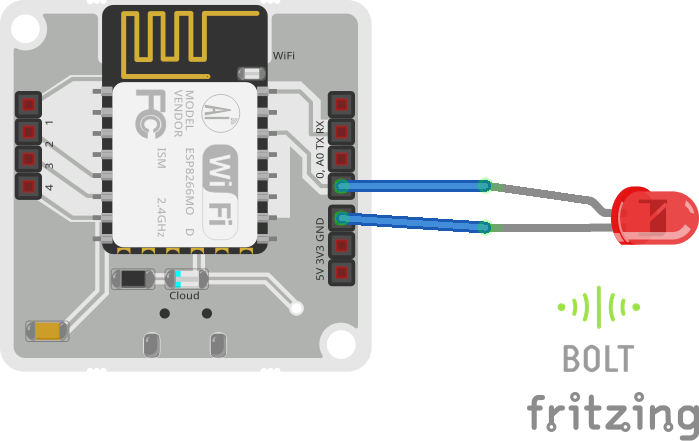
Connect the longer end of LED in PIN 0 of BOLT module and shorter end in PIN GND of BOLT module. I had used jumper wires to this connection which makes it more easy.
STEP2:DigitalWriteCommand
Before writing the code, copy the API key from your BOLT cloud account. It looks something like this: 4fe975c1-0115-4c86-a536-7f7gfdc915a3
LED is a output device so we use digital write command. Click here to get more information about how to use digital write command.
The command used is this :
https://cloud.boltiot.com/remote/API/digitalWrite?pin=PIN_NUMBER&state=HIGH/LOW&deviceName=DEVICE_ID
The parameters that you need to replace are:API: You can get it from API tab on cloud dashboard.PIN_NUMBER: Pin to which you have connected the LED. Values can be either 0, 1, 2, 3 or 4HIGH/LOW: This value indicates if you want to turn on/off the LED. HIGH will turn it on, LOW will turn it off.DEVICE_ID: The id of your device. You can get it from cloud dashboard.
The command to turn the led ON connected to device having ID BOLT5777690 to PIN 0 is: https://cloud.boltiot.com/remote/4fe975c1-0115-4c86-a536-7f7gfdc915a3/digitalWrite?pin=0&state=HIGH&deviceName=BOLT5777690
You must use your own API, PIN and DEVICE_ID.
STEP3:IFTTTGoogleAssistantandIFTTTWebhooks.
Go to IFTTT to create a new applet by clicking here
Login using your Gmail account. Make sure you use same account which you'll be using on your mobile to interact with Google Assistant.
Choose Google Assistant -> Say Specific Phrase.
Write the phrase that creates the trigger action. You can also enter more 2 phrases for the trigger action. 1] Lights on 2] On the lights 3] Turn the lights on
Then click on 'Create Trigger'
Select Webhooks and then Make a web request.
Enter the API URL you got in the previous Step. Make sure that you change the API Key and device name.
Method will be GET
Content type will be Application/json
Here is how your screen will look like
Click on 'Create Action' and then Click on 'Finish'.
Now do the same process to Turn off the LED. Only change the state in the digital write command. The command will be like this : https://cloud.boltiot.com/remote/4fe975c1-0115-4c86-a536-7f7gfdc915a3/digitalWrite?pin=0&state=LOW&deviceName=BOLT5777690
Now wake your Google Assistant by saying "OK Google" and say the phrase you had set while creating the trigger to see the magic happen.
Below is the link for full working video of this project :


Comments