



Hardware components | ||||||
 |
| × | 1 | |||
 |
| × | 1 | |||
Software apps and online services | ||||||
 |
| |||||
| ||||||
| ||||||
Hand tools and fabrication machines | ||||||
 |
| |||||
SummaryThis project demonstrates a complete web-to-hardware pipeline for creating blinking robotic eye animations on a 128×64 SSD1306 OLED. The workflow starts with a browser-based pixel editor where eye frames are drawn and exported as CSV files. These CSV files are then converted into an ESP8266-ready Arduino sketch using a Python tool, allowing fast and visual iteration without manually writing bitmap arrays.
Why I built thisDesigning small OLED animations usually requires manually building byte arrays and recompiling code repeatedly. This project removes that friction. By using a web-based pixel editor and an automated Python generator, I can prototype and test new robotic eye designs within minutes. The goal was to make the design process visual, fast, and accessible for robotics and embedded system projects.
How it works- Open the OLED Pixel Editor in a web browser and draw the eye frames at 128×64 resolution.
- Export the design as a CSV file.
- Run the Python generator and select the CSV file using the file picker.
- The tool converts the CSV into a binary bitmap and copies a complete Arduino sketch for the ESP8266 directly to the clipboard.
- Paste the sketch into the Arduino IDE and upload it to the ESP8266 to display the blinking animation on the OLED.
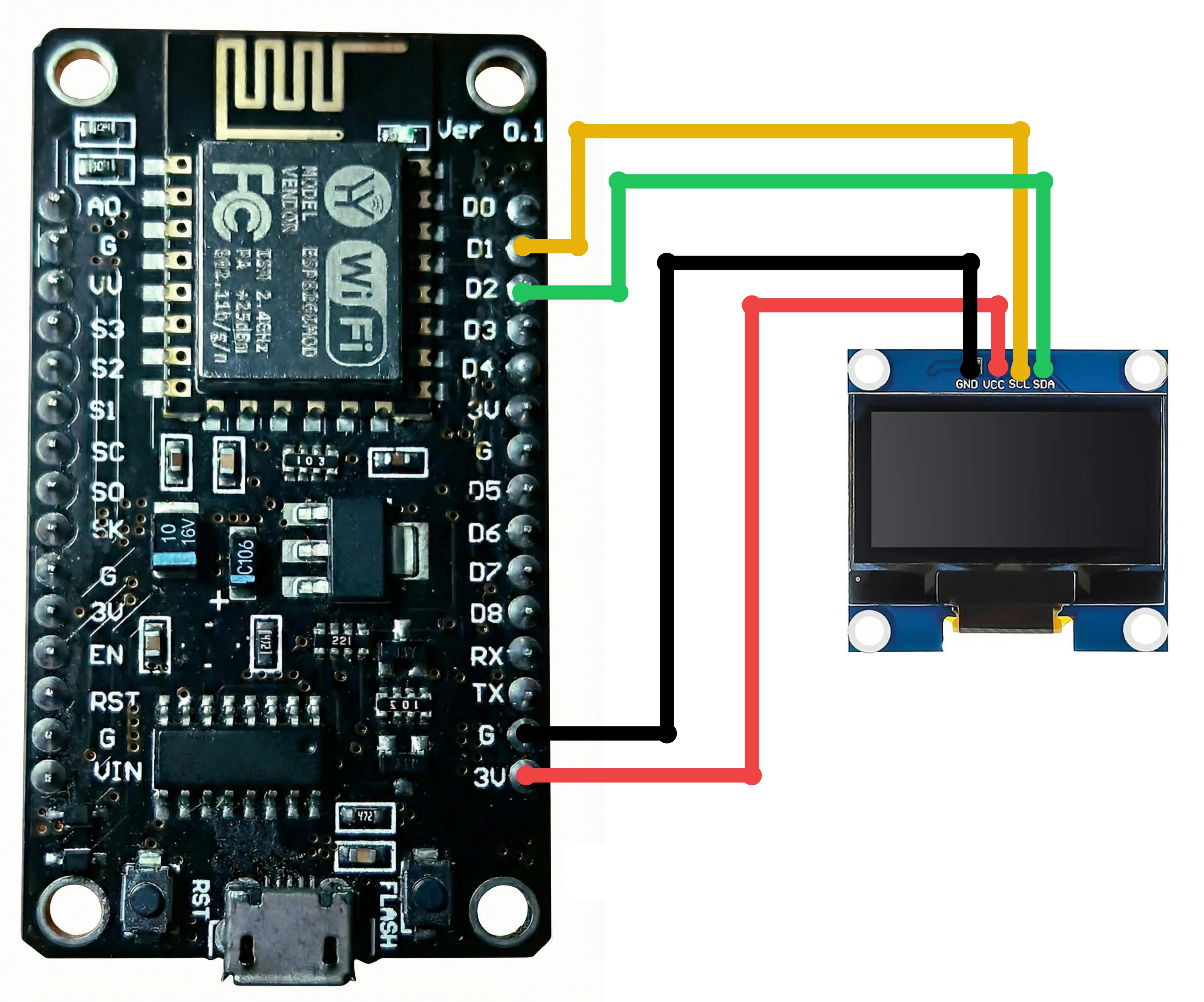
WiringVCC to 3.3VGND to GNDSDA to D2 (GPIO4)SCL to D1 (GPIO5)
This setup assumes an SSD1306 OLED using I2C address 0x3C and a NodeMCU or Wemos D1 Mini board.
What I usedESP8266 (NodeMCU or Wemos D1 Mini)0.96 inch OLED Display (128×64, SSD1306, I2C)Jumper wiresUSB cableWeb browser for the pixel editorPython 3.8 or higher with pyperclip
What’s included in the projectBrowser-based pixel editor for drawing and exporting CSV patternsPython tool to convert CSV files into ESP8266-ready Arduino sketchesLive wiring tool for circuit planning and visualizationSource code and setup instructions
Project linksPixel Editor (Live):https://oled-pixel-editor.netlify.app/
Wiring Tool (Live):https://dazzling-chimera-d0ca7d.netlify.app/
Source Code (GitHub):https://github.com/S-SUJAN-S/oled-pixel-editor
Animation Timelapse (YouTube):
Wiring Tool Usage Guide (YouTube):
TroubleshootingIf the OLED stays blank, first check power connections and then verify SDA and SCL wiring.If the display address is different, run an I2C scanner sketch to confirm the correct address.Make sure the Adafruit SSD1306 and Adafruit GFX libraries are installed in the Arduino IDE.
LicenseThis project is released under the MIT License, allowing free use and modification with attribution.


Comments