Bastiaan Slee
Published © GPL3+

(un)Ethical Ghettoblaster

This television scans for your devices, but did you consent to that?

ExpertFull instructions providedOver 4 days131
(un)Ethical Ghettoblaster

Things used in this project

Hardware components

Raspberry Pi 4 Model B
×1
Seeed Studio XIAO ESP32S3 Sense
×1
XIAO ESP32C3
Seeed Studio XIAO ESP32C3
×15
WS2812B Digital RGB LED Flexi-Strip 144 LED - 1 Meter
Seeed Studio WS2812B Digital RGB LED Flexi-Strip 144 LED - 1 Meter
×1
Raspberry pi B+/2B HIFI DAC
Seeed Studio Raspberry pi B+/2B HIFI DAC
×1
Rd-03D 24GHz radar
×1
3.12 inch OLED Display 256*64 pixels (I2C)
×1
Pimoroni RGB Potentiometer Breakout
×3

Software apps and online services

Volumio OS
Arduino IDE
Arduino IDE
Python

Hand tools and fabrication machines

Snapmaker 2.0 - CNC

Story

Read more

Schematics

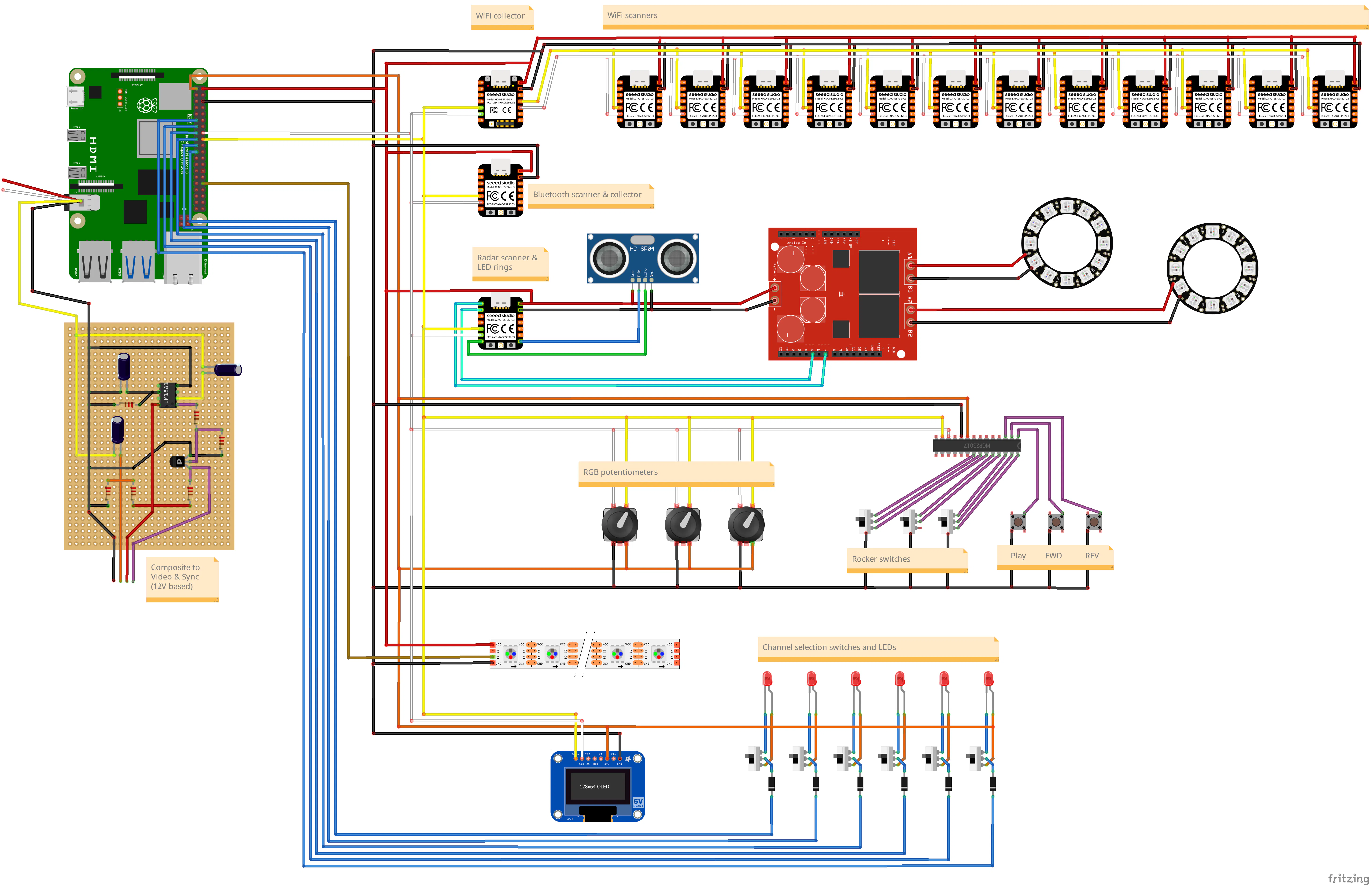
Frtizing Schemetic

Code

WiFi_scanner.ino

Arduino
The arduino code for the WiFi scanners. For each of the 13 channels, make a slight change in the code for the correct channel (SCAN_CHANNEL) and i2c address (I2C_SLAVE_DEV_ADDR).
/*
 * ESP32-C3 XIAO layout:
 *                                                     ___| USB |___    
 *                                GPIO2   A0   D0   2 |             |     5V                                POWER IN
 *                                GPIO3   A1   D1   3 |             |     GND                               GND IN
 *                                GPIO4   A2   D2   4 |             |     3.3V                              
 *                                GPIO5        D3   5 |             | 10  D10    GPIO10    MOSI                          
 *    CTRL_I2C_SDA         SDA    GPIO6        D4   6 |             |  9  D9     GPIO9     MISO                          
 *    CTRL_I2C_SCL         SCL    GPIO7        D5   7 |             |  8  D8     GPIO8     SCK            
 *                         TX     GPIO21       D6  21 |_____________| 20  D7     GPIO20    RX  SS                          
 */


/* Used sources:
 * https://www.hackster.io/p99will/esp32-wifi-mac-scanner-sniffer-promiscuous-4c12f4
 * https://github.com/dollop80/ESP32-BLE-Scanner/blob/master/ESP32_BLE_Scanner.ino
*/

#include <Arduino.h>
#include <WiFi.h>
#include <esp_wifi.h>
#include <MD_CirQueue.h>
#include <Wire.h>
#define slaveWire Wire        // We use 2 differet I2C networks. This is the Slave for the WiFi scanner network

#define I2C_SLAVE_DEV_ADDR 0x07

#define SCAN_CHANNEL 7 //max channel for scanning -> US = 11, EU = 13, Japan = 14

#define MIN_RSSI 90 // actually negative, but we want to calculate with unsigned integers
                    // higher number, is lower reception, we use this to exclude very poorly connected devices
                    // -30 = Perfect, -31 to -50 = Excellent, -50 to -67 = Good, -67 to -80 = Fair, -80 to -90 = Weak, below -90 = Unusable

#define DEVICE_BUFFER_SIZE 4096
#define DEVICE_QUEUE_SIZE 200
#define DEVICE_TTL_MS_TIMEOUT 20000 // 20 seconds
#define DEVICE_TTL_MS_NOUPDATE 10000 // 10 seconds
unsigned long cleanEvery = 5000;  // clean every 5 seconds
unsigned long nextClean = 0;


const wifi_promiscuous_filter_t filt={
    .filter_mask=WIFI_PROMIS_FILTER_MASK_MGMT|WIFI_PROMIS_FILTER_MASK_DATA
};

// https://en.wikipedia.org/wiki/802.11_frame_types
typedef struct {
  unsigned frame_ctrl_protocol_version:2;
  unsigned frame_ctrl_type:2;
  unsigned frame_ctrl_subtype:4;
  unsigned frame_ctrl_to_DS:1;
  unsigned frame_ctrl_from_DS:1;
  unsigned frame_ctrl_more_fragments:1;
  unsigned frame_ctrl_retry:1;
  unsigned frame_ctrl_pwr_mgmt:1;
  unsigned frame_ctrl_more_data:1;
  unsigned frame_ctrl_protected_frame:1;
  unsigned frame_ctrl_htc_order:1;
  uint8_t duration_id:16;
  uint8_t addr1[6]; /* receiver address */
  uint8_t addr2[6]; /* sender address */
  uint8_t addr3[6]; /* filtering address */
  unsigned sequence_ctrl:16;
  uint8_t addr4[6]; /* optional address */
} wifi_ieee80211_mac_hdr_t;

typedef struct {
  wifi_ieee80211_mac_hdr_t hdr;
  uint8_t payload[0]; /* network data ended with 4 bytes csum (CRC32) */
} wifi_ieee80211_packet_t;
  

typedef struct {
  uint8_t mac[6];
  long lastms = 0;
  bool alive = false;
  uint8_t rssi = 0;
} Device;

Device storedDevices[DEVICE_BUFFER_SIZE];

// Define a circular queue
MD_CirQueue Queue(DEVICE_QUEUE_SIZE, sizeof(uint64_t));


void onRequestEventI2C(void) {
  slaveWire.flush();

  // Popping an entry from the circular array, unless the buffer is empty.
  if (!Queue.isEmpty()) {
    uint64_t n;
    Queue.pop((uint8_t *)&n);

    uint8_t newvalue[7];
    newvalue[0] = n;
    newvalue[1] = n >> 8;
    newvalue[2] = n >> 16;
    newvalue[3] = n >> 24;
    newvalue[4] = n >> 32;
    newvalue[5] = n >> 40;
    newvalue[6] = n >> 48;

    slaveWire.write(newvalue,sizeof(newvalue));  //data bytes are queued in local buffer


    //for (int i=0; i<7; i++) {
    //  slaveWire.write(newvalue[i]);  //data bytes are queued in local buffer
    //}

    Serial.printf("POPPED  :  %02x:%02x:%02x:%02x:%02x:%02x   RSSI: %02d \n", newvalue[0], newvalue[1], newvalue[2], newvalue[3], newvalue[4], newvalue[5], newvalue[6]);
  }
  else {
    for (int i=0; i<7; i++) {
      slaveWire.write(0);  // No queued data: empty message
    }
  }
}


void registerDevice(uint8_t mac[6], int rssi) {

  if (MIN_RSSI < rssi) // higher number, is lower reception, we use this to exclude very poorly connected devices
    return;

  uint8_t qDevice[7];
  for(int i=0; i<6; i++) {
    qDevice[i] = mac[i];
  }
  qDevice[6] = (uint8_t)rssi;

  for(int i=0; i<DEVICE_BUFFER_SIZE; i++) {
    // Find existing device
    if(memcmp(mac, storedDevices[i].mac, 6) == 0) {
      if(millis() - storedDevices[i].lastms > DEVICE_TTL_MS_NOUPDATE || storedDevices[i].rssi > rssi) {
        storedDevices[i].lastms = millis();
        storedDevices[i].alive = true;
        storedDevices[i].rssi = rssi;
        Serial.printf("EXISTING:  %02x:%02x:%02x:%02x:%02x:%02x   RSSI: %02d \n", mac[0], mac[1], mac[2], mac[3], mac[4], mac[5], rssi);

        Queue.push((uint8_t *)&qDevice);
      }
      return;
    }
  }

  for(int i=0; i<DEVICE_BUFFER_SIZE; i++) {
    // New device, find first inactive spot
    if(!storedDevices[i].alive) {
      memcpy(storedDevices[i].mac, mac, 6);
      storedDevices[i].lastms = millis();
      storedDevices[i].alive = true;
      storedDevices[i].rssi = rssi;
      Serial.printf("NEW MAC :  %02x:%02x:%02x:%02x:%02x:%02x   RSSI: %02d \n", mac[0], mac[1], mac[2], mac[3], mac[4], mac[5], rssi);

      Queue.push((uint8_t *)&qDevice);
      return;
    }
  }

  Serial.printf("Buffer is full, no place for MAC: %02x:%02x:%02x:%02x:%02x:%02x   RSSI: %02d \n", mac[0], mac[1], mac[2], mac[3], mac[4], mac[5], rssi);
}


void cleanupDevices() {
  for(int i=0; i<DEVICE_BUFFER_SIZE; i++) {
    if(storedDevices[i].alive && millis() - storedDevices[i].lastms > DEVICE_TTL_MS_TIMEOUT) {
      Serial.printf("TIMEOUT :  %02x:%02x:%02x:%02x:%02x:%02x \n", storedDevices[i].mac[0], storedDevices[i].mac[1], storedDevices[i].mac[2], storedDevices[i].mac[3], storedDevices[i].mac[4], storedDevices[i].mac[5]);
      storedDevices[i].alive = false;
    }
  }
}

void wifiSniffer(void* buff, wifi_promiscuous_pkt_type_t type) {
  const wifi_promiscuous_pkt_t *ppkt = (wifi_promiscuous_pkt_t *)buff;
  const wifi_ieee80211_packet_t *ipkt = (wifi_ieee80211_packet_t *)ppkt->payload;
  const wifi_ieee80211_mac_hdr_t *hdr = &ipkt->hdr;

  if (  (type == WIFI_PKT_DATA && hdr->frame_ctrl_to_DS == 1 && hdr->frame_ctrl_from_DS == 0) // Data: From device to AP on a confirmed connection
     || (type == WIFI_PKT_MGMT && hdr->frame_ctrl_subtype == 4)  // Management: Probe Request (devices testing AP availability)
     || (type == WIFI_PKT_MGMT && hdr->frame_ctrl_subtype == 13 && memcmp(hdr->addr1, hdr->addr3, 6) == 0)  // Management: Action (connection between Device and AP, not sure what it does)
     ) {

    uint8_t mac[6];
    for(int i=0; i<6; i++) {
      mac[i] = hdr->addr2[i];
    }
    registerDevice(mac, ppkt->rx_ctrl.rssi*-1);
  }
}


void startWifiScan(){
  WiFi.persistent(false);
  wifi_init_config_t cfg = WIFI_INIT_CONFIG_DEFAULT();
  esp_wifi_init(&cfg);
  esp_wifi_set_storage(WIFI_STORAGE_RAM);
  esp_wifi_set_mode(WIFI_MODE_NULL);
  esp_wifi_set_promiscuous(true);
  esp_wifi_set_promiscuous_filter(&filt);
  esp_wifi_set_promiscuous_rx_cb(&wifiSniffer);
  esp_wifi_set_channel(SCAN_CHANNEL, WIFI_SECOND_CHAN_NONE);
  esp_wifi_start();
}

void setup() {
  Serial.begin(115200);

  Queue.begin();

  slaveWire.begin(I2C_SLAVE_DEV_ADDR);
  slaveWire.onRequest(onRequestEventI2C);

  startWifiScan();

  nextClean = millis() + cleanEvery;
}

void loop() {
  if(millis() > nextClean) {
    nextClean = millis() + cleanEvery;
    cleanupDevices();
  }

  delay(1);
}

ghettoblaster.py

Python
Code on the Raspberry to collect the Bluetooth, Wifi and radar data from the ESP's. Controls the LED strip, sends data to CamillaDSP, responds to tape-buttons, knobs and rockers.
#!/usr/bin/env python3
import colorsys
import time
import requests
import socket
import smbus

import json
import math

from pathlib import Path
from PIL import ImageFont
from random import randrange


#Do not overwhelm IP and Artist renewals
time_last_checked_parameters = 0
check_every_parameters = 20 # seconds

#Do not overwhelm i2c renewals
time_last_checked_i2c = 0
check_every_i2c = 2 # seconds

bus = smbus.SMBus(4)


import RPi.GPIO as GPIO

GPIO.setmode(GPIO.BCM) # Use BCM GPIO references instead of physical pin numbers

SWITCH_value = 0

SWITCH_1_PIN = 17
GPIO.setup(SWITCH_1_PIN, GPIO.IN, pull_up_down=GPIO.PUD_DOWN)

SWITCH_2_PIN = 27
GPIO.setup(SWITCH_2_PIN, GPIO.IN, pull_up_down=GPIO.PUD_DOWN)

SWITCH_3_PIN = 22
GPIO.setup(SWITCH_3_PIN, GPIO.IN, pull_up_down=GPIO.PUD_DOWN)

SWITCH_4_PIN = 10
GPIO.setup(SWITCH_4_PIN, GPIO.IN, pull_up_down=GPIO.PUD_DOWN)

SWITCH_5_PIN = 9
GPIO.setup(SWITCH_5_PIN, GPIO.IN, pull_up_down=GPIO.PUD_DOWN)

SWITCH_6_PIN = 11
GPIO.setup(SWITCH_6_PIN, GPIO.IN, pull_up_down=GPIO.PUD_DOWN)


from rpi_ws281x import PixelStrip, Color

# LED strip configuration:
LED_BUTTON_COUNT = 6  # Number of LED pixels used for switches.
LED_SKIP_COUNT = 2          #	Number of LED pixels to skip becaus of strip bend
LED_STRIP_COUNT = 64  # Number of LED pixels used in Strip.
LED_PIN = 12          # GPIO pin connected to the pixels (18 uses PWM!).
LED_FREQ_HZ = 800000  # LED signal frequency in hertz (usually 800khz)
LED_DMA = 10          # DMA channel to use for generating signal (try 10)
LED_BRIGHTNESS = 255  # Set to 0 for darkest and 255 for brightest
LED_INVERT = False    # True to invert the signal (when using NPN transistor level shift)
LED_CHANNEL = 0       # set to '1' for GPIOs 13, 19, 41, 45 or 53

led_iteration = 0
led_direction = 0


from Adafruit_I2C import Adafruit_I2C
from MCP23017 import MCP23017

MCP_I2C_ADDR = 0x20
MCP = MCP23017(address=MCP_I2C_ADDR,num_gpios=16,busnum=4) # MCP23017

MCP_PLAY_PIN = 3
PLAY_value = 1
PLAY_value_old = -1
MCP.pinMode(MCP_PLAY_PIN, MCP.INPUT)
MCP.pullUp(MCP_PLAY_PIN, 1)

MCP_FWD_PIN = 6
FWD_value = 1
FWD_value_old = -1
MCP.pinMode(MCP_FWD_PIN, MCP.INPUT)
MCP.pullUp(MCP_FWD_PIN, 1)

MCP_REV_PIN = 0
REV_value = 1
REV_value_old = -1
MCP.pinMode(MCP_REV_PIN, MCP.INPUT)
MCP.pullUp(MCP_REV_PIN, 1)

MCP_MONO_PIN = 15
MONO_value = 1
MONO_value_old = -1
MCP.pinMode(MCP_MONO_PIN, MCP.INPUT)
MCP.pullUp(MCP_MONO_PIN, 1)

MCP_STEREO_PIN = 14
STEREO_value = 1
STEREO_value_old = -1
MCP.pinMode(MCP_STEREO_PIN, MCP.INPUT)
MCP.pullUp(MCP_STEREO_PIN, 1)

MCP_SPATIAL_PIN = 13
SPATIAL_value = 1
SPATIAL_value_old = -1
MCP.pinMode(MCP_SPATIAL_PIN, MCP.INPUT)
MCP.pullUp(MCP_SPATIAL_PIN, 1)

MCP_MW_PIN = 12
MW_value = 1
MW_value_old = -1
MCP.pinMode(MCP_MW_PIN, MCP.INPUT)
MCP.pullUp(MCP_MW_PIN, 1)

MCP_FM_PIN = 11
FM_value = 1
FM_value_old = -1
MCP.pinMode(MCP_FM_PIN, MCP.INPUT)
MCP.pullUp(MCP_FM_PIN, 1)

MCP_TV_PIN = 10
TV_value = 1
TV_value_old = -1
MCP.pinMode(MCP_TV_PIN, MCP.INPUT)
MCP.pullUp(MCP_TV_PIN, 1)

MCP_TAPE_PIN = 9
TAPE_value = 1
TAPE_value_old = -1
MCP.pinMode(MCP_TAPE_PIN, MCP.INPUT)
MCP.pullUp(MCP_TAPE_PIN, 1)

MCP_LINEIN_PIN = 8
LINEIN_value = 1
LINEIN_value_old = -1
MCP.pinMode(MCP_LINEIN_PIN, MCP.INPUT)
MCP.pullUp(MCP_LINEIN_PIN, 1)


import ioexpander as io

POT_PIN_RED = 1
POT_PIN_GREEN = 7
POT_PIN_BLUE = 2

POT_ENC_A = 12
POT_ENC_B = 3
POT_ENC_C = 11

BRIGHTNESS = 0.5                # Effectively the maximum fraction of the period that the LED will be on
PERIOD = int(255 / BRIGHTNESS)  # Add a period large enough to get 0-255 steps at the desired brightness

POT_1_I2C_ADDR = 0x2A
POT_1_analog = 0
POT_1 = io.IOE(i2c_addr=POT_1_I2C_ADDR,smbus_id=4)
POT_1.set_mode(POT_ENC_A, io.PIN_MODE_PP)
POT_1.set_mode(POT_ENC_B, io.PIN_MODE_PP)
POT_1.set_mode(POT_ENC_C, io.ADC)
POT_1.output(POT_ENC_A, 1)
POT_1.output(POT_ENC_B, 0)
POT_1.set_pwm_period(PERIOD)
POT_1.set_pwm_control(divider=2)  # PWM as fast as we can to avoid LED flicker
POT_1.set_mode(POT_PIN_RED, io.PWM, invert=True)
POT_1.set_mode(POT_PIN_GREEN, io.PWM, invert=True)
POT_1.set_mode(POT_PIN_BLUE, io.PWM, invert=True)

POT_2_I2C_ADDR = 0x2B
POT_2_analog = 0
POT_2 = io.IOE(i2c_addr=POT_2_I2C_ADDR,smbus_id=4)
POT_2.set_mode(POT_ENC_A, io.PIN_MODE_PP)
POT_2.set_mode(POT_ENC_B, io.PIN_MODE_PP)
POT_2.set_mode(POT_ENC_C, io.ADC)
POT_2.output(POT_ENC_A, 1)
POT_2.output(POT_ENC_B, 0)
POT_2.set_pwm_period(PERIOD)
POT_2.set_pwm_control(divider=2)  # PWM as fast as we can to avoid LED flicker
POT_2.set_mode(POT_PIN_RED, io.PWM, invert=True)
POT_2.set_mode(POT_PIN_GREEN, io.PWM, invert=True)
POT_2.set_mode(POT_PIN_BLUE, io.PWM, invert=True)

POT_3_I2C_ADDR = 0x2C
POT_3_analog = 0
POT_3 = io.IOE(i2c_addr=POT_3_I2C_ADDR,smbus_id=4)
POT_3.set_mode(POT_ENC_A, io.PIN_MODE_PP)
POT_3.set_mode(POT_ENC_B, io.PIN_MODE_PP)
POT_3.set_mode(POT_ENC_C, io.ADC)
POT_3.output(POT_ENC_A, 1)
POT_3.output(POT_ENC_B, 0)
POT_3.set_pwm_period(PERIOD)
POT_3.set_pwm_control(divider=2)  # PWM as fast as we can to avoid LED flicker
POT_3.set_mode(POT_PIN_RED, io.PWM, invert=True)
POT_3.set_mode(POT_PIN_GREEN, io.PWM, invert=True)
POT_3.set_mode(POT_PIN_BLUE, io.PWM, invert=True)

p1_r = 0
p1_g = 0
p1_b = 0
p2_r = 0
p2_g = 0
p2_b = 0
p3_r = 0
p3_g = 0
p3_b = 0


from luma.core.interface.serial import i2c, pcf8574
from luma.core.interface.parallel import bitbang_6800
from luma.core.render import canvas
from luma.oled.device import ssd1362
from luma.core.sprite_system import framerate_regulator

OLED_serial = i2c(port=4, address=0x3C)
OLED_device = ssd1362(OLED_serial)


testIP = "8.8.8.8"
MyIPaddress = ""

CurrentArtist = ""
CurrentTrack = ""


def make_font(name, size):
    font_path = str(Path(__file__).resolve().parent.joinpath('fonts', name))
    return ImageFont.truetype(font_path, size)

font = make_font("fontawesome-webfont.ttf", OLED_device.height - 10)


RADAR_i2c_address = 0x40           # Arduino I2C Address
WIFI_i2c_address = 0x41            # Arduino I2C Address
BT_i2c_address = 0x42              # Arduino I2C Address


WIFI_RSSI = 0
WIFI_RSSI_old = 0
SCAN_TIME = 0
SCAN_TIME_old = 0
BT_RSSI = 0
BT_RSSI_old = 0

RADAR_balance = 100
WIFI_devices = 0
BT_devices = 0


from websocket import create_connection


pipeline_mixer_name = 'stereo' # mono or stereo
mixer_stereo_gain_left = -0.05 # between -10 and 10
mixer_stereo_gain_right = -0.05 # between -10 and 10
filters_eq_gain_1 = 0 # between -10 and 10
filters_eq_gain_2 = 0 # between -10 and 10
filters_eq_gain_3 = 0 # between -10 and 10
filters_eq_gain_4 = 0 # between -10 and 10
filters_eq_gain_5 = 0 # between -10 and 10
filters_eq_gain_6 = 0 # between -10 and 10
filters_eq_gain_7 = 0 # between -10 and 10
filters_eq_gain_8 = 0 # between -10 and 10
filters_eq_gain_9 = 0 # between -10 and 10
filters_eq_gain_10 = 0 # between -10 and 10
filters_eq_gain_11 = 0 # between -10 and 10
filters_eq_gain_12 = 0 # between -10 and 10
filters_eq_gain_13 = 0 # between -10 and 10
filters_eq_gain_14 = 0 # between -10 and 10
filters_eq_gain_15 = 0 # between -10 and 10


def getIPaddress():
    global MyIPaddress
    s = socket.socket(socket.AF_INET, socket.SOCK_DGRAM)
    s.connect((testIP, 0))
    MyIPaddress = s.getsockname()[0]


def getNowPlaying():
    global CurrentArtist
    global CurrentTrack
    response = requests.get('http://localhost:3000/api/v1/getState')
    CurrentArtist = response.json().get('artist')
    CurrentTrack = response.json().get('title')


def getRadarData():
    global RADAR_balance
    try:
        if(MONO_value == 0):
            bus.write_byte(RADAR_i2c_address, 2)
        elif(STEREO_value == 0):
            bus.write_byte(RADAR_i2c_address, 1)
        elif(SPATIAL_value == 0):
            bus.write_byte(RADAR_i2c_address, 0)
        else:
            bus.write_byte(RADAR_i2c_address, 1)
        RADAR_balance = bus.read_byte(RADAR_i2c_address)
    except: # exception if read_byte fails
        RADAR_balance = 100

def getBluetoothData():
    global BT_devices
    try:
        bus.write_byte_data(BT_i2c_address, SCAN_TIME, BT_RSSI)
        BT_devices = bus.read_byte(BT_i2c_address)
    except: # exception if read_byte fails
        BT_devices = 0

def getWifiData():
    global WIFI_devices
    try:
        bus.write_byte_data(WIFI_i2c_address, SCAN_TIME, WIFI_RSSI)
        WIFI_devices = bus.read_byte(WIFI_i2c_address)
    except: # exception if read_byte fails
        WIFI_devices = 0


# Define functions which animate LEDs in various ways.
def ws281x_colorWipe(ws281x_strip, color, wait_ms=50):
    """Wipe color across display a pixel at a time."""
    for i in range(ws281x_strip.numPixels()):
        ws281x_strip.setPixelColor(i, color)
        ws281x_strip.show()
        time.sleep(wait_ms / 1000.0)
 
def ws281x_wheel(pos):
    """Generate rainbow colors across 0-255 positions."""
    if pos < 85:
        return Color(pos * 3, 255 - pos * 3, 0)
    elif pos < 170:
        pos -= 85
        return Color(255 - pos * 3, 0, pos * 3)
    else:
        pos -= 170
        return Color(0, pos * 3, 255 - pos * 3)


def CreateCamilladspYML():

    if(MONO_value == 0):
        pipeline_mixer_name = 'mono' # mono or stereo
        mixer_stereo_gain_left = -0.05 # between -10 and 10
        mixer_stereo_gain_right = -0.05 # between -10 and 10
    elif(SPATIAL_value == 0):
        pipeline_mixer_name = 'stereo' # mono or stereo

        if(FM_value == 0):
            mixer_stereo_gain_left = min(max( (((RADAR_balance-100)/10)*-1) - (max( (math.log(max(BT_devices,1)) * 6) - 10, (math.log(max(WIFI_devices,1)) * 6) - 10) / 2) , -10), 10) # between -10 and 10
            mixer_stereo_gain_right = min(max( (((RADAR_balance-100)/10)) - (max( (math.log(max(BT_devices,1)) * 6) - 10, (math.log(max(WIFI_devices,1)) * 6) - 10) / 2) , -10), 10) # between -10 and 10
        else:
            mixer_stereo_gain_left = min(max( (((RADAR_balance-100)/10)*-1) , -10), 10) # between -10 and 10
            mixer_stereo_gain_right = min(max( (((RADAR_balance-100)/10)) , -10), 10) # between -10 and 10

    else: # STEREO or not selected
        pipeline_mixer_name = 'stereo' # mono or stereo
        mixer_stereo_gain_left = -0.05 # between -10 and 10
        mixer_stereo_gain_right = -0.05 # between -10 and 10


    if(FM_value == 0):
        filters_eq_gain_1 = min( (math.log(max(BT_devices,1)) * 6) - 10, 10) # between -10 and 10
        filters_eq_gain_2 = min( (math.log(max(BT_devices,1)) * 6) - 10, 10) # between -10 and 10
        filters_eq_gain_3 = min( (math.log(max(BT_devices,1)) * 6) - 10, 10) # between -10 and 10
        filters_eq_gain_4 = min( (math.log(max(BT_devices,1)) * 5) - 8,  10) # between -10 and 10
        filters_eq_gain_5 = min( (math.log(max(BT_devices,1)) * 4) - 6,  10) # between -10 and 10
        filters_eq_gain_6 = min( (math.log(max(BT_devices,1)) * 3) - 4,  10) # between -10 and 10

        filters_eq_gain_7 = 0 # between -10 and 10
        filters_eq_gain_8 = 0 # between -10 and 10
        filters_eq_gain_9 = 0 # between -10 and 10
        
        filters_eq_gain_10 = min( (math.log(max(WIFI_devices,1)) * 3) - 4,  10) # between -10 and 10
        filters_eq_gain_11 = min( (math.log(max(WIFI_devices,1)) * 4) - 6,  10) # between -10 and 10
        filters_eq_gain_12 = min( (math.log(max(WIFI_devices,1)) * 5) - 8,  10) # between -10 and 10
        filters_eq_gain_13 = min( (math.log(max(WIFI_devices,1)) * 6) - 10, 10) # between -10 and 10
        filters_eq_gain_14 = min( (math.log(max(WIFI_devices,1)) * 6) - 10, 10) # between -10 and 10
        filters_eq_gain_15 = min( (math.log(max(WIFI_devices,1)) * 6) - 10, 10) # between -10 and 10


    else: # MW or not selected
        filters_eq_gain_1 = 0 # between -10 and 10
        filters_eq_gain_2 = 0 # between -10 and 10
        filters_eq_gain_3 = 0 # between -10 and 10
        filters_eq_gain_4 = 0 # between -10 and 10
        filters_eq_gain_5 = 0 # between -10 and 10
        filters_eq_gain_6 = 0 # between -10 and 10
        filters_eq_gain_7 = 0 # between -10 and 10
        filters_eq_gain_8 = 0 # between -10 and 10
        filters_eq_gain_9 = 0 # between -10 and 10
        filters_eq_gain_10 = 0 # between -10 and 10
        filters_eq_gain_11 = 0 # between -10 and 10
        filters_eq_gain_12 = 0 # between -10 and 10
        filters_eq_gain_13 = 0 # between -10 and 10
        filters_eq_gain_14 = 0 # between -10 and 10
        filters_eq_gain_15 = 0 # between -10 and 10


    camilladsp_yml = ''
    camilladsp_yml += 'devices:' + '\n'
    camilladsp_yml += '  samplerate: 44100' + '\n'
    camilladsp_yml += '  chunksize: 4800' + '\n'
    camilladsp_yml += '  silence_threshold: -60' + '\n'
    camilladsp_yml += '  silence_timeout: 3.0' + '\n'
    camilladsp_yml += '  queuelimit: 1' + '\n'
    camilladsp_yml += '  target_level: 1024' + '\n'
    camilladsp_yml += '  adjust_period: 10' + '\n'
    camilladsp_yml += '  enable_rate_adjust: true' + '\n'
    camilladsp_yml += '' + '\n'
    camilladsp_yml += '' + '\n'
    camilladsp_yml += '  capture:' + '\n'
    camilladsp_yml += '    type: File' + '\n'
    camilladsp_yml += '    channels: 2' + '\n'
    camilladsp_yml += '    format: S32LE' + '\n'
    camilladsp_yml += '    filename: "/tmp/fusiondspfifo"' + '\n'
    camilladsp_yml += '    extra_samples: 4096' + '\n'
    camilladsp_yml += '  playback:' + '\n'
    camilladsp_yml += '    type: Alsa' + '\n'
    camilladsp_yml += '    channels: 2' + '\n'
    camilladsp_yml += '    device: "postDsp"' + '\n'
    camilladsp_yml += '    format: S32LE' + '\n'
    camilladsp_yml += '' + '\n'
    camilladsp_yml += '' + '\n'
    camilladsp_yml += 'filters:' + '\n'
    camilladsp_yml += '  nulleq2:' + '\n'
    camilladsp_yml += '    type: Conv' + '\n'
    camilladsp_yml += '' + '\n'
    camilladsp_yml += '  eq1:' + '\n'
    camilladsp_yml += '    type: Biquad' + '\n'
    camilladsp_yml += '    parameters:' + '\n'
    camilladsp_yml += '      type: Peaking' + '\n'
    camilladsp_yml += '      freq: 25' + '\n'
    camilladsp_yml += '      q: 1.85' + '\n'
    camilladsp_yml += '      gain: '+ str(filters_eq_gain_1) + '\n'
    camilladsp_yml += '' + '\n'
    camilladsp_yml += '  eq2:' + '\n'
    camilladsp_yml += '    type: Biquad' + '\n'
    camilladsp_yml += '    parameters:' + '\n'
    camilladsp_yml += '      type: Peaking' + '\n'
    camilladsp_yml += '      freq: 40' + '\n'
    camilladsp_yml += '      q: 1.85' + '\n'
    camilladsp_yml += '      gain: '+ str(filters_eq_gain_2) + '\n'
    camilladsp_yml += '' + '\n'
    camilladsp_yml += '  eq3:' + '\n'
    camilladsp_yml += '    type: Biquad' + '\n'
    camilladsp_yml += '    parameters:' + '\n'
    camilladsp_yml += '      type: Peaking' + '\n'
    camilladsp_yml += '      freq: 63' + '\n'
    camilladsp_yml += '      q: 1.85' + '\n'
    camilladsp_yml += '      gain: '+ str(filters_eq_gain_3) + '\n'
    camilladsp_yml += '' + '\n'
    camilladsp_yml += '  eq4:' + '\n'
    camilladsp_yml += '    type: Biquad' + '\n'
    camilladsp_yml += '    parameters:' + '\n'
    camilladsp_yml += '      type: Peaking' + '\n'
    camilladsp_yml += '      freq: 100' + '\n'
    camilladsp_yml += '      q: 1.85' + '\n'
    camilladsp_yml += '      gain: '+ str(filters_eq_gain_4) + '\n'
    camilladsp_yml += '' + '\n'
    camilladsp_yml += '  eq5:' + '\n'
    camilladsp_yml += '    type: Biquad' + '\n'
    camilladsp_yml += '    parameters:' + '\n'
    camilladsp_yml += '      type: Peaking' + '\n'
    camilladsp_yml += '      freq: 160' + '\n'
    camilladsp_yml += '      q: 1.85' + '\n'
    camilladsp_yml += '      gain: '+ str(filters_eq_gain_5) + '\n'
    camilladsp_yml += '' + '\n'
    camilladsp_yml += '  eq6:' + '\n'
    camilladsp_yml += '    type: Biquad' + '\n'
    camilladsp_yml += '    parameters:' + '\n'
    camilladsp_yml += '      type: Peaking' + '\n'
    camilladsp_yml += '      freq: 250' + '\n'
    camilladsp_yml += '      q: 1.85' + '\n'
    camilladsp_yml += '      gain: '+ str(filters_eq_gain_6) + '\n'
    camilladsp_yml += '' + '\n'
    camilladsp_yml += '  eq7:' + '\n'
    camilladsp_yml += '    type: Biquad' + '\n'
    camilladsp_yml += '    parameters:' + '\n'
    camilladsp_yml += '      type: Peaking' + '\n'
    camilladsp_yml += '      freq: 400' + '\n'
    camilladsp_yml += '      q: 1.85' + '\n'
    camilladsp_yml += '      gain: '+ str(filters_eq_gain_7) + '\n'
    camilladsp_yml += '' + '\n'
    camilladsp_yml += '  eq8:' + '\n'
    camilladsp_yml += '    type: Biquad' + '\n'
    camilladsp_yml += '    parameters:' + '\n'
    camilladsp_yml += '      type: Peaking' + '\n'
    camilladsp_yml += '      freq: 630' + '\n'
    camilladsp_yml += '      q: 1.85' + '\n'
    camilladsp_yml += '      gain: '+ str(filters_eq_gain_8) + '\n'
    camilladsp_yml += '' + '\n'
    camilladsp_yml += '  eq9:' + '\n'
    camilladsp_yml += '    type: Biquad' + '\n'
    camilladsp_yml += '    parameters:' + '\n'
    camilladsp_yml += '      type: Peaking' + '\n'
    camilladsp_yml += '      freq: 1000' + '\n'
    camilladsp_yml += '      q: 1.85' + '\n'
    camilladsp_yml += '      gain: '+ str(filters_eq_gain_9) + '\n'
    camilladsp_yml += '' + '\n'
    camilladsp_yml += '  eq10:' + '\n'
    camilladsp_yml += '    type: Biquad' + '\n'
    camilladsp_yml += '    parameters:' + '\n'
    camilladsp_yml += '      type: Peaking' + '\n'
    camilladsp_yml += '      freq: 1600' + '\n'
    camilladsp_yml += '      q: 1.85' + '\n'
    camilladsp_yml += '      gain: '+ str(filters_eq_gain_10) + '\n'
    camilladsp_yml += '' + '\n'
    camilladsp_yml += '  eq11:' + '\n'
    camilladsp_yml += '    type: Biquad' + '\n'
    camilladsp_yml += '    parameters:' + '\n'
    camilladsp_yml += '      type: Peaking' + '\n'
    camilladsp_yml += '      freq: 2500' + '\n'
    camilladsp_yml += '      q: 1.85' + '\n'
    camilladsp_yml += '      gain: '+ str(filters_eq_gain_11) + '\n'
    camilladsp_yml += '' + '\n'
    camilladsp_yml += '  eq12:' + '\n'
    camilladsp_yml += '    type: Biquad' + '\n'
    camilladsp_yml += '    parameters:' + '\n'
    camilladsp_yml += '      type: Peaking' + '\n'
    camilladsp_yml += '      freq: 4000' + '\n'
    camilladsp_yml += '      q: 1.85' + '\n'
    camilladsp_yml += '      gain: '+ str(filters_eq_gain_12) + '\n'
    camilladsp_yml += '' + '\n'
    camilladsp_yml += '  eq13:' + '\n'
    camilladsp_yml += '    type: Biquad' + '\n'
    camilladsp_yml += '    parameters:' + '\n'
    camilladsp_yml += '      type: Peaking' + '\n'
    camilladsp_yml += '      freq: 6300' + '\n'
    camilladsp_yml += '      q: 1.85' + '\n'
    camilladsp_yml += '      gain: '+ str(filters_eq_gain_13) + '\n'
    camilladsp_yml += '' + '\n'
    camilladsp_yml += '  eq14:' + '\n'
    camilladsp_yml += '    type: Biquad' + '\n'
    camilladsp_yml += '    parameters:' + '\n'
    camilladsp_yml += '      type: Peaking' + '\n'
    camilladsp_yml += '      freq: 10000' + '\n'
    camilladsp_yml += '      q: 1.85' + '\n'
    camilladsp_yml += '      gain: '+ str(filters_eq_gain_14) + '\n'
    camilladsp_yml += '' + '\n'
    camilladsp_yml += '  eq15:' + '\n'
    camilladsp_yml += '    type: Biquad' + '\n'
    camilladsp_yml += '    parameters:' + '\n'
    camilladsp_yml += '      type: Peaking' + '\n'
    camilladsp_yml += '      freq: 16000' + '\n'
    camilladsp_yml += '      q: 1.85' + '\n'
    camilladsp_yml += '      gain: '+ str(filters_eq_gain_15) + '\n'
    camilladsp_yml += '' + '\n'
    camilladsp_yml += '' + '\n'
    camilladsp_yml += 'mixers:' + '\n'
    camilladsp_yml += '  mono:' + '\n'
    camilladsp_yml += '    channels:' + '\n'
    camilladsp_yml += '      in: 2' + '\n'
    camilladsp_yml += '      out: 2' + '\n'
    camilladsp_yml += '    mapping:' + '\n'
    camilladsp_yml += '      - dest: 0' + '\n'
    camilladsp_yml += '        sources:' + '\n'
    camilladsp_yml += '          - channel: 0' + '\n'
    camilladsp_yml += '            gain: -6.1499999999999995' + '\n'
    camilladsp_yml += '            inverted: false' + '\n'
    camilladsp_yml += '            mute: false' + '\n'
    camilladsp_yml += '          - channel: 1' + '\n'
    camilladsp_yml += '            gain: -6.1499999999999995' + '\n'
    camilladsp_yml += '            inverted: false' + '\n'
    camilladsp_yml += '            mute: false' + '\n'
    camilladsp_yml += '      - dest: 1' + '\n'
    camilladsp_yml += '        sources:' + '\n'
    camilladsp_yml += '          - channel: 0' + '\n'
    camilladsp_yml += '            gain: -6.1499999999999995' + '\n'
    camilladsp_yml += '            inverted: false' + '\n'
    camilladsp_yml += '            mute: false' + '\n'
    camilladsp_yml += '          - channel: 1' + '\n'
    camilladsp_yml += '            gain: -6.1499999999999995' + '\n'
    camilladsp_yml += '            inverted: false' + '\n'
    camilladsp_yml += '            mute: false' + '\n'
    camilladsp_yml += '  stereo:' + '\n'
    camilladsp_yml += '    channels:' + '\n'
    camilladsp_yml += '      in: 2' + '\n'
    camilladsp_yml += '      out: 2' + '\n'
    camilladsp_yml += '    mapping:' + '\n'
    camilladsp_yml += '      - dest: 0' + '\n'
    camilladsp_yml += '        sources:' + '\n'
    camilladsp_yml += '          - channel: 0' + '\n'
    camilladsp_yml += '            gain: ' + str(mixer_stereo_gain_left) + '\n'
    camilladsp_yml += '            inverted: false' + '\n'
    camilladsp_yml += '            mute: false' + '\n'
    camilladsp_yml += '      - dest: 1' + '\n'
    camilladsp_yml += '        sources:' + '\n'
    camilladsp_yml += '          - channel: 1' + '\n'
    camilladsp_yml += '            gain: ' + str(mixer_stereo_gain_right) + '\n'
    camilladsp_yml += '            inverted: false' + '\n'
    camilladsp_yml += '            mute: false' + '\n'
    camilladsp_yml += '' + '\n'
    camilladsp_yml += '' + '\n'
    camilladsp_yml += '' + '\n'
    camilladsp_yml += 'pipeline:' + '\n'
    camilladsp_yml += '  - type: Mixer' + '\n'
    camilladsp_yml += '    name: ' + pipeline_mixer_name + '\n'
    camilladsp_yml += '  - type: Filter' + '\n'
    camilladsp_yml += '    channel: 0' + '\n'
    camilladsp_yml += '    names:' + '\n'
    camilladsp_yml += '      - eq1' + '\n'
    camilladsp_yml += '      - eq2' + '\n'
    camilladsp_yml += '      - eq3' + '\n'
    camilladsp_yml += '      - eq4' + '\n'
    camilladsp_yml += '      - eq5' + '\n'
    camilladsp_yml += '      - eq6' + '\n'
    camilladsp_yml += '      - eq7' + '\n'
    camilladsp_yml += '      - eq8' + '\n'
    camilladsp_yml += '      - eq9' + '\n'
    camilladsp_yml += '      - eq10' + '\n'
    camilladsp_yml += '      - eq11' + '\n'
    camilladsp_yml += '      - eq12' + '\n'
    camilladsp_yml += '      - eq13' + '\n'
    camilladsp_yml += '      - eq14' + '\n'
    camilladsp_yml += '      - eq15' + '\n'
    camilladsp_yml += '' + '\n'
    camilladsp_yml += '  - type: Filter' + '\n'
    camilladsp_yml += '    channel: 1' + '\n'
    camilladsp_yml += '    names:' + '\n'
    camilladsp_yml += '      - eq1' + '\n'
    camilladsp_yml += '      - eq2' + '\n'
    camilladsp_yml += '      - eq3' + '\n'
    camilladsp_yml += '      - eq4' + '\n'
    camilladsp_yml += '      - eq5' + '\n'
    camilladsp_yml += '      - eq6' + '\n'
    camilladsp_yml += '      - eq7' + '\n'
    camilladsp_yml += '      - eq8' + '\n'
    camilladsp_yml += '      - eq9' + '\n'
    camilladsp_yml += '      - eq10' + '\n'
    camilladsp_yml += '      - eq11' + '\n'
    camilladsp_yml += '      - eq12' + '\n'
    camilladsp_yml += '      - eq13' + '\n'
    camilladsp_yml += '      - eq14' + '\n'
    camilladsp_yml += '      - eq15' + '\n'
    camilladsp_yml += '' + '\n'
    
    try:
        with open("/home/volumio/Ghettoblaster/custom_camilladsp.yml", "w") as f:
          f.write(camilladsp_yml)

        ws = create_connection("ws://localhost:9876")

        ws.send(json.dumps({"SetConfigName": "/home/volumio/Ghettoblaster/custom_camilladsp.yml"}))
        ws.send(json.dumps("Reload"))    
        
        ws.close()  # close socket

    except: # exception if connection fails
        pass
        
    
# Main program logic follows:
if __name__ == '__main__':
    # Create NeoPixel object with appropriate configuration.
    ws281x_strip = PixelStrip(LED_BUTTON_COUNT+LED_SKIP_COUNT+LED_STRIP_COUNT, LED_PIN, LED_FREQ_HZ, LED_DMA, LED_INVERT, LED_BRIGHTNESS, LED_CHANNEL)
    # Intialize the library (must be called once before other functions).
    ws281x_strip.begin()
    ws281x_colorWipe(ws281x_strip, Color(0, 0, 0), 1)


    try:
         
        while True:

            # Only update sometimes to not overwhelm refreshers
            if time.time() > time_last_checked_parameters + check_every_parameters:
                time_last_checked_parameters = time.time()
                getIPaddress()
                getNowPlaying()


            # Get data from switches
            PLAY_value = MCP.input(MCP_PLAY_PIN)
            FWD_value = MCP.input(MCP_FWD_PIN)
            REV_value = MCP.input(MCP_REV_PIN)
            MONO_value = MCP.input(MCP_MONO_PIN)
            STEREO_value = MCP.input(MCP_STEREO_PIN)
            SPATIAL_value = MCP.input(MCP_SPATIAL_PIN)
            MW_value = MCP.input(MCP_MW_PIN)
            FM_value = MCP.input(MCP_FM_PIN)
            TV_value = MCP.input(MCP_TV_PIN)
            TAPE_value = MCP.input(MCP_TAPE_PIN)
            LINEIN_value = MCP.input(MCP_LINEIN_PIN)
            
            # Get data from Potentiometers
            POT_1_analog = POT_1.input(POT_ENC_C)
            POT_2_analog = POT_2.input(POT_ENC_C)
            POT_3_analog = POT_3.input(POT_ENC_C)
            

            # RSSI between 30 and 120 (90 steps)
            BT_RSSI = int( 30 + ((100 - ((POT_1_analog / 3.3) * 100)) * 0.9) )
            # RSSI between 30 and 90 (60 steps)
            WIFI_RSSI = int( 30 + ((100 - ((POT_3_analog / 3.3) * 100)) * 0.6) )
            # Scanning time between 0 and 60 seconds (60 steps)
            SCAN_TIME = int( ((100 - ((POT_2_analog / 3.3) * 100)) * 0.6) )


            # If SPATIAL or FM selected, or ANALOG turned, update data
            if(    (SPATIAL_value == 0 and SPATIAL_value_old != 0)
                or (FM_value == 0 and FM_value_old != 0)
                or (WIFI_RSSI + 3 < WIFI_RSSI_old or WIFI_RSSI - 3 > WIFI_RSSI_old)
                or (BT_RSSI + 3 < BT_RSSI_old or BT_RSSI - 3 > BT_RSSI_old)
                or (SCAN_TIME + 3 < SCAN_TIME_old or SCAN_TIME - 3 > SCAN_TIME_old)
                or (time.time() > time_last_checked_i2c + check_every_i2c)    # Only update sometimes to not overwhelm refreshers
                ):
                getRadarData()
                getWifiData()
                getBluetoothData()
                CreateCamilladspYML()

                time_last_checked_i2c = time.time()


            SPATIAL_value_old = SPATIAL_value
            FM_value_old = FM_value
            WIFI_RSSI_old = WIFI_RSSI
            BT_RSSI_old = BT_RSSI
            SCAN_TIME_old = SCAN_TIME


            if(MONO_value == 0):
                r = 100
                g = 10
                b = 10

            elif(STEREO_value == 0):
                r = 15
                g = 150
                b = 15

            elif(SPATIAL_value == 0):
                r = RADAR_balance
                g = 20
                b = 255 - RADAR_balance

            else:
                r = 10
                g = 10
                b = 10

            ws281x_strip.setPixelColor(0, Color(r, g, b))
            ws281x_strip.setPixelColor(5, Color(r, g, b))


            if(FM_value == 0):
                h = ((POT_1_analog / 3.3) / 6.0) + 0.583333333333333
                if(h > 1):
                    h = h-1
                p1_r, p1_g, p1_b = [int(c * PERIOD * BRIGHTNESS) for c in colorsys.hsv_to_rgb(h, 1.0, 1.0)]
                POT_1.output(POT_PIN_RED, p1_r)
                POT_1.output(POT_PIN_GREEN, p1_g)
                POT_1.output(POT_PIN_BLUE, p1_b)

                h = ((POT_2_analog / 3.3) / 6.0) + 0.25
                p2_r, p2_g, p2_b = [int(c * PERIOD * BRIGHTNESS) for c in colorsys.hsv_to_rgb(h, 1.0, 1.0)]
                POT_2.output(POT_PIN_RED, p2_r)
                POT_2.output(POT_PIN_GREEN, p2_g)
                POT_2.output(POT_PIN_BLUE, p2_b)

                h = ((POT_3_analog / 3.3) / 6.0) + 0.916666666666666
                p3_r, p3_g, p3_b = [int(c * PERIOD * BRIGHTNESS) for c in colorsys.hsv_to_rgb(h, 1.0, 1.0)]
                POT_3.output(POT_PIN_RED, p3_r)
                POT_3.output(POT_PIN_GREEN, p3_g)
                POT_3.output(POT_PIN_BLUE, p3_b)

                # Color for the switch
                h = ( POT_1_analog + POT_2_analog + POT_3_analog ) / 3.3 / 3.0
                r, g, b = [int(c * PERIOD * BRIGHTNESS) for c in colorsys.hsv_to_rgb(h, 1.0, 1.0)]

            else:
                r = 50
                g = 50
                b = 50

                POT_1.output(POT_PIN_RED, r)
                POT_1.output(POT_PIN_GREEN, g)
                POT_1.output(POT_PIN_BLUE, b)

                POT_2.output(POT_PIN_RED, r)
                POT_2.output(POT_PIN_GREEN, g)
                POT_2.output(POT_PIN_BLUE, b)

                POT_3.output(POT_PIN_RED, r)
                POT_3.output(POT_PIN_GREEN, g)
                POT_3.output(POT_PIN_BLUE, b)

            ws281x_strip.setPixelColor(1, Color(r, g, b))
            ws281x_strip.setPixelColor(4, Color(r, g, b))


            if(PLAY_value == 0 and PLAY_value_old != 0):
                params = {'cmd': 'play'}
                response = requests.get('http://localhost:3000/api/v1/commands/', params=params)
                PLAY_value_old = 0

            elif(PLAY_value == 1 and PLAY_value_old != 1):
                params = {'cmd': 'stop'}
                response = requests.get('http://localhost:3000/api/v1/commands/', params=params)
                PLAY_value_old = 1

            if(FWD_value == 0 and FWD_value_old != 0):
                params = {'cmd': 'next'}
                response = requests.get('http://localhost:3000/api/v1/commands/', params=params)
                FWD_value_old = 0
            elif(FWD_value == 1 and FWD_value_old != 1):
                FWD_value_old = 1

            if(REV_value == 0 and REV_value_old != 0):
                params = {'cmd': 'prev'}
                response = requests.get('http://localhost:3000/api/v1/commands/', params=params)
                REV_value_old = 0
            elif(REV_value == 1 and REV_value_old != 1):
                REV_value_old = 1


            # get Switch value
            if GPIO.input(SWITCH_1_PIN) and SWITCH_value != 1:
                SWITCH_value = 1

            elif GPIO.input(SWITCH_2_PIN) and SWITCH_value != 2:
                SWITCH_value = 2
                getNowPlaying()

            elif GPIO.input(SWITCH_3_PIN) and SWITCH_value != 3:
                SWITCH_value = 3

            elif GPIO.input(SWITCH_4_PIN) and SWITCH_value != 4:
                SWITCH_value = 4

            elif GPIO.input(SWITCH_5_PIN) and SWITCH_value != 5:
                SWITCH_value = 5

            elif GPIO.input(SWITCH_6_PIN) and SWITCH_value != 6:
                SWITCH_value = 6
                getIPaddress()
    
            else:
                SWITCH_value = 0


            # Update OLED display based on Switch value    
            if SWITCH_value == 1:
                with canvas(OLED_device) as draw:
                    draw.rectangle(OLED_device.bounding_box, outline="white", fill="black")

                    if(     FM_value == 0
                        and MONO_value == 0
                        and TV_value == 0
                        and REV_value == 0
                        and FWD_value == 0
                        ):
                        draw.text((10, 5), text="\uf21b", font=font, fill="white") #Secret
                        draw.text((80, 27), MyIPaddress, fill="white")

                    else:
                        draw.text((10, 5), text="\uf028 ", font=font, fill="white") # Volume-up

                        draw.text((80, 20), "Ghettoblaster", fill="white")
                        draw.text((90, 34), "with an (un)ethical twist", fill="white")


            elif SWITCH_value == 2:
                with canvas(OLED_device) as draw:
                    draw.rectangle(OLED_device.bounding_box, outline="white", fill="black")

                    draw.text((10, 5), text="\uf001", font=font, fill="white") # Music

                    draw.text((80, 20), CurrentTrack, fill="white")
                    draw.text((80, 34), CurrentArtist, fill="white")

            elif SWITCH_value == 3:
                with canvas(OLED_device) as draw:
                    draw.rectangle(OLED_device.bounding_box, outline="white", fill="black")

                    draw.text((10, 5), text="\uf2ce", font=font, fill="white") # Radar

                    draw.rectangle((80, 22, 250, 42), outline="white", fill="black")
                    draw.rectangle((min(max(RADAR_balance+65-10,80),245), 24, max(min(RADAR_balance+65+10,250),85), 40), outline="white", fill="white")


            elif SWITCH_value == 4:
                with canvas(OLED_device) as draw:
                    draw.rectangle(OLED_device.bounding_box, outline="white", fill="black")
                   
                    draw.text((10, 5), text="\uf293", font=font, fill="white") # Bluetooth

                    draw.text((80, 10), "Devices Found", fill="white")
                    draw.text((200, 10), str(BT_devices), fill="white")

                    draw.text((80, 27), "Scan RSSI", fill="white")
                    draw.text((200, 27), str(BT_RSSI), fill="white")

                    draw.text((80, 44), "San Time", fill="white")
                    draw.text((200, 45), str(SCAN_TIME), fill="white")

            elif SWITCH_value == 5:
                with canvas(OLED_device) as draw:
                    draw.rectangle(OLED_device.bounding_box, outline="white", fill="black")

                    draw.text((10, 5), text="\uf1eb", font=font, fill="white") # WiFi

                    draw.text((80, 10), "Devices Found", fill="white")
                    draw.text((200, 10), str(WIFI_devices), fill="white")

                    draw.text((80, 27), "Scan RSSI", fill="white")
                    draw.text((200, 27), str(WIFI_RSSI), fill="white")

                    draw.text((80, 44), "San Time", fill="white")
                    draw.text((200, 45), str(SCAN_TIME), fill="white")

            elif SWITCH_value == 6:
                with canvas(OLED_device) as draw:
                    draw.rectangle(OLED_device.bounding_box, outline="white", fill="black")

                    draw.text((10, 5), text="\uf059 ", font=font, fill="white") # Questionmark

                    #draw.text((80, 10), "Devices Found", fill="white")
                    #draw.text((200, 10), str(WIFI_devices), fill="white")

                    #draw.text((80, 27), "Scan RSSI", fill="white")
                    #draw.text((200, 27), str(WIFI_RSSI), fill="white")

                    #draw.text((80, 44), "San Time", fill="white")
                    #draw.text((200, 45), str(SCAN_TIME), fill="white")


            # Update LED for switches and strip
            if(TV_value == 0):  # Nightrider style
                if led_iteration > LED_STRIP_COUNT:
                    led_iteration = 0
                    led_direction = 0

                if led_direction == 0:
                    led_iteration = led_iteration+1
                    if (led_iteration == LED_STRIP_COUNT-3):
                        led_direction = 1
                elif led_direction == 1:
                    led_iteration = led_iteration-1
                    if (led_iteration == 0):
                        led_direction = 0

                for i in range(LED_BUTTON_COUNT+LED_SKIP_COUNT, LED_BUTTON_COUNT+LED_SKIP_COUNT+led_iteration):
                    ws281x_strip.setPixelColor(i, Color(0, 0, 0))
                
                if(FM_value == 0):
                    rainbowcolor = ws281x_wheel(
                            (int(led_iteration * 256 / LED_STRIP_COUNT ) + led_iteration) & 255)

                    ws281x_strip.setPixelColor(2, rainbowcolor)
                    ws281x_strip.setPixelColor(3, rainbowcolor)

                else:
                    r = 255
                    g = 0
                    b = 0
                    rainbowcolor = Color(r,g,b)

...

This file has been truncated, please download it to see its full contents.

Adafruit_I2C.py

Python
Needed support library for the MCP23017 (which communicates via I2C)
#!/usr/bin/python

import smbus

# ===========================================================================
# Adafruit_I2C Class
# ===========================================================================

class Adafruit_I2C(object):

  @staticmethod
  def getPiRevision():
    "Gets the version number of the Raspberry Pi board"
    # Courtesy quick2wire-python-api
    # https://github.com/quick2wire/quick2wire-python-api
    # Updated revision info from: http://elinux.org/RPi_HardwareHistory#Board_Revision_History
    try:
      with open('/proc/cpuinfo','r') as f:
        for line in f:
          if line.startswith('Revision'):
            return 1 if line.rstrip()[-1] in ['2','3'] else 2
    except:
      return 0

  @staticmethod
  def getPiI2CBusNumber():
    # Gets the I2C bus number /dev/i2c#
    return 1 if Adafruit_I2C.getPiRevision() > 1 else 0

  def __init__(self, address, busnum=-1, debug=False):
    self.address = address
    # By default, the correct I2C bus is auto-detected using /proc/cpuinfo
    # Alternatively, you can hard-code the bus version below:
    # self.bus = smbus.SMBus(0); # Force I2C0 (early 256MB Pi's)
    # self.bus = smbus.SMBus(1); # Force I2C1 (512MB Pi's)
    self.bus = smbus.SMBus(busnum if busnum >= 0 else Adafruit_I2C.getPiI2CBusNumber())
    self.debug = debug

  def reverseByteOrder(self, data):
    "Reverses the byte order of an int (16-bit) or long (32-bit) value"
    # Courtesy Vishal Sapre
    byteCount = len(hex(data)[2:].replace('L','')[::2])
    val       = 0
    for i in range(byteCount):
      val    = (val << 8) | (data & 0xff)
      data >>= 8
    return val

  def errMsg(self):
    print("Error accessing 0x%02X: Check your I2C address" % self.address)
    return -1

  def write8(self, reg, value):
    "Writes an 8-bit value to the specified register/address"
    try:
      self.bus.write_byte_data(self.address, reg, value)
      if self.debug:
        print("I2C: Wrote 0x%02X to register 0x%02X" % (value, reg))
    except IOError as err:
      return self.errMsg()

  def write16(self, reg, value):
    "Writes a 16-bit value to the specified register/address pair"
    try:
      self.bus.write_word_data(self.address, reg, value)
      if self.debug:
        print("I2C: Wrote 0x%02X to register pair 0x%02X,0x%02X" %
         (value, reg, reg+1))
    except IOError as err:
      return self.errMsg()

  def writeRaw8(self, value):
    "Writes an 8-bit value on the bus"
    try:
      self.bus.write_byte(self.address, value)
      if self.debug:
        print("I2C: Wrote 0x%02X" % value)
    except IOError as err:
      return self.errMsg()

  def writeList(self, reg, list):
    "Writes an array of bytes using I2C format"
    try:
      if self.debug:
        print("I2C: Writing list to register 0x%02X:" % reg)
        print(list)
      self.bus.write_i2c_block_data(self.address, reg, list)
    except IOError as err:
      return self.errMsg()

  def readList(self, reg, length):
    "Read a list of bytes from the I2C device"
    try:
      results = self.bus.read_i2c_block_data(self.address, reg, length)
      if self.debug:
        print("I2C: Device 0x%02X returned the following from reg 0x%02X" %
         (self.address, reg))
        print(results)
      return results
    except IOError as err:
      return self.errMsg()

  def readU8(self, reg):
    "Read an unsigned byte from the I2C device"
    try:
      result = self.bus.read_byte_data(self.address, reg)
      if self.debug:
        print("I2C: Device 0x%02X returned 0x%02X from reg 0x%02X" %
         (self.address, result & 0xFF, reg))
      return result
    except IOError as err:
      return self.errMsg()

  def readS8(self, reg):
    "Reads a signed byte from the I2C device"
    try:
      result = self.bus.read_byte_data(self.address, reg)
      if result > 127: result -= 256
      if self.debug:
        print("I2C: Device 0x%02X returned 0x%02X from reg 0x%02X" %
         (self.address, result & 0xFF, reg))
      return result
    except IOError as err:
      return self.errMsg()

  def readU16(self, reg, little_endian=True):
    "Reads an unsigned 16-bit value from the I2C device"
    try:
      result = self.bus.read_word_data(self.address,reg)
      # Swap bytes if using big endian because read_word_data assumes little 
      # endian on ARM (little endian) systems.
      if not little_endian:
        result = ((result << 8) & 0xFF00) + (result >> 8)
      if (self.debug):
        print("I2C: Device 0x%02X returned 0x%04X from reg 0x%02X" % (self.address, result & 0xFFFF, reg))
      return result
    except IOError as err:
      return self.errMsg()

  def readS16(self, reg, little_endian=True):
    "Reads a signed 16-bit value from the I2C device"
    try:
      result = self.readU16(reg,little_endian)
      if result > 32767: result -= 65536
      return result
    except IOError as err:
      return self.errMsg()

if __name__ == '__main__':
  try:
    bus = Adafruit_I2C(address=0)
    print("Default I2C bus is accessible")
  except:
    print("Error accessing default I2C bus")

MD_CirQueue.h

Arduino
Used together with the WiFi_scanner. This is the array to store pending WiFi registrations, before they go to the WiFi_collector
#pragma once
/**
\mainpage Circular Queue Library
This library implements a FIFO queue for generalized items, implemented as a
circular queue. The number and size of the items that are enqueued is defined
in the constructor, after which the calling program can push and pop items
in FIFO order from the queue. When the queue is full the library accommodates
both overwriting the oldest item in the queue or failing the current push()
attempt.

This mechanism is useful for holding data that needs to be asynchronously
transferred between different parts of an application (eg. multiple data
streams queued up for one 'consumer' task).

- \subpage pageRevisionHistory
- \subpage pageCopyright
- \subpage pageDonation

\page pageDonation Support the Library
If you like and use this library please consider making a small donation using [PayPal](https://paypal.me/MajicDesigns/4USD)

\page pageCopyright Copyright
Copyright (C) 2017 Marco Colli. All rights reserved.

This library is free software; you can redistribute it and/or
modify it under the terms of the GNU Lesser General Public
License as published by the Free Software Foundation; either
version 2.1 of the License, or (at your option) any later version.

This library is distributed in the hope that it will be useful,
but WITHOUT ANY WARRANTY; without even the implied warranty of
MERCHANTABILITY or FITNESS FOR A PARTICULAR PURPOSE.  See the GNU
Lesser General Public License for more details.

You should have received a copy of the GNU Lesser General Public
License along with this library; if not, write to the Free Software
Foundation, Inc., 51 Franklin St, Fifth Floor, Boston, MA 02110-1301 USA

\page pageRevisionHistory Revision History
Oct 2020 version 1.0.3
- Administrative update

May 2018 version 1.0.2
- Maintenance release, no major changes

Jan 2017 version 1.0
- First implementation
*/
#pragma once

#include <Arduino.h>

/**
 * \file
 * \brief Main header file and class definition for the MD_CirQueue library
 */

#define CQ_DEBUG 0

#if CQ_DEBUG
#define CQ_PRINTS(s)   { Serial.print(F(s)); }
#define CQ_PRINT(s, v) { Serial.print(F(s)); Serial.print(v); }
#else
#define CQ_PRINTS(s)
#define CQ_PRINT(s, v)
#endif

/**
 * Core object for the MD_CirQueue library
 */
class MD_CirQueue
{
public:
  /**
   * Class Constructor.
   *
   * Instantiate a new instance of the class. The parameters passed are used to
   * configure the quantity and size of queue objects.
   *
   * \param itmQty    number of items allowed in the queue.
   * \param itmSize   size of each item in bytes.
   */
  MD_CirQueue(uint8_t itmQty, uint16_t itmSize) :
    _itmQty(itmQty), _itmSize(itmSize),
    _itmCount(0), _overwrite(false)
  {
    uint16_t size = sizeof(uint8_t) * _itmQty * _itmSize;

    CQ_PRINT("\nAllocating ", size);
    CQ_PRINTS("bytes");
    _itmData = (uint8_t *)malloc(size);
    clear();
  }

  /**
   * Class Destructor.
   *
   * Released allocated memory and does the necessary to clean up once the queue is
   * no longer required.
   */
  ~MD_CirQueue()
  {
    free(_itmData);
  }

  /**
   * Initialize the object.
   *
   * Initialize the object data. This needs to be called during setup() to initialize new
   * data for the class that cannot be done during the object creation.
   */
   void begin(void) {};

 /**
  * Clear contents of buffer
  *
  * Clears the buffer by resetting the head and tail pointers. Does not zero out delete
  * data in the buffer.
  */
   inline void clear() { _idxPut = _idxTake = _itmCount = 0; };

 /**
  * Push an item into the queue
  *
  * Place the item passed into the end of the queue. The item will be returned
  * to the calling program, in FIFO order, using pop().
  * If the buffer is already full before the push(), the behavior will depend on the
  * the setting controlled by the setFullOverwrite() method.
  *
  * @param itm    a pointer to data buffer of the item to be saved. Data size must be size specified in the constructor.
  * @return true  if the item was successfully placed in the queue, false otherwise
  */
  bool push(uint8_t* itm) {
    if (isFull()) {
      if (_overwrite) {
        CQ_PRINTS("\nOverwriting Q");
        pop(_itmData + (_idxTake * _itmSize));  // pop it into itself ...
      }
      else
        return(false);
    }

    // Save item and adjust the tail pointer
    CQ_PRINT("\nPush @", _idxPut);
    memcpy(_itmData + (_itmSize * _idxPut), itm, _itmSize);
    _idxPut++;
    _itmCount++;
    if (_idxPut == _itmQty) _idxPut = 0;

    return(true);
  }

 /**
  * Pop an item from the queue
  *
  * Return the first available item in the queue, copied into the buffer specified,
  * returning a pointer to the copied item. If no items are available (queue is
  * empty), then no data is copied and the method returns a NULL pointer.
  *
  * @param itm  a pointer to data buffer for the retrieved item to be saved. Data size must be size specified in the constructor.
  * @return pointer to the memory buffer or NULL if the queue is empty
  */
  uint8_t *pop(uint8_t* itm) {
    if (isEmpty()) return(NULL);

    // Copy data from the buffer
    CQ_PRINT("\nPop @", _idxTake);
    memcpy(itm, _itmData + (_itmSize * _idxTake), _itmSize);
    _idxTake++;
    _itmCount--;

    // If head has reached last item, wrap it back around to the start
    if (_idxTake == _itmQty) _idxTake = 0;

    return (itm);
  }

 /**
   * Peek at the next item in the queue
   *
   * Return a copy of the first item in the queue, copied into the buffer specified,
   * returning a pointer to the copied item. If no items are available (queue is
   * empty), then no data is copied and the method returns a NULL pointer. This does
   * not remove the item in the queue but gives a 'llok-ahead' capability in
   * processing the queue.
   *
   * @param itm a pointer to data buffer for the copied item to be saved. Data size must be size specified in the constructor.
   * @return pointer to the memory buffer or NULL if the queue is empty
   */
   uint8_t *peek(uint8_t* itm) {
     if (isEmpty()) return(NULL);

     // Copy data from the buffer
     CQ_PRINT("\nPeek @", _idxTake);
     memcpy(itm, _itmData + (_itmSize * _idxTake), _itmSize);

     return (itm);
   }

 /**
  * Set queue full behavior
  *
  * If the setting is set true, then push() with a full queue will overwrite the
  * oldest item in the queue. Default behavior is not to overwrite the oldest item
  * and fail the push() attempt.
  *
  * @param b  true to overwrite oldest item, false (default) to fail the push() call
  */
  inline void setFullOverwrite(bool b) { _overwrite = b; };

 /**
  * Check if the buffer is empty
  *
  * @return true if empty, false otherwise
  */
  inline bool isEmpty(void) { return(_itmCount == 0); };

 /**
  * Check if the buffer is full
  *
  * @return true if full, false otherwise
  */
  inline bool isFull() { return (_itmCount != 0 && _itmCount == _itmQty); };

private:
  uint8_t   _itmQty;    /// number of items in the queue
  uint16_t  _itmSize;   /// size in bytes for each item
  uint8_t*  _itmData;   /// pointer to allocated memory buffer

  uint8_t   _itmCount;  /// number of items in the queue
  uint8_t   _idxPut;    /// array index where the next push will occur
  uint8_t   _idxTake;   /// array index where next pop will occur
  bool      _overwrite; /// when true, overwrite oldest object if push() and isFull()
};

WiFi_collector.ino

Arduino
Collect WiFi scanned data from the 13 WiFi_scanners and temporarily store this.
/*
 * ESP32-S3 XIAO layout:
 *                                                 ___| USB |___    
 *                          T/GPIO1   A0   D0   1 |             |     5V                                POWER IN
 *                          T/GPIO2   A1   D1   2 |             |     GND                               GND IN
 *                          T/GPIO3   A2   D2   3 |             |     3.3V                              
 *                          T/GPIO4   A3   D3   4 | LED_BUILTIN |  9  D10  A10   T/GPIO9    MOSI        CTRL_I2C_SDA             
 *    RPI_I2C_SDA      SDA  T/GPIO5   A4   D4   5 |     21      |  8  D9   A9    T/GPIO8    MISO        CTRL_I2C_SCL             
 *    RPI_I2C_SCL      SCL  T/GPIO6   A5   D5   6 |             |  7  D8   A8    T/GPIO7    SCK                  
 *                     TX     GPIO43       D6  43 |_____________| 44  D7           GPIO44   RX  SS                              
 */
 
#include <Arduino.h>

#include <Wire.h>

#define masterWire Wire1        // We use 2 different I2C networks. This is the Master for the WiFi scanner network
#define slaveWire Wire         // We use 2 different I2C networks. This is the Slave connected to the Raspberry Pi

#define I2C_MASTER_SDA_PIN 9
#define I2C_MASTER_SCL_PIN 8
uint8_t I2C_MASTER_NR_OF_SLAVE_DEVICES = 13;
uint8_t I2C_MASTER_SLAVE_ADDRESSES[] = {0x01,0x02,0x03,0x04,0x05,0x06,0x07,0x08,0x09,0x0a,0x0b,0x0c,0x0d};


#define I2C_SLAVE_DEV_ADDR 0x41
uint8_t RequestedMaxAge = 60;
uint8_t RequestedMaxRSSI = 100;


#define MIN_RSSI 90 // RSSI is actually negative, but we do not want to calculate with unsigned integers!
                    // higher number, is lower reception, we use this to exclude very poorly connected devices
                    // -30 = Perfect, -31 to -50 = Excellent, -50 to -67 = Good, -67 to -80 = Fair, -80 to -90 = Weak, below -90 = Unusable

#define DEVICE_BUFFER_SIZE 8192
#define DEVICE_TTL_MS_TIMEOUT 60000 // 60 seconds
#define DEVICE_TTL_MS_NOUPDATE 10000 // 10 seconds
unsigned long cleanEvery = 5000;  // clean every 5 seconds
unsigned long nextClean = 0;


typedef struct {
  uint8_t mac[6];
  long lastms = 0;
  bool alive = false;
  uint8_t rssi = 0;
} Device;

Device storedDevices[DEVICE_BUFFER_SIZE];


void registerDevice(uint8_t mac[6], uint8_t rssi) {
  if (MIN_RSSI < rssi) // higher number, is lower reception, we use this to exclude very poorly connected devices
    return;

  uint8_t qDevice[7];
  for(int i=0; i<6; i++) {
    qDevice[i] = mac[i];
  }
  qDevice[6] = (uint8_t)rssi;

  for(int i=0; i<DEVICE_BUFFER_SIZE; i++) {
    // Find existing device
    if(memcmp(mac, storedDevices[i].mac, 6) == 0) {
      if(millis() - storedDevices[i].lastms > DEVICE_TTL_MS_NOUPDATE || storedDevices[i].rssi > rssi) {
        storedDevices[i].lastms = millis();
        storedDevices[i].alive = true;
        storedDevices[i].rssi = rssi;
        Serial.printf("EXISTING:  %02x:%02x:%02x:%02x:%02x:%02x   RSSI: %02d \n", mac[0], mac[1], mac[2], mac[3], mac[4], mac[5], rssi);
      }
      return;
    }
  }

  for(int i=0; i<DEVICE_BUFFER_SIZE; i++) {
    // New device, find first inactive spot
    if(!storedDevices[i].alive) {
      memcpy(storedDevices[i].mac, mac, 6);
      storedDevices[i].lastms = millis();
      storedDevices[i].alive = true;
      storedDevices[i].rssi = rssi;
      Serial.printf("NEW MAC :  %02x:%02x:%02x:%02x:%02x:%02x   RSSI: %02d \n", mac[0], mac[1], mac[2], mac[3], mac[4], mac[5], rssi);
      return;
    }
  }

  Serial.printf("Buffer is full, no place for MAC: %02x:%02x:%02x:%02x:%02x:%02x   RSSI: %02d \n", mac[0], mac[1], mac[2], mac[3], mac[4], mac[5], rssi);
}


void cleanupDevices() {
  for(int i=0; i<DEVICE_BUFFER_SIZE; i++) {
    if(storedDevices[i].alive && millis() - storedDevices[i].lastms > DEVICE_TTL_MS_TIMEOUT) {
      Serial.printf("TIMEOUT :  %02x:%02x:%02x:%02x:%02x:%02x   RSSI: %02d \n", storedDevices[i].mac[0], storedDevices[i].mac[1], storedDevices[i].mac[2], storedDevices[i].mac[3], storedDevices[i].mac[4], storedDevices[i].mac[5], storedDevices[i].rssi);
      storedDevices[i].alive = false;
    }
  }
}


int countDevices(uint8_t agems, uint8_t rssi){
  int cnt = 0;
  for(int i=0; i<DEVICE_BUFFER_SIZE; i++){
    if(millis() - storedDevices[i].lastms < (agems*1000) && storedDevices[i].rssi < rssi && storedDevices[i].alive) {
      cnt++;
    }
  }
  Serial.printf("TOTAL: %d   RequestedMaxAge: %d   RequestedMaxRSSI: %d \n", cnt, agems, rssi);
  return cnt;
}

void requestData(uint8_t dev_address) {
  // Write message to the wifi scanner
  masterWire.beginTransmission(dev_address);
  masterWire.write(0);
  uint8_t error = masterWire.endTransmission(true);

  if (error == 0) { // 0 = success

    // Read bytes from the wifi scanner
    masterWire.flush();
    masterWire.requestFrom(dev_address, 7, true);
    
    uint8_t buffer_values[7];
    masterWire.readBytes(buffer_values, 7);

    if(buffer_values[0] != 0) {
      Serial.printf("RECEIVED from 0x%02x :  %02x:%02x:%02x:%02x:%02x:%02x   RSSI: %02d \n", dev_address, buffer_values[0], buffer_values[1], buffer_values[2], buffer_values[3], buffer_values[4], buffer_values[5], buffer_values[6]);

      uint8_t mac[6];
      for(int i=0; i<6; i++) {
        mac[i] = buffer_values[i];
      }
      registerDevice(mac, buffer_values[6]);
    }
  }
}

void onReceiveEventI2C(int howManyBytes) {
  if (howManyBytes == 2) {
    RequestedMaxAge = slaveWire.read();
    RequestedMaxRSSI = slaveWire.read();
    //Serial.printf("RequestedMaxAge: %d , RequestedMaxRSSI %d \n", RequestedMaxAge, RequestedMaxRSSI);
  }
}

void onRequestEventI2C(void) {
  slaveWire.flush();
  slaveWire.write(countDevices(RequestedMaxAge, RequestedMaxRSSI));  //data bytes are queued in local buffer
}

void setup() {
  Serial.begin(115200);
  delay(10000);

  slaveWire.onReceive(onReceiveEventI2C);
  slaveWire.onRequest(onRequestEventI2C);
  slaveWire.begin(I2C_SLAVE_DEV_ADDR, SDA, SCL, 100000UL);

  // Initialize I2C networks
  masterWire.begin(I2C_MASTER_SDA_PIN, I2C_MASTER_SCL_PIN, 100000UL);
}

void loop() {
  for(int d=0; d<I2C_MASTER_NR_OF_SLAVE_DEVICES; d++) {
    requestData(I2C_MASTER_SLAVE_ADDRESSES[d]);
  }

  if(millis() > nextClean) {
    nextClean = millis() + cleanEvery;
    cleanupDevices();
  }

  delay(1000);
}

BLE_scanner_collector.ino

Arduino
Scans for and collects Bluetooth device data
/*
 * ESP32-S3 XIAO layout:
 *                                                 ___| USB |___    
 *                          T/GPIO1   A0   D0   1 |             |     5V                                POWER IN
 *                          T/GPIO2   A1   D1   2 |             |     GND                               GND IN
 *                          T/GPIO3   A2   D2   3 |             |     3.3V                              
 *                          T/GPIO4   A3   D3   4 | LED_BUILTIN |  9  D10  A10   T/GPIO9    MOSI                     
 *    RPI_I2C_SDA      SDA  T/GPIO5   A4   D4   5 |     21      |  8  D9   A9    T/GPIO8    MISO                     
 *    RPI_I2C_SCL      SCL  T/GPIO6   A5   D5   6 |             |  7  D8   A8    T/GPIO7    SCK                  
 *                     TX     GPIO43       D6  43 |_____________| 44  D7           GPIO44   RX  SS                              
 */
 
#include <Arduino.h>
#include <BLEDevice.h>
#include <BLEUtils.h>
#include <BLEScan.h>
#include <BLEAdvertisedDevice.h>

#include <Wire.h>

#define I2C_SLAVE_DEV_ADDR 0x42
uint8_t RequestedMaxAge = 60;
uint8_t RequestedMaxRSSI = 100;


#define MIN_RSSI 90 // RSSI is actually negative, but we do not want to calculate with unsigned integers!
                    // higher number, is lower reception, we use this to exclude very poorly connected devices
                    // -30 = Perfect, -31 to -50 = Excellent, -50 to -67 = Good, -67 to -80 = Fair, -80 to -90 = Weak, below -90 = Unusable


#define DEVICE_BUFFER_SIZE 8192
#define DEVICE_TTL_MS_TIMEOUT 60000 // 60 seconds
#define DEVICE_TTL_MS_NOUPDATE 10000 // 10 seconds
unsigned long cleanEvery = 5000;  // clean every 5 seconds
unsigned long nextClean = 0;

typedef struct {
  uint8_t mac[6];
  long lastms = 0;
  bool alive = false;
  uint8_t rssi;
} Device;

Device storedDevices[DEVICE_BUFFER_SIZE];

BLEScan *pBLEScan;


void registerDevice(uint8_t mac[6], uint8_t rssi) {

  if (MIN_RSSI < rssi) // higher number, is lower reception, we use this to exclude very poorly connected devices
    return;

  for(int i=0; i<DEVICE_BUFFER_SIZE; i++) {
    // Find existing device
    if(memcmp(mac, storedDevices[i].mac, 6) == 0) {
      if(millis() - storedDevices[i].lastms > DEVICE_TTL_MS_NOUPDATE || storedDevices[i].rssi > rssi) {
        storedDevices[i].lastms = millis();
        storedDevices[i].alive = true;
        storedDevices[i].rssi = rssi;
        Serial.printf("EXISTING:  %02x:%02x:%02x:%02x:%02x:%02x   RSSI: %02d \n", mac[0], mac[1], mac[2], mac[3], mac[4], mac[5], rssi);
      }
      return;
    }
  }

  for(int i=0; i<DEVICE_BUFFER_SIZE; i++) {
    // New device, find first inactive spot
    if(!storedDevices[i].alive) {
      memcpy(storedDevices[i].mac, mac, 6);
      storedDevices[i].lastms = millis();
      storedDevices[i].alive = true;
      storedDevices[i].rssi = rssi;
      Serial.printf("NEW MAC :  %02x:%02x:%02x:%02x:%02x:%02x   RSSI: %02d \n", mac[0], mac[1], mac[2], mac[3], mac[4], mac[5], rssi);
      return;
    }
  }

  Serial.printf("Buffer is full, no place for MAC: %02x:%02x:%02x:%02x:%02x:%02x   RSSI: %02d \n", mac[0], mac[1], mac[2], mac[3], mac[4], mac[5], rssi);
}


void cleanupDevices() {
  for(int i=0; i<DEVICE_BUFFER_SIZE; i++) {
    if(storedDevices[i].alive && millis() - storedDevices[i].lastms > DEVICE_TTL_MS_TIMEOUT) {
      Serial.printf("TIMEOUT :  %02x:%02x:%02x:%02x:%02x:%02x   RSSI: %02d \n", storedDevices[i].mac[0], storedDevices[i].mac[1], storedDevices[i].mac[2], storedDevices[i].mac[3], storedDevices[i].mac[4], storedDevices[i].mac[5], storedDevices[i].rssi);
      storedDevices[i].alive = false;
    }
  }
}


int countDevices(uint8_t agems, uint8_t rssi){
  int cnt = 0;
  for(int i=0; i<DEVICE_BUFFER_SIZE; i++){
    if(millis() - storedDevices[i].lastms < (agems*1000) && storedDevices[i].rssi < rssi && storedDevices[i].alive) {
      cnt++;
    }
  }
  Serial.printf("TOTAL: %d Time: %d RSSI: %d\n", cnt, agems, rssi);
  return cnt;
}


void onReceiveEventI2C(int howManyBytes) {
  if (howManyBytes == 2) {
    RequestedMaxAge = Wire.read();
    RequestedMaxRSSI = Wire.read();
  Serial.printf("RequestedMaxAge: %d , RequestedMaxRSSI %d \n", RequestedMaxAge, RequestedMaxRSSI);
  }
}

void onRequestEventI2C(void) {
  Wire.flush();
  Wire.write(countDevices(RequestedMaxAge, RequestedMaxRSSI));  //data bytes are queued in local buffer
}


class MyAdvertisedDeviceCallbacks : public BLEAdvertisedDeviceCallbacks{
    void onResult(BLEAdvertisedDevice advertisedDevice){

      uint8_t mac[6];
      memcpy(mac, advertisedDevice.getAddress().getNative(), 6);

      registerDevice(mac, advertisedDevice.getRSSI()*-1);
    }
};


void performBleScan() {
  pBLEScan->start(1, nullptr, false); // scan for 6 seconds, ignoring return value
  pBLEScan->clearResults();  // delete results fromBLEScan buffer to release memory
}


void setup() {
  Serial.begin(115200);

  Wire.onReceive(onReceiveEventI2C);
  Wire.onRequest(onRequestEventI2C);
  Wire.begin(I2C_SLAVE_DEV_ADDR, SDA, SCL, 100000UL);

  Serial.println("BLE scan start.");
  BLEDevice::init("");
  pBLEScan = BLEDevice::getScan(); //create new scan
  pBLEScan->setAdvertisedDeviceCallbacks(new MyAdvertisedDeviceCallbacks());
  pBLEScan->setActiveScan(true); //active scan uses more power, but get results faster
  pBLEScan->setInterval(0x100);
  pBLEScan->setWindow(0x100);
  
}

void loop() {
  performBleScan();

  if(millis() > nextClean) {
    nextClean = millis() + cleanEvery;
    cleanupDevices();
  }

}

Movement_Sensor_plus_LED_rings.ino

Arduino
The radar scanner which also controls to light-rings around the speakers
/*
 * ESP32-C3 XIAO layout:
 *                                                     ___| USB |___    
 *    LED_L_PWM_PIN               GPIO2   A0   D0   2 |             |     5V                                POWER IN
 *    LED_R_PWM_PIN               GPIO3   A1   D1   3 |             |     GND                               GND IN
 *                                GPIO4   A2   D2   4 |             |     3.3V                              
 *                                GPIO5        D3   5 |             | 10  D10    GPIO10    MOSI             
 *    RPI_I2C_SDA          SDA    GPIO6        D4   6 |             |  9  D9     GPIO9     MISO             
 *    RPI_I2C_SCL          SCL    GPIO7        D5   7 |             |  8  D8     GPIO8     SCK            
 *    RADAR_TX_PIN         TX     GPIO21       D6  21 |_____________| 20  D7     GPIO20    RX  SS           RADAR_RX_PIN           
 */


#include "RadarSensor.h"

#define RADAR_RX_PIN 20
#define RADAR_TX_PIN 21

RadarSensor radar(Serial1);
RadarTarget currentTarget;

#include <Wire.h>
#define I2C_SLAVE_DEV_ADDR 0x40


#define LED_L_PWM_PIN D0
#define LED_R_PWM_PIN D1


unsigned long nextPrint = 0, printEvery = 500;  // print every second

int detectedDistance = 999;
int detectedBalance;
int BalanceI2C = 100;
float factorDistanceBrightness = 12.5;

int ledBrightnessLeft = 0;
int ledBrightnessRight = 0;
int ledMode = 0; // 0 = spatial, 1 = stereo, 2 = mono
int ledLoopDirection = 0; // 0 = up, 1 = down
int ledLoopBrightness = 30;

void onReceiveEventI2C(int howManyBytes) {
  if (howManyBytes == 1) {
    ledMode = Wire.read();
  Serial.printf("ledMode %d \n", ledMode);
  }
}

void onRequestEventI2C(void) {
  Wire.flush();
  Wire.write(BalanceI2C);  //data bytes are queued in local buffer
  Serial.printf("I2C: %d \n", BalanceI2C);
}


void setup(void) {
  Serial.begin(115200); //Feedback over Serial Monitor

  delay(2000);

  Wire.onReceive(onReceiveEventI2C);
  Wire.onRequest(onRequestEventI2C);
  Wire.begin(I2C_SLAVE_DEV_ADDR, SDA, SCL, 100000UL);

  delay(2000);

  pinMode(LED_L_PWM_PIN, OUTPUT);
  pinMode(LED_R_PWM_PIN, OUTPUT);
  analogWrite(LED_L_PWM_PIN, 0);
  analogWrite(LED_R_PWM_PIN, 0);


  // Initialize radar
  Serial1.begin(256000, SERIAL_8N1, RADAR_RX_PIN, RADAR_TX_PIN);
  radar.begin();
  Serial.println(F("Radar Sensor Started"));

  delay(2000);
}

void loop() {

  if(radar.update()) {
    currentTarget = radar.getTarget();

    detectedDistance = int(currentTarget.distance);
    if (detectedDistance == 0) {
      detectedDistance = 1;
    } else {
      detectedDistance = max(1, 2000 - detectedDistance);
    }
    detectedBalance = min(90, max(-90, int(currentTarget.angle)*-1 ));
    BalanceI2C = min(max(  detectedBalance + 100  ,0),200);

    //                                             distance from radar                                          angle from radar (0.1 - 1.0)              LED brightness
    ledBrightnessLeft  = min(150, max(5, int(    ( (detectedDistance / 2000.0 * factorDistanceBrightness)   *   (max(9, detectedBalance)/90.0)    )   *   150.0            )));
    ledBrightnessRight = min(150, max(5, int(    ( (detectedDistance / 2000.0 * factorDistanceBrightness)   *   (max(9, detectedBalance*-1)/90.0) )   *   150.0            )));

  }

  if(millis() > nextPrint) {
    nextPrint = millis() + printEvery;

    Serial.print(F("distance:"));
    Serial.print(detectedDistance/20); //smaller number for Arduino Serial Plotter
    Serial.print(F("\t"));
    Serial.print(F("detectedBalance:"));
    Serial.print(detectedBalance);
    Serial.print(F("\t"));
    Serial.print(F("ledBrightnessLeft:-"));
    Serial.print(ledBrightnessLeft);
    Serial.print(F("\t"));
    Serial.print(F("ledBrightnessRight:"));
    Serial.print(ledBrightnessRight);
    Serial.println();

    if(ledMode == 2) { // mono
      analogWrite(LED_L_PWM_PIN, 10);
      analogWrite(LED_R_PWM_PIN, 10);
    }

    else if(ledMode == 1) { // stereo
      if (ledLoopDirection == 0) {
        ledLoopBrightness++;
        analogWrite(LED_L_PWM_PIN, (70 - ledLoopBrightness));
        analogWrite(LED_R_PWM_PIN, ledLoopBrightness);
      } else {
        ledLoopBrightness--;
        analogWrite(LED_L_PWM_PIN, ledLoopBrightness);
        analogWrite(LED_R_PWM_PIN, (70 - ledLoopBrightness));
      }
      
      if (ledLoopBrightness == 50) {
        ledLoopDirection = 1;
      }
      if(ledLoopBrightness == 20) {
        ledLoopDirection = 0;
      }
    }
    
    else { // 0 = spatial
      analogWrite(LED_L_PWM_PIN, ledBrightnessLeft);
      analogWrite(LED_R_PWM_PIN, ledBrightnessRight);
    }

  }

}

MCP23017.py

Python
Needed support library for the MCP23017
#!/usr/bin/python

from Adafruit_I2C import Adafruit_I2C
import smbus
import time
import math

MCP23017_IODIRA = 0x00
MCP23017_IODIRB = 0x01
MCP23017_GPINTENA = 0x04
MCP23017_GPINTENB = 0x05
MCP23017_DEFVALA = 0x06
MCP23017_DEFVALB = 0x07
MCP23017_INTCONA = 0x08
MCP23017_INTCONB = 0x09
MCP23017_IOCON = 0x0A #0x0B is the same
MCP23017_GPPUA = 0x0C
MCP23017_GPPUB = 0x0D
MCP23017_INTFA = 0x0E
MCP23017_INTFB = 0x0F
MCP23017_INTCAPA = 0x10
MCP23017_INTCAPB = 0x11
MCP23017_GPIOA = 0x12
MCP23017_GPIOB = 0x13
MCP23017_OLATA = 0x14
MCP23017_OLATB = 0x15

class MCP23017(object):
    # constants
    OUTPUT = 0
    INPUT = 1
    LOW = 0
    HIGH = 1

    INTMIRRORON = 1
    INTMIRROROFF = 0
    # int pin starts high. when interrupt happens, pin goes low
    INTPOLACTIVELOW = 0
    # int pin starts low. when interrupt happens, pin goes high
    INTPOLACTIVEHIGH = 1
    INTERRUPTON = 1
    INTERRUPTOFF = 0
    INTERRUPTCOMPAREDEFAULT = 1
    INTERRUPTCOMPAREPREVIOUS = 0

    # register values for use below
    IOCONMIRROR = 6
    IOCONINTPOL = 1

    # set defaults
    def __init__(self, address, num_gpios, busnum=-1):
        assert num_gpios >= 0 and num_gpios <= 16, "Number of GPIOs must be between 0 and 16"
	# busnum being negative will have Adafruit_I2C figure out what is appropriate for your Pi
        self.i2c = Adafruit_I2C(address=address, busnum=busnum)
        self.address = address
        self.num_gpios = num_gpios

        # set defaults
        self.i2c.write8(MCP23017_IODIRA, 0xFF)  # all inputs on port A
        self.i2c.write8(MCP23017_IODIRB, 0xFF)  # all inputs on port B
        self.i2c.write8(MCP23017_GPIOA, 0x00)  #  output register to 0
        self.i2c.write8(MCP23017_GPIOB, 0x00)  # output register to 0

        # read the current direction of all pins into instance variable
	# self.direction used for assertions in a few methods methods
        self.direction = self.i2c.readU8(MCP23017_IODIRA)
        self.direction |= self.i2c.readU8(MCP23017_IODIRB) << 8
	
	# disable the pull-ups on all ports
        self.i2c.write8(MCP23017_GPPUA, 0x00)
        self.i2c.write8(MCP23017_GPPUB, 0x00)
        
	# clear the IOCON configuration register, which is chip default
        self.i2c.write8(MCP23017_IOCON, 0x00)

        ##### interrupt defaults
        # disable interrupts on all pins by default
        self.i2c.write8(MCP23017_GPINTENA, 0x00)
        self.i2c.write8(MCP23017_GPINTENB, 0x00)
        # interrupt on change register set to compare to previous value by default
        self.i2c.write8(MCP23017_INTCONA, 0x00)
        self.i2c.write8(MCP23017_INTCONB, 0x00)
        # interrupt compare value registers
        self.i2c.write8(MCP23017_DEFVALA, 0x00)
        self.i2c.write8(MCP23017_DEFVALB, 0x00)
        # clear any interrupts to start fresh
        self.i2c.readU8(MCP23017_GPIOA)
        self.i2c.readU8(MCP23017_GPIOB)

    # change a specific bit in a byte
    def _changeBit(self, bitmap, bit, value):
        assert value == 1 or value == 0, "Value is %s must be 1 or 0" % value
        if value == 0:
            return bitmap & ~(1 << bit)
        elif value == 1:
            return bitmap | (1 << bit)

    # set an output pin to a specific value
    # pin value is relative to a bank, so must be be between 0 and 7
    def _readAndChangePin(self, register, pin, value, curValue = None):
        assert pin >= 0 and pin < 8, "Pin number %s is invalid, only 0-%s are valid" % (pin, 7)
        # if we don't know what the current register's full value is, get it first
        if not curValue:
             curValue = self.i2c.readU8(register)
        # set the single bit that corresponds to the specific pin within the full register value
        newValue = self._changeBit(curValue, pin, value)
        # write and return the full register value
        self.i2c.write8(register, newValue)
        return newValue

    # used to set the pullUp resistor setting for a pin
    # pin value is relative to the total number of gpio, so 0-15 on mcp23017
    # returns the whole register value
    def pullUp(self, pin, value):
        assert pin >= 0 and pin < self.num_gpios, "Pin number %s is invalid, only 0-%s are valid" % (pin, self.num_gpios)
        # if the pin is < 8, use register from first bank
        if (pin < 8):
            return self._readAndChangePin(MCP23017_GPPUA, pin, value)
        else:
        # otherwise use register from second bank
            return self._readAndChangePin(MCP23017_GPPUB, pin-8, value) << 8

    # Set pin to either input or output mode
    # pin value is relative to the total number of gpio, so 0-15 on mcp23017
    # returns the value of the combined IODIRA and IODIRB registers
    def pinMode(self, pin, mode):
        assert pin >= 0 and pin < self.num_gpios, "Pin number %s is invalid, only 0-%s are valid" % (pin, self.num_gpios)
        # split the direction variable into bytes representing each gpio bank
        gpioa = self.direction&0xff
        gpiob = (self.direction>>8)&0xff
        # if the pin is < 8, use register from first bank
        if (pin < 8):
            gpioa = self._readAndChangePin(MCP23017_IODIRA, pin, mode)
        else:
            # otherwise use register from second bank
            # readAndChangePin accepts pin relative to register though, so subtract
            gpiob = self._readAndChangePin(MCP23017_IODIRB, pin-8, mode) 
        # re-set the direction variable using the new pin modes
        self.direction = gpioa + (gpiob << 8)
        return self.direction

    # set an output pin to a specific value
    def output(self, pin, value):
        assert pin >= 0 and pin < self.num_gpios, "Pin number %s is invalid, only 0-%s are valid" % (pin, self.num_gpios)
        assert self.direction & (1 << pin) == 0, "Pin %s not set to output" % pin
        # if the pin is < 8, use register from first bank
        if (pin < 8):
            self.outputvalue = self._readAndChangePin(MCP23017_GPIOA, pin, value, self.i2c.readU8(MCP23017_OLATA))
        else:
            # otherwise use register from second bank
            # readAndChangePin accepts pin relative to register though, so subtract
            self.outputvalue = self._readAndChangePin(MCP23017_GPIOB, pin-8, value, self.i2c.readU8(MCP23017_OLATB))
        return self.outputvalue
    
    # read the value of a pin
    # return a 1 or 0
    def input(self, pin):
        assert pin >= 0 and pin < self.num_gpios, "Pin number %s is invalid, only 0-%s are valid" % (pin, self.num_gpios)
        assert self.direction & (1 << pin) != 0, "Pin %s not set to input" % pin
        value = 0
        # reads the whole register then compares the value of the specific pin
        if (pin < 8):
            regValue = self.i2c.readU8(MCP23017_GPIOA)
            if regValue & (1 << pin) != 0: value = 1
        else:
            regValue = self.i2c.readU8(MCP23017_GPIOB)
            if regValue & (1 << pin-8) != 0: value = 1
        # 1 or 0
        return value 
     # Return current value when output mode
        
    def currentVal(self, pin):
        assert pin >= 0 and pin < self.num_gpios, "Pin number %s is invalid, only 0-%s are valid" % (pin, self.num_gpios)
        value = 0
        # reads the whole register then compares the value of the specific pin
        if (pin < 8):
            regValue = self.i2c.readU8(MCP23017_GPIOA)
            if regValue & (1 << pin) != 0: value = 1
        else:
            regValue = self.i2c.readU8(MCP23017_GPIOB)
            if regValue & (1 << pin-8) != 0: value = 1
        # 1 or 0
        return value 

    # configure system interrupt settings
    # mirror - are the int pins mirrored? 1=yes, 0=INTA associated with PortA, INTB associated with PortB
    # intpol - polarity of the int pin. 1=active-high, 0=active-low
    def configSystemInterrupt(self, mirror, intpol):
        assert mirror == 0 or mirror == 1, "Valid options for MIRROR: 0 or 1"
        assert intpol == 0 or intpol == 1, "Valid options for INTPOL: 0 or 1"
        # get current register settings
        registerValue = self.i2c.readU8(MCP23017_IOCON)
        # set mirror bit
        registerValue = self._changeBit(registerValue, self.IOCONMIRROR, mirror)
        self.mirrorEnabled = mirror
        # set the intpol bit
        registerValue = self._changeBit(registerValue, self.IOCONINTPOL, intpol)
        # set ODR pin
        self.i2c.write8(MCP23017_IOCON, registerValue)
        
    # configure interrupt setting for a specific pin. set on or off
    def configPinInterrupt(self, pin, enabled, compareMode = 0, defval = 0):
        assert pin >= 0 and pin < self.num_gpios, "Pin number %s is invalid, only 0-%s are valid" % (pin, self.num_gpios)
        assert self.direction & (1 << pin) != 0, "Pin %s not set to input! Must be set to input before you can change interrupt config." % pin
        assert enabled == 0 or enabled == 1, "Valid options: 0 or 1"
        if (pin < 8):
            # first, interrupt on change feature
            self._readAndChangePin(MCP23017_GPINTENA, pin, enabled)
            # then, compare mode (previous value or default value?)
            self._readAndChangePin(MCP23017_INTCONA, pin, compareMode)
            # last, the default value. set it regardless if compareMode requires it, in case the requirement has changed since program start
            self._readAndChangePin(MCP23017_DEFVALA, pin, defval)
        else:
            self._readAndChangePin(MCP23017_GPINTENB, pin-8, enabled)
            self._readAndChangePin(MCP23017_INTCONB, pin-8, compareMode)
            self._readAndChangePin(MCP23017_DEFVALB, pin-8, defval)
    # private function to return pin and value from an interrupt
    def _readInterruptRegister(self, port):
        assert port == 0 or port == 1, "Port to get interrupts from must be 0 or 1!"
        value = 0
        pin = None
        if port == 0: 
            interruptedA = self.i2c.readU8(MCP23017_INTFA)
            if interruptedA != 0:
                pin = int(math.log(interruptedA, 2))
                # get the value of the pin
                valueRegister = self.i2c.readU8(MCP23017_INTCAPA)
                if valueRegister & (1 << pin) != 0: value = 1
            return pin, value
        if port == 1: 
            interruptedB = self.i2c.readU8(MCP23017_INTFB)
            if interruptedB != 0:
                pin = int(math.log(interruptedB, 2))
                # get the value of the pin
                valueRegister = self.i2c.readU8(MCP23017_INTCAPB)
                if valueRegister & (1 << pin) != 0: value = 1
                # want return 0-15 pin value, so add 8
                pin = pin + 8
            return pin, value
    # this function should be called when INTA or INTB is triggered to indicate an interrupt occurred
    # optionally accepts the bank number that caused the interrupt (0 or 1)
    # the function determines the pin that caused the interrupt and gets its value
    # the interrupt is cleared
    # returns pin and the value
    # pin is 0 - 15, not relative to bank
    def readInterrupt(self, port = None):
        assert self.mirrorEnabled == 1 or port != None, "Mirror not enabled and port not specified - call with port (0 or 1) or set mirrored."
        # default value of pin. will be set to 1 if the pin is high
        value = 0
        # if the mirror is enabled, we don't know what port caused the interrupt, so read both
        if self.mirrorEnabled == 1:
            # read 0 first, if no pin, then read and return 1
            pin, value = self._readInterruptRegister(0)
            if pin == None: return self._readInterruptRegister(1)
            else: return pin, value
        elif port == 0: 
            return self._readInterruptRegister(0)
        elif port == 1: 
            return self._readInterruptRegister(1)
                
    # check to see if there is an interrupt pending 3 times in a row (indicating it's stuck)
    # and if needed clear the interrupt without reading values
    # return 0 if everything is ok
    # return 1 if the interrupts had to be forcefully cleared
    def clearInterrupts(self):
        if self.i2c.readU8(MCP23017_INTFA) > 0 or self.i2c.readU8(MCP23017_INTFB) > 0:
            iterations=3
            count=1
            # loop to check multiple times to lower chance of false positive
            while count <= iterations:
                if self.i2c.readU8(MCP23017_INTFA) == 0 and self.i2c.readU8(MCP23017_INTFB) == 0: return 0
                else:
                    time.sleep(.5)
                    count+=1
            # if we made it to the end of the loop, reset
            if count >= iterations:
                self.i2c.readU8(MCP23017_GPIOA)
                self.i2c.readU8(MCP23017_GPIOB)
                return 1
    # cleanup function - set values everything to safe values
    # should be called when program is exiting
    def cleanup(self):
        self.i2c.write8(MCP23017_IODIRA, 0xFF)  # all inputs on port A
        self.i2c.write8(MCP23017_IODIRB, 0xFF)  # all inputs on port B
        # make sure the output registers are set to off
        self.i2c.write8(MCP23017_GPIOA, 0x00)
        self.i2c.write8(MCP23017_GPIOB, 0x00)
	# disable the pull-ups on all ports
        self.i2c.write8(MCP23017_GPPUA, 0x00)
        self.i2c.write8(MCP23017_GPPUB, 0x00)
        # clear the IOCON configuration register, which is chip default
        self.i2c.write8(MCP23017_IOCON, 0x00)

        # disable interrupts on all pins 
        self.i2c.write8(MCP23017_GPINTENA, 0x00)
        self.i2c.write8(MCP23017_GPINTENB, 0x00)
        # interrupt on change register set to compare to previous value by default
        self.i2c.write8(MCP23017_INTCONA, 0x00)
        self.i2c.write8(MCP23017_INTCONB, 0x00)
        # interrupt compare value registers
        self.i2c.write8(MCP23017_DEFVALA, 0x00)
        self.i2c.write8(MCP23017_DEFVALB, 0x00)
        # clear any interrupts to start fresh
        self.i2c.readU8(MCP23017_GPIOA)
        self.i2c.readU8(MCP23017_GPIOB)

fontawesome-webfont.ttf

Python
Font used for the display
No preview (download only).

Credits

Bastiaan Slee
8 projects • 39 followers
Tinkerer with the main goal: fun! Repurposing old devices using Raspberry Pi, Arduino (+clones), 3D Printing, Laser and CNC.

Comments