



Hardware components | ||||||
 |
| × | 1 | |||
 |
| × | 1 | |||
 |
| × | 1 | |||
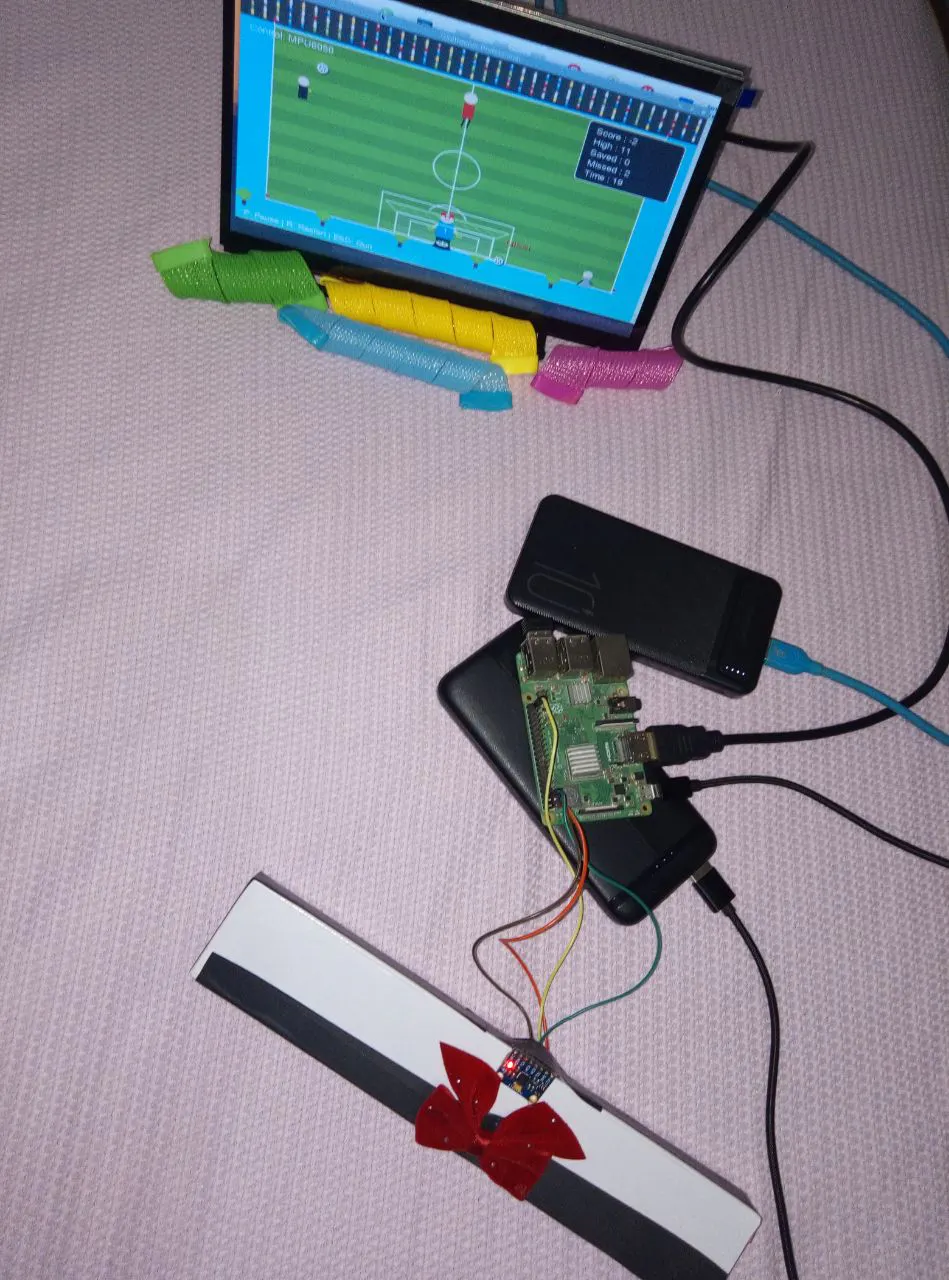
This project presents a fully‑featured goalkeeper game built with Python and Pygame, which can be controlled either by the keyboard or by real‑time body movement using an MPU6050 sensor (accelerometer + gyroscope). The game runs on Windows and Raspberry Pi (with I²C support), making it an excellent educational tool for learning about hardware interfacing, game development, and human‑computer interaction.
🥅⛹️♂️ IntroductionImagine controlling a goalkeeper just by tilting your hand – no keyboard, no mouse. That’s exactly what this project does! The MPU6050 sensor detects the roll angle of your hand, and the goalkeeper on the screen moves left or right accordingly. This is a simple yet powerful demonstration of motion‑based human‑computer interaction using affordable hardware.
The game itself is polished: it features a beautifully drawn goalkeeper (with celebration animations), a realistic football field, scoring system, fireworks on every 10 saves, and a high‑score tracker. It’s not just a toy – it’s a complete educational platform that combines hardware, software, and gaming.
🔧 Step‑by‑Step GuideStep 1: Hardware Setup (for Raspberry Pi)
Connect the MPU6050 to your Raspberry Pi using the I²C protocol.
Make sure I²C is enabled on your Raspberry Pi:
sudo raspi-config
# Navigate to Interface Options → I2C → Enable
Install the required Python package:
sudo apt-get install python3-smbus
pip3 install pygame
If you are running on Windows without a Raspberry Pi, you can still play the game using keyboard mode. The game will run perfectly fine.
Step 2: Understanding the Code Structure
The entire game is contained in a single Python script (provided below). Here’s a breakdown of its main components:
- MPUController class – handles I²C communication, reads accelerometer data, calculates roll angle, and applies offset calibration.
- Goalkeeper class – draws a detailed human‑like goalkeeper with arms, legs, cap, and celebration animations.
- Ball, Striker, Referee, Coach, Audience – add life to the field.
- Firework, FloatingText – visual effects for scoring.
- ScoreBoard – tracks score, saves, misses, and game time.
- draw_field() – renders the football pitch with stripes, penalty area, centre circle, and goal.
- Main game loop – handles events, updates objects, and redraws the screen at 60 FPS.
The IMU value goes through a 4-step pipeline:
Physical Tilt
↓
Raw Accelerometer Data (ax, ay, az)
↓
Roll Angle Calculation (degrees)
↓
Dead Zone Filtering + Scaling (pixels/frame)
↓
Goalkeeper X Position UpdateStep 3: Running the Game 🎮
- Save the script as goalkeeper_game.py on your Raspberry Pi (or Windows PC).
python3 goalkeeper_game.py- Select control mode when prompted:
Press 1 for Keyboard (use LEFT / RIGHT arrows).
Press 2 for MPU6050 (tilt the sensor). A calibration routine will run automatically – keep the sensor flat and still.
Step 4: Game Controls & Features
Game Rules:
- A ball drops from the top of the screen. Move the goalkeeper to intercept it.
- Each save gives +1 point.
- If the ball passes the goalkeeper, you lose -1 point.
- Every 10 saves triggers a celebration (goalkeeper raises arms, fireworks explode, floating text appears).
Step 5: Customization Tips
- Adjust difficulty: Modify BALL_INTERVAL (lower = more balls) and BALL.speedY range in the Ball class.
- Change player speed: Change PLAYER_SPEED (default 8).
- Switch control mode permanently: In control_menu(), you can set control_mode directly to CONTROL_MPU or CONTROL_KEYBOARD.
- Add more sensors: Replace MPUController.get_roll() with any other input source (e.g., serial data from Arduino, EEG headset) – just map the value to a movement offset.
Here is a short video showing the game in action with MPU6050 control:
🔮 Future Improvements- Add sound effects (cheers, whistle, kick sound).
- Introduce difficulty levels (faster balls, multiple balls).
- Support for EEG / BCI – replace MPU with a NeuroSky or Muse headset to control the goalkeeper with attention/meditation signals.
- Multiplayer mode – two goalkeepers, two players.


_3u05Tpwasz.png?auto=compress%2Cformat&w=40&h=40&fit=fillmax&bg=fff&dpr=2)


Comments