


Hardware components | ||||||
 |
| × | 1 | |||
| × | 10 | ||||
| × | 1 | ||||
| × | 20 | ||||
Software apps and online services | ||||||
 |
| |||||
To program your Arduino Yun, you need to install the Arduino IDE and the following libraries (if you do not know how to install a library checkout this tutorial).
This is a fork of the original PubSubClient
setting the max packet size to 512 bytes (needed for Lelylan to work).
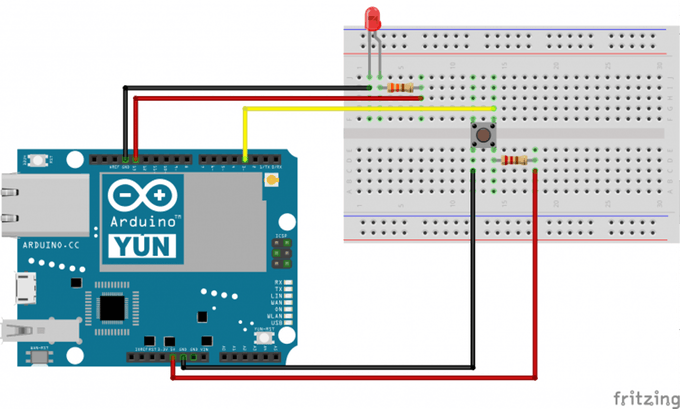
The schematic represents the LED, resistor and push button setup. With this setup each time you press the button, the LED is turned on and off.
3. Lelylan SetupOpen Lelylan Dashboard and create a new device by following 3 simple steps (if you are new to Lelylan, you can sign up for free).
- Set a meaningful name (e.g. bedroom light).
- Choose the device type. For this tutorial choose Basic Light.
- Choose "Connect with MQTT" as connectivity option.
Once the device is created, click the settings link (placed under the device name) and get the device ID and device secret. You'll need them in the next section.
Once the (virtual) device is defined on Lelylan you need to make it communicate with Arduino. Copy the sketch below in the code section and change the following variables: deviceId, deviceSecret, outTopic, inTopic and clientId. It will not take more than one minute.
Access Lelylan Dashboard and control your connected light from mobile, tablet and desktop. If any problem occurs, let @lelylan know. For more details, checkout the code explenation section in the original article.
andreareginato
 Arduino_Scuola


Comments