



Hardware components | ||||||
 |
| × | 1 | |||
 |
| × | 1 | |||
| × | 1 | ||||
 |
| × | 1 | |||
| × | 1 | ||||
Software apps and online services | ||||||
 |
| |||||
 |
| |||||
 |
| |||||
| ||||||
A.R.M.D is a AI and Ml based project. It uses a camera to detect faces and further face masks. During this Corona Virus (Covid-19) worldwide pandemic wearing mask could only reduce the chance of getting affected. This robot could find mask and it also has a automated voice feedback system too. Now let's see how to make it !!
Supplies:Raspberry pi 4B (4gb recomended )- amazon
Pi camera V2 - amazon
32 GB Class 10 A1 MicroSD card (With installed Raspberrypi Os) - amazon
Raspberry pi cooler fan and heat sink - amazon
Speaker - amazon
Step 1: Getting Things ReadyFirst for this project needs access to raspberry pi desktop. So you need a monitor mouse and a keyboard or you can use SSH or VNC.
Boot your Raspberry pi and clone this repository into your pi
git clone https://github.com/sanjus-robotic-studio/ARMD.gitNow install packages required for virtual env:
sudo pip3 install virtualenv
sudo pip3 install virtualenvwrapper
We need to edit the.profile file to set 1) the variable WORKON_HOME and VIRTUALENVWRAPPER_PYTHON to the path of the directory.virtualenvs which contains our virtual environments and 2) make known the location of the shell file, virualenvwrapper.sh. In a terminal window type:
sudo nano ~/.profileAdd these lines to the bottom of the file
export WORKON_HOME=$HOME/.virtualenvs
source /usr/local/bin/virtualenvwrapper.sh
VIRTUALENVWRAPPER_PYTHON=/usr/bin/python[YOUR-PYTHON-VERSION]
Now save and exit nano and type
source ~/.profileNow navigate to your cloned local directory and create a virtual env "requir"
cd YOUR-USERNAME/home/ARMD
mkvirtualenv requir -p /usr/bin/YOUR_PYTHON_VERSION
And activate it
workon requirNow install the files required for the project
pip3 install -r requirements.txtThis command will automatically install the required files
Now for the Text-To-Speech (TTS). We are going to use picoTTS, to install it follow this guide picoTTS
After installing picotts continue to the connections.
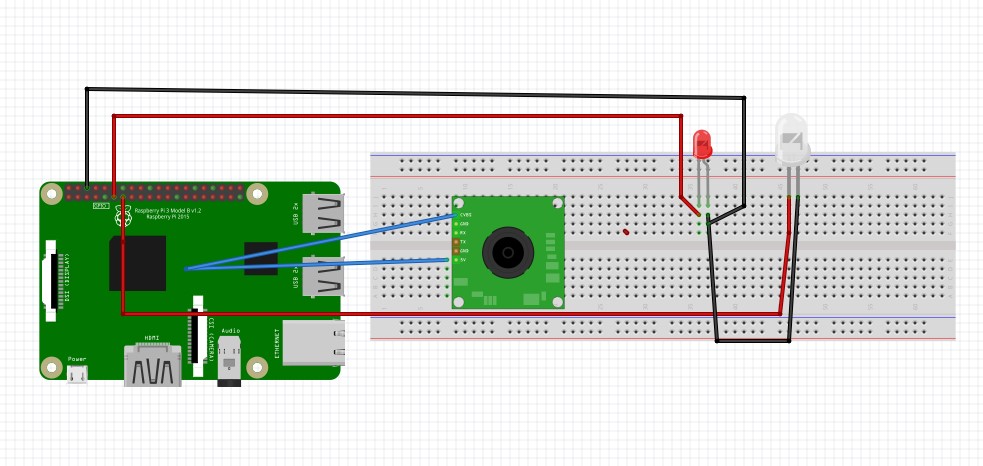
Step 2: ConnectionTurn off you pi's power supply and connect the camera to the pi.
Connection to the leds:
Red Led
Positive - GPIO 17
Negative - Gnd
Green Led
Positive - GPIO 27
Negative - Gnd
Connect the aux cable to 3.5 mm audio jack and another end to the speaker.
Step 3: TestingI have already trained the model and it is also included in the code. So if you want to add more images to the data set you can also add more images to the dataset folder and run the train-mask-detector.py file. Open a terminal and execute the following command
cd YOUR-USERNAME/home/ARMD
workon requir
python3 train_mask_detector.py datase --dataset
Now lets test it. Open the ARMD.py file in any python idle and press F5.
The code will begin. Enjoy testing it!!
Step 4: WorkingThis is a full working video of A.R.M.D.
For more exciting projects follow my youtube channel and my blog
Youtube channel : https://bit.ly/33cGJSM



Comments