



Hardware components | ||||||
| × | 1 | ||||
| × | 1 | ||||
| × | 1 | ||||
Software apps and online services | ||||||
 |
| |||||
Hand tools and fabrication machines | ||||||
 |
| |||||
Greetings everyone, and welcome back.
Here's something awesome: meet the ABSOLUTE LINUX TABLET, my DIY tablet built completely from scratch.
This is a DIY tablet powered by a Raspberry Pi Compute Module 5, paired with a Waveshare 10-inch DSI touch display and an onboard lithium battery, which provides up to 5 hours of continuous usage.
The goal of this project was to create a portable Linux tablet for an upcoming solar project, where I needed a device that I could easily carry from one site to another while working outdoors. A laptop could have been used instead, but I wanted something more portable and convenient to work with. Raspberry Pi OS is perfect for this task, which is why I decided to build a tablet around the CM5 and a touch display.
This Device is a fusion between a touch computer and a tablet. I have used a 4GB variant of the CM5, and for improved performance, I installed the operating system on an NVMe SSD, making the system super fast.
To enhance Wi-Fi and Bluetooth connectivity, I also added an external antenna to the device.
I designed the enclosure in Fusion 360 and printed the parts on my 3D printer in two colours to get a duotone aesthetic.
This article covers the complete build process of the tablet, so let's get started with the build.
MATERIALS REQUIREDThese were the materials used in this project-
- Raspberry Pi CM5 4GB RAM with Evaluation Board
- NVME SSD (for OS)
- Waveshare 10.1 Inch DSI display for Raspberry Pi
- Power Management Circuit (Salvaged from Powerbank)
- LiPo cell 3.7V 10000mAh (Salvaged from Powerbank)
- 3D Printed Parts
- Antenna (Salvaged from NRF24 Module)
- M2 screws
The whole idea came from the fact that I needed a Linux system—a portable Linux system that would help me with a solar monitoring project I'm working on. I had already been using a Raspberry Pi 4 in that project and needed a device that would allow me to SSH into the setup and monitor the solar cells on the go.
A laptop could have been used for this purpose, but I wanted something more portable, like a tablet that runs Linux. I did a quick Google search and found very few Linux tablets available, so I decided to build one myself since the concept was quite simple.
The project only needed three main components: a small computer, a display, and a battery source. For the computer, I selected the Raspberry Pi Compute Module 5 along with its full evaluation board. For the display, I used a Waveshare 10-inch DSI touchscreen that I already had, which turned out to be perfect for this project. Finally, for power, I repurposed a MagSafe power bank by completely stripping it down and using its battery and charging circuitry inside the tablet.
HARDWARE- WAVSHARE 10.1 INCH DSI SCREENFor the main display, I wanted something huge, not the average 7-inch size, but something larger.
Connectivity was also an important factor, as I wanted a DSI interface instead of HDMI.
So, I selected Waveshare's 10.1-DSI-TOUCH-A display for this project. It is a portrait touchscreen LCD display with ten-point capacitive touch control. The display uses an IPS panel with a hardware resolution of 800×1280, which is perfect for our tablet application.
The LCD pairs with the Raspberry Pi through the DSI interface and supports a refresh rate of up to 60 Hz, which is more than enough for this application.
The kit comes with two FFC cables for pairing the display with a Raspberry Pi 5 or CM5, one FFC cable for pairing with a Raspberry Pi 4, a power cable, and a couple of PCB standoffs.
You can check out more about this display from its wiki page.
https://www.waveshare.com/10.1-dsi-touch-a.htm?&aff_id=Arnov
http://www.waveshare.com/wiki/10.1-DSI-TOUCH-A
WAVESHARE SERVICESpecial thanks to Waveshare for providing the hardware used in this project. The 10.1 Inch DSI screen and supporting accessories were supplied as review units for testing and evaluation.
Waveshare is a leading global provider of electronic components, modules, and development tools used across robotics, IoT, automation, education, and many other fields. With a strong focus on quality, reliability, and continuous innovation, Waveshare has earned the trust of engineers, designers, hobbyists, and makers worldwide.
Their extensive product lineup, from displays and HATs to expansion boards and embedded modules, makes them a go-to choice for both professional builds and DIY projects.
RASPBERRY PI CM5The brain of our project is the Raspberry Pi CM5, which is a more industrial-oriented version of the usual Raspberry Pi 5 in a module form factor. It uses the same Broadcom BCM2712 quad-core 64-bit Arm Cortex-A76 (Armv8) SoC running at 2.4 GHz, but in a much more compact package.
The CM5 sits on an evaluation board that breaks out USB ports, Ethernet, dual HDMI ports, GPIO headers, an SD card slot, and even an M.2 port for adding an NVMe SSD.
Here, we are using the 4GB variant, which comes with onboard 32GB eMMC storage.
For the operating system, I used the new Raspberry Pi OS based on Debian Trixie. The OS is installed on an NVMe SSD, which makes the system super fast. OS installation was done using Raspberry Pi Imager. We connected the SSD using an M.2-to-USB adapter and flashed the operating system directly onto the NVMe drive. Once the NVMe SSD was plugged into the CM5 board, the system booted directly from the SSD.
DESIGNHere is the design we prepared. My goal was to create a rugged, industrial-looking tablet that feels like a piece of professional equipment. I even added an external antenna, which not only serves a useful purpose but also helps the device stand out visually.
On the back, grills are added for airflow. While it does allow air to pass through, it's mostly an aesthetic feature that enhances the industrial design. On the left side, we included a dedicated opening for easy access to all the CM5 I/O ports. On that same side, there's also a separate USB Type-C port used exclusively for charging the battery.
To make the device stand out even more, the frame and the main body were printed in two different colors. I used Hype PLA Red for the back body and Hype PLA Black for the frame. This combination creates a striking dual-tone red-and-black color scheme that looks absolutely awesome.
ENCLSOUREThe enclosure mainly consists of two parts: the frame, which holds the display and Raspberry Pi CM5 assembly in place, and the back cover, which houses the battery pack, power circuitry, and antenna. Both parts are secured together using M2 screws that fasten into mounting holes placed around the perimeter of the frame.
I also added a few ventilation grills near the CM5 location to improve airflow, as this device relies on passive cooling with a heatsink. On the left side, there is a dedicated opening that provides access to the Raspberry Pi CM5 expansion board's I/O ports. The HDMI port, power input, USB ports, and other connectors can all be accessed through this opening in the back cover.
POWER SOURCE (LIPO CELL FITTMENT)During the CAD design process, I measured the power circuit using a vernier caliper, recreated it in CAD, and then integrated it into the back cover. The circuit already had mounting holes, so I added corresponding screw bosses inside the enclosure to securely mount it in place.
One side of the enclosure provides access to the USB Type-C port on the power circuit, allowing the battery to be charged without opening the device. On the opposite side, I designed a button actuator that presses the SMD switch on the power module. This actuator allows the power circuit to be turned ON or OFF from the outside of the enclosure.
ANTENNACM5 does come with Wi-Fi, but because we are adding it inside a plastic housing, the signal strength can be affected. That's not a problem, as the CM5 comes with a U.FL connector, and our idea was to attach an external antenna to the Raspberry Pi.
We modeled the antenna we salvaged from an NRF24 device and positioned it on the back of the body. The antenna attaches through an RP-SMA female connector mounted in a dedicated hole, where it is secured in place using an M6 nut.
By adding the antenna, our tablet stands out and looks more industrial.
CM5-DISPLAY WITH FRAMEThe frame part holds the Waveshare display and Raspberry Pi CM5 board assembly in position.
When the back body is placed below the frame part, the display is held in place between the frame part and the back part. M2 screws are used for securing both parts, and in between them, the display assembly is tightened in place.
3D PARTSAfter finishing the model, we exported three parts: the back part, the frame, and the button actuator.
The frame part and button actuator were both printed in Black Hype PLA with a 0.2 mm layer height and 25% infill. The back part was printed in Red Hype PLA with similar settings.
DISPLAY & CM5 ASSEMBLY- We begin the display and CM5 assembly process by positioning the expansion board over the back of the display.
- We align the mounting holes of the display with the Raspberry Pi board and then use the provided four M2.5 bolts to secure both of them together.
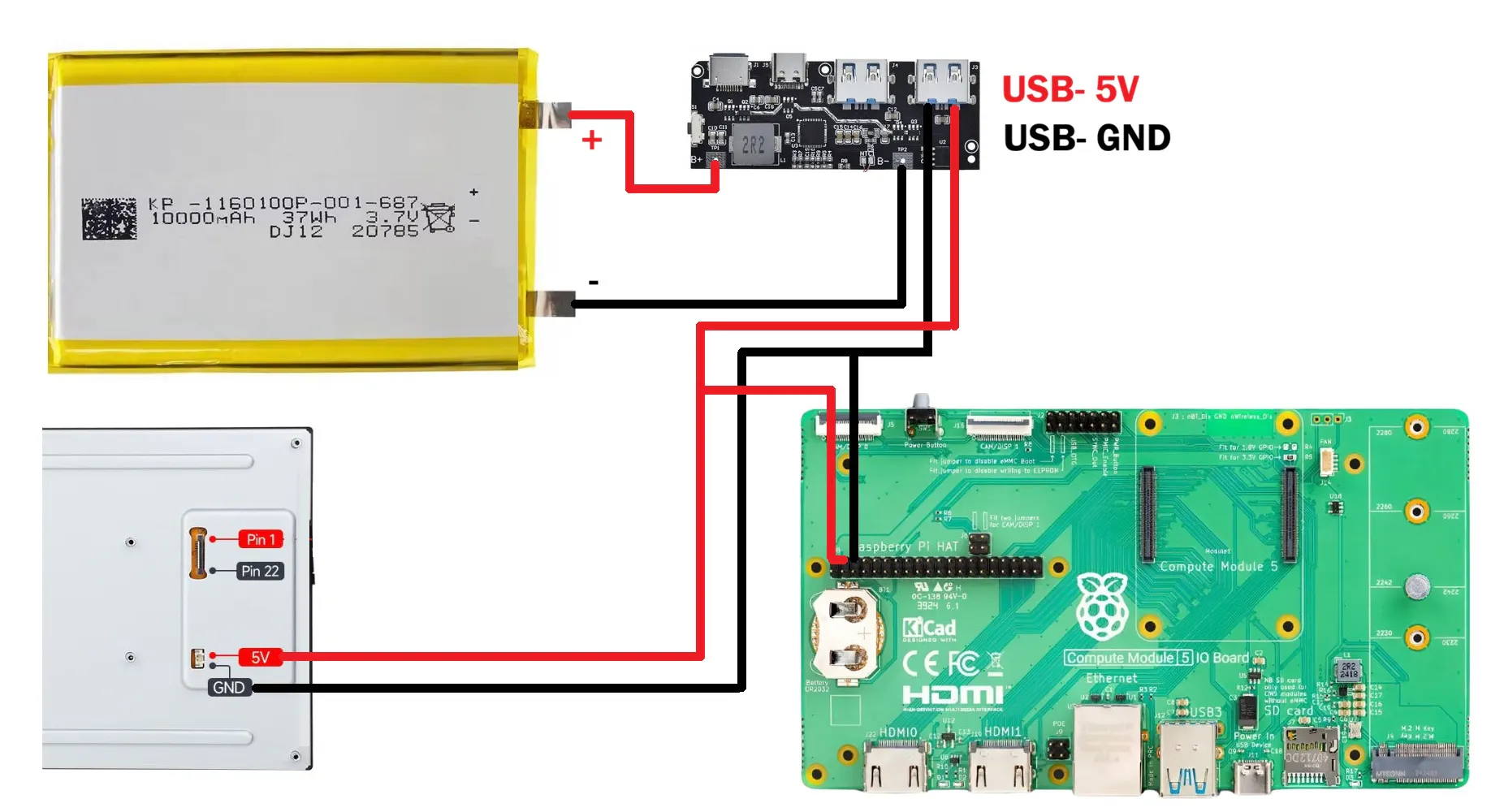
- Next, we connect the power wire harness. One side is connected to the JST connector on the display, while the other end goes to the Raspberry Pi's GPIO header. We connected 5V to 5V and GND to GND. Basically, the display will be powered directly from the GPIO header of the Raspberry Pi.
- Next, the FPC cable is added. We first connect it to Port 1 on the Raspberry Pi expansion board and then connect the second end to the display's FPC connector.
We plugged in the power and were hoping this would be a plug-and-play job, but things are never that simple, and the display didn't work straight away.
We needed to connect an external monitor to our CM5, open a terminal, and then edit the config.txt file.
We added the following line at the bottom of the file.
dtoverlay=vc4-kms-v3d
#DSI1 Use
dtoverlay=vc4-kms-dsi-waveshare-panel-v2,10_1_inch_a
#DSI0 Use
# dtoverlay=vc4-kms-dsi-waveshare-panel-v2,10_1_inch_a,dsi0
On the wiki page for this display, to Waveshare's credit, they did include a custom pre-flashed Raspberry Pi OS Trixie image. If we use that image and flash our Raspberry Pi with it, the display boots up without requiring any manual edits to the configuration files.
FRAME ASSEMBLYFrame assembly begins with the placement of the display and Raspberry Pi assembly into their designated position.
Here, we didn't need to use any adhesive, as the display will be locked in place once the back part is added.
POWER SOURCE- SMARTPHONE PD CHARGERFor the power source of the tablet, one of the best options is to harvest the power circuit and lithium cell from a power bank. Here, I used a PD power bank that I normally use for charging my iPhone and other devices. It can provide both power input and power output through its USB Type-C port, along with a stable 5V 3A output from its USB port.
- Using a prying tool, we started opening the power bank. I didn't have a proper pry tool available, so I used the back side of a pair of tweezers.
- By inserting it along the seam of the enclosure and applying a bit of pressure, the two halves of the body started separating.
- The enclosure was held together using snap locks, so once we created an opening on one side, we inserted our pry tool into the gap and moved it along the edge to completely remove the lid.
- Doing that completely separated both parts. The circuit was secured in place with M1.8 screws, which we removed.
- The battery was also secured with adhesive tape, so by applying a little pressure, it came off as well.
- This was a MagSafe charger, so it also included a charging coil, which we removed from the circuit.
As a result of this harvesting process, we ended up with a 10, 000mAh battery and a power circuit capable of powering our display and Raspberry Pi setup.
POWER SOURCE ASSEMBLY- After harvesting the lithium-polymer cell and charger circuit from the power bank, we extended the battery wires by desoldering the original wires and replacing them with longer ones.
- We connected the battery positive terminal to the B+ pad on the circuit and the battery negative terminal to the B- pad.
- Next, we soldered two output wires to the USB port's 5V and GND terminals. For connecting these output wires to the Raspberry Pi header pins, we added a CON3 female header connector to the 5V and GND wires.
- With this header connector, we can simply plug it onto the Raspberry Pi's GPIO header 5V and GND pins, which power the entire setup.
Before putting things together, we checked the output voltage using a multimeter. We measured 5V, which confirmed that the setup was working correctly.
Within 5 seconds of turning on the power circuit, the Raspberry Pi booted into the desktop environment, showing that the setup was functioning properly.
Long-pressing the power button on the power circuit for three seconds turns the device off.
POWER SOURCE - BASE ASSEMBLY- I added some hot glue to the battery placement area and positioned the lithium cell in place. The hot glue keeps the battery securely locked in position.
- Next, we added the 3D-printed switch actuator by placing it into the hole provided on the bottom face of the back body.
- The circuit was then positioned in its designated location. We aligned the circuit's mounting holes with the screw bosses and used two M2 screws to secure it in place.
By doing this, the circuit is now firmly fixed in position. Pressing the switch actuator turns the circuit ON, while holding it for three seconds turns it OFF.
The circuit can be charged using a USB Type-C charger, as the left side of the enclosure includes an opening for accessing the USB Type-C port.
ANTENNA ASSEMBLY- For connecting the Wi-Fi and Bluetooth antenna, we are using an RP-SMA female connector.
- We pass the connector through the hole we modeled at the antenna location on the back body and then tighten the provided nut, which keeps the female RP-SMA connector securely locked in position.
- Final assembly begins by connecting the 5V and GND output wires of the power circuit to the Raspberry Pi's GPIO header pins. Doing this connects our power management circuit to the display and CM5 evaluation board.
- Next, we connect the U.FL connector of the RP-SMA cable to the CM5's U.FL connector.
- We then position the back body over the frame part and apply gentle pressure, which joins both halves of the enclosure together.
- First, we secure the back body to the Waveshare display using a single M2.5 bolt. Then, we install six M2 screws that tighten the back body and frame together—three screws on the top side and three screws on the bottom side. This completely secures the enclosure and locks everything in place.
- As a final step, we screw the antenna onto the RP-SMA connector, which completes the assembly process.
Here's the end result of this project: a tablet, but it runs Linux.
It has an onboard battery, a touchscreen display, and even an antenna that makes the device look like something a hacker would use. Combined with the rugged enclosure, it gives the tablet a robust and industrial appearance.
This tablet is basically exactly what I needed for my upcoming project, which requires a Raspberry Pi computer with a display that I can easily carry from one site to another. It's for a solar-related project that I might publish an article about in the future. With this tablet, I can access the terminal anywhere and use it to connect to and monitor my solar panel setup.
I already own an Android tablet and an iPad. Both are incredible pieces of engineering, but they feel like products made for everyone. This one is different as it's made specifically for me and my workflow.
That's probably my favorite thing about this build. It's completely DIY and fully open. I can swap the operating system, install whatever software I want, write my own applications, and have full access to the terminal. There are no restrictions, no locked-down ecosystem, just a computer that I built around my own requirements.
And despite being a DIY project, it's surprisingly capable. I even ran Minecraft Java Edition on it, and thanks to the Compute Module 5, it runs smoothly. The 10-inch touchscreen makes the whole experience feel like a proper tablet, whether I'm working on a project, browsing the web, watching videos, or just experimenting with new ideas.
At the end of the day, this project wasn't about building a tablet. It was about building the exact tool I needed. A portable Linux workstation that I can throw in a bag, take anywhere, and modify whenever I want.
And honestly, that's what makes DIY hardware so rewarding. You don't have to buy the perfect device. You can build it yourself, customize it yourself, and shape it around your own needs.
OVERVIEW & WHAT'S NEXT?The project worked, and it worked pretty smoothly. I get a battery backup of over 5 hours of continuous use, which is super useful, so no improvements are really needed in the battery department.
One issue I did have with this build was audio. It doesn't have any speakers built into it. For my current requirements, audio wasn't something I needed, so I didn't add it. However, it can definitely be added, and that's something I plan to tackle in an updated version of this project.
One thing I also want to add is a removable keyboard. Right now, this is kind of like a cyberdeck, but the missing keyboard makes the setup feel incomplete. As a tablet, it's an amazing device for sure, but as a cyberdeck, it needs a keyboard. Not a permanent one, but something that can lock into place when needed and be removed when it isn't. That's what I'll be working on in the next revision of this project.
For now, this project is complete.
All the files related to this build have been attached, and the complete build instructions are included in this article. If you need any help, feel free to leave a comment.
Check out my other cyberdeck projects (I have made too many cyberdecks hehe)
https://www.hackster.io/Arnov_Sharma_makes/vault-tec-air-terminal-b479cb
https://www.hackster.io/Arnov_Sharma_makes/parallel-pc-wood-edition-d046ea
https://www.hackster.io/Arnov_Sharma_makes/the-pvm-panda-69cdfa
https://www.hackster.io/Arnov_Sharma_makes/cyber-py-zero-two-fdd889
https://www.hackster.io/Arnov_Sharma_makes/cyber-py-zero-one-339846
https://www.hackster.io/Arnov_Sharma_makes/cyber-py-zero-three-9e93ae
Thanks for making it this far, and I'll be back with a new project real soon.
Peace.


_t9PF3orMPd.png?auto=compress%2Cformat&w=40&h=40&fit=fillmax&bg=fff&dpr=2)


Comments