


DoodlePi began in August as a "V1" breadboard prototype, quickly evolving into a custom V2 PCB design. However, after securing top ranks in my entrance exams, development was halted by the demanding process of college admissions, relocating, and transitioning to a new academic life. As an aspiring engineer, these were priorities I could not compromise, leaving the project gathering dust for months.
The Junk Drawer Competition provided the necessary spark to revive this "half-built" dream. Throughout December, I dedicated myself to the final assembly: soldering all components, refining the C++ firmware, and performing intensive diagnostic testing to ensure hardware stability.
Inspired by the iconic Etch A Sketch, this project is the culmination of five months of dedicated engineering effort to create a professional handheld console. Beyond the current pixel art game, the onboard hardware is highly capable of handling intensive tasks, allowing it to transition from a drawing toy into a full-fledged retro gaming system. I plan to release optimized firmware for iconic games like Pong, Tetris, and Space Invaders, truly unlocking the potential of the custom PCB. Considering its hardware-software integration and entertainment value, DoodlePi fits the Gamer’s Gambit category perfectly. I hope this project inspires others to pick up their forgotten gadgets and start creating!
Step 1: Design the PCBThe heart of this project is the custom circuit board. The design is Open Source Hardware.
- Download the Gerber files from below.
- Upload the files to a PCB manufacturer.
Recommendation: Choose a Black Solder Mask with White Silkscreen to match the signature DoodlePi aesthetic.
Download gerber files by clicking here (Also attached below in attachments section)
For the complete open-source hardware files, including the code and PCB designfiles, please visit the DoodlePi GitHub repository.
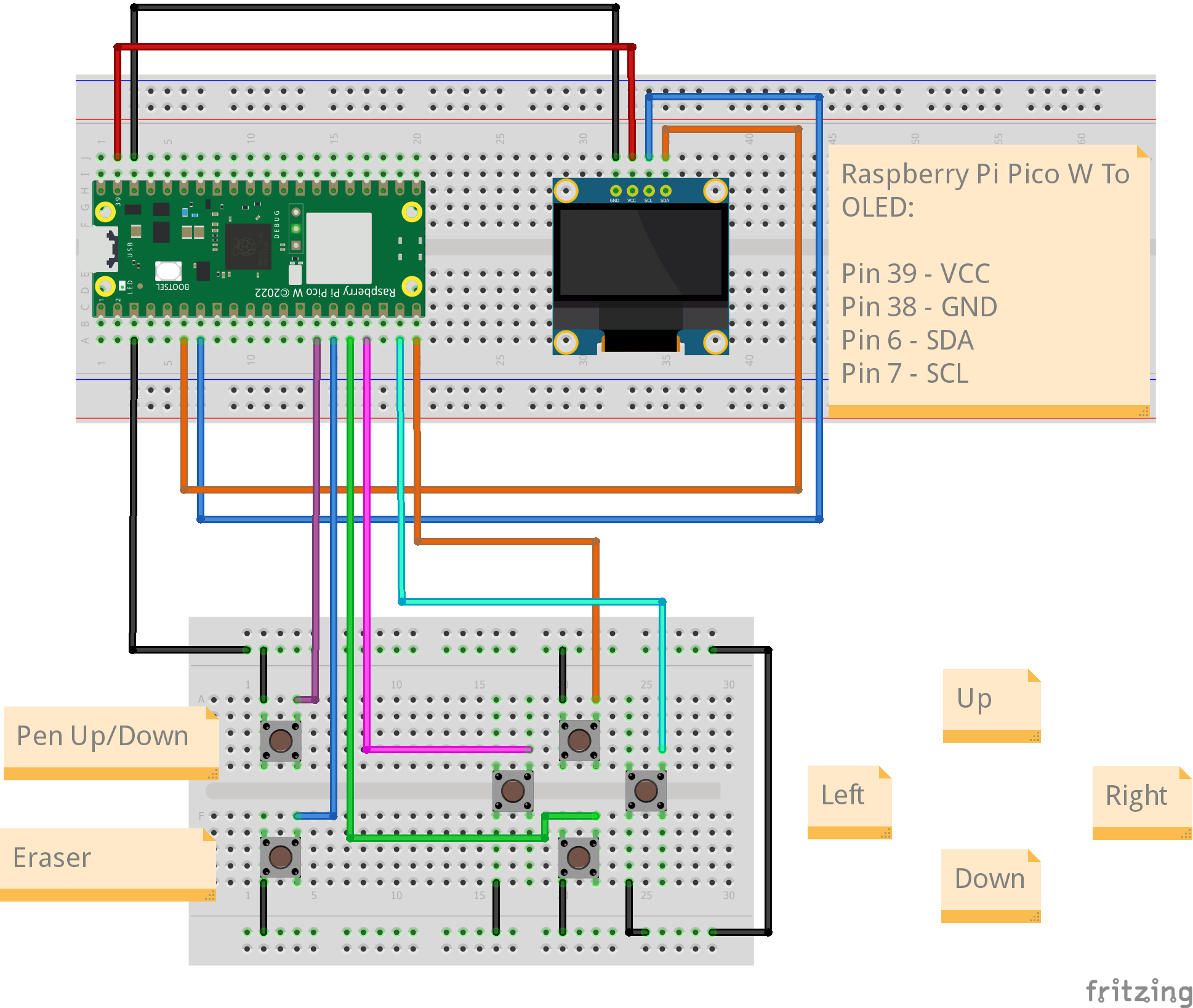
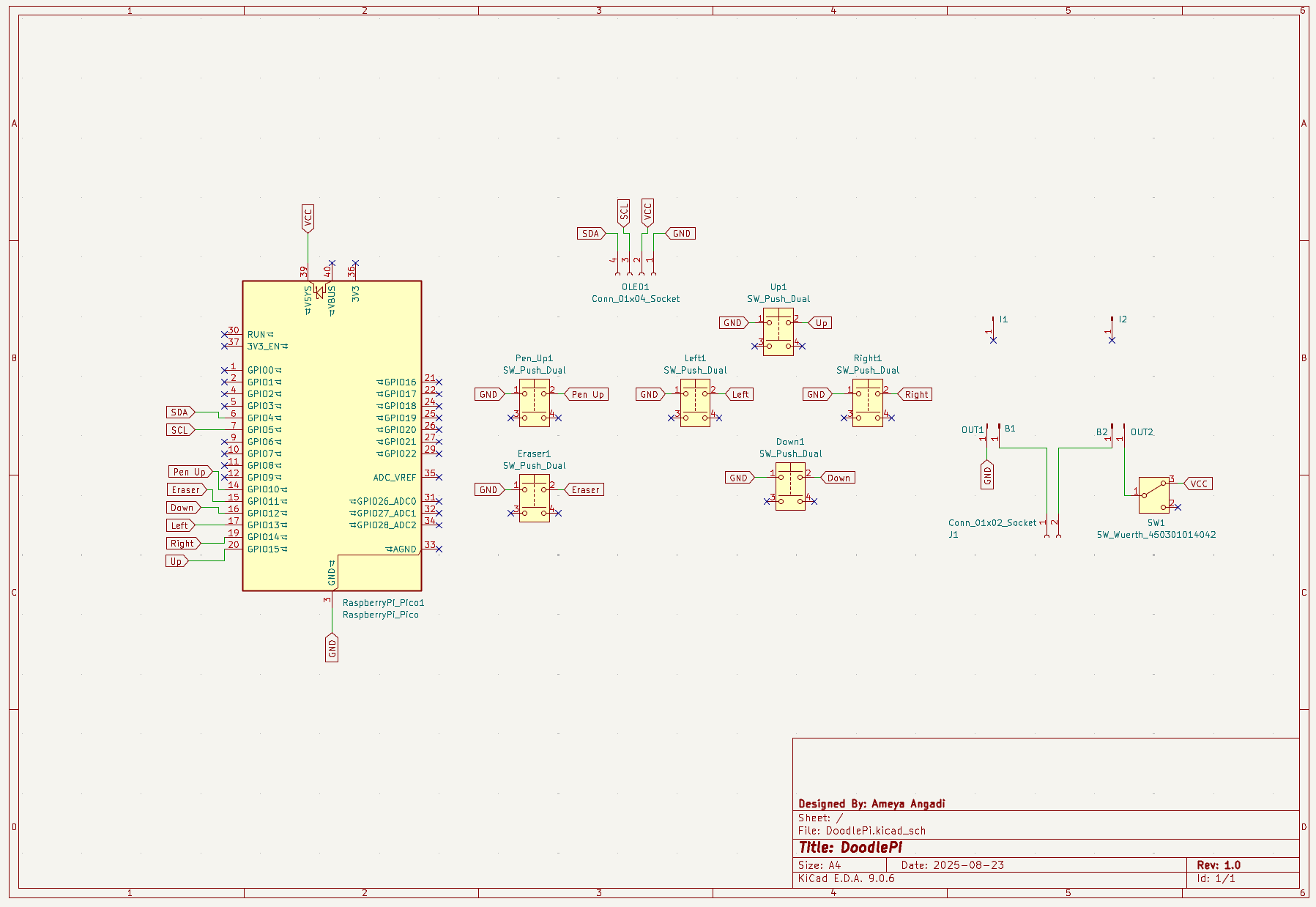
Circuit Diagram is given at the last.
Step 2: Solder All the PartsSolder the parts (prefarably) in this order:
- Raspberry Pi Pico
- TP4056 Charging Module
- Slide Switch
- JST Connector
- Push Buttons
- OLED Display
After soldering the parts, use isopropyl alcohol to clean the PCB and remove the excess flux, making it look better.Step 3: Upload the Code
- Connect the Raspberry Pi Pico to your computer via USB.
- Open the Arduino IDE.
- Make sure to install Earle Philhower's Pico Core. Follow this tutorial Getting Started with Raspberry Pi Pico in Arduino IDE
- Install the required libraries:
- Adafruit GFX
- Adafruit SH110X
- Select the board "Raspberry Pi Pico" and the correct COM port.
- Upload the DoodlePi.ino code shared below.
Note: Ensure the I2C Address is correct (Default is 0x3C).
Code:
/*
* Project Name: DoodlePi
* Designed For: Raspberry Pi Pico/Pico W
*
*
* License: GPL3+
* This project is licensed under the GNU General Public License v3.0 or later.
* You are free to use, modify, and distribute this software under the terms
* of the GPL, as long as you preserve the original license and credit the original
* author. For more details, see <https://www.gnu.org/licenses/gpl-3.0.en.html>.
*
* Copyright (C) 2025  Ameya Angadi
*
* Code Created And Maintained By: Ameya Angadi
* Last Modified On: November 11, 2025
* Version: 2.0.0
*
*/
#include <Wire.h>
#include <Adafruit_GFX.h>
#include <Adafruit_SH110X.h>
#define OLED_I2C_ADDRESS 0x3C
#define DISPLAY_WIDTH 128
#define DISPLAY_HEIGHT 64
#define OLED_RESET -1
Adafruit_SH1106G display = Adafruit_SH1106G(DISPLAY_WIDTH, DISPLAY_HEIGHT, &Wire, OLED_RESET);
const unsigned char Splash_Screen[] PROGMEM = {
// "DoodlePi", 128x64px
0xff, 0xff, 0xff, 0xff, 0xff, 0xff, 0xff, 0xff, 0xff, 0xff, 0xff, 0xff, 0xff, 0xff, 0xff, 0xff,
0x80, 0x00, 0x00, 0x00, 0x00, 0x00, 0x00, 0x00, 0x00, 0x00, 0x00, 0x00, 0x00, 0x00, 0x00, 0x01,
0x80, 0x00, 0x00, 0x00, 0x00, 0x00, 0x00, 0x00, 0x00, 0x00, 0x00, 0x00, 0x00, 0x00, 0x00, 0x01,
0x80, 0x00, 0x00, 0x00, 0x00, 0x00, 0x00, 0x00, 0x00, 0x00, 0x00, 0x00, 0x00, 0x00, 0x00, 0x01,
0x80, 0x00, 0x00, 0x00, 0x00, 0x00, 0x00, 0x00, 0x00, 0x00, 0x00, 0x00, 0x00, 0x00, 0x00, 0x01,
0x80, 0x00, 0x00, 0x00, 0x00, 0x00, 0x00, 0x00, 0x00, 0x00, 0x00, 0x00, 0x00, 0x00, 0x00, 0x01,
0x80, 0x00, 0x00, 0x07, 0xf8, 0x00, 0x00, 0x00, 0xe7, 0x00, 0x07, 0xf8, 0x00, 0x00, 0x00, 0x01,
0x80, 0x00, 0x00, 0x07, 0xfc, 0x00, 0x00, 0x00, 0xe7, 0x00, 0x07, 0xfc, 0x00, 0x00, 0x00, 0x01,
0x80, 0x00, 0x00, 0x07, 0xfc, 0x00, 0x00, 0x00, 0xe7, 0x00, 0x07, 0xfd, 0xc0, 0x00, 0x00, 0x01,
0x80, 0x00, 0x00, 0x07, 0x1c, 0x00, 0x00, 0x00, 0xe7, 0x00, 0x07, 0x1d, 0xc0, 0x00, 0x00, 0x01,
0x80, 0x00, 0x00, 0x07, 0x1c, 0x00, 0x00, 0x00, 0xe7, 0x00, 0x07, 0x1d, 0xc0, 0x00, 0x00, 0x01,
0x80, 0x00, 0x00, 0x07, 0x1c, 0x00, 0x00, 0x00, 0xe7, 0x00, 0x07, 0x1c, 0x00, 0x00, 0x00, 0x01,
0x80, 0x00, 0x00, 0x07, 0x1c, 0xfc, 0x3f, 0x0f, 0xe7, 0x1f, 0x87, 0x1d, 0xc0, 0x00, 0x00, 0x01,
0x80, 0x00, 0x00, 0x07, 0x1d, 0xfe, 0x7f, 0x9f, 0xe7, 0x3f, 0xc7, 0x1d, 0xc0, 0x00, 0x00, 0x01,
0x80, 0x00, 0x00, 0x07, 0x1d, 0xce, 0x73, 0x9c, 0xe7, 0x39, 0xc7, 0xfd, 0xc0, 0x00, 0x00, 0x01,
0x80, 0x00, 0x00, 0x07, 0x1d, 0xce, 0x73, 0x9c, 0xe7, 0x39, 0xc7, 0xfd, 0xc0, 0x00, 0x00, 0x01,
0x80, 0x00, 0x00, 0x07, 0x1d, 0xce, 0x73, 0x9c, 0xe7, 0x39, 0xc7, 0xf9, 0xc0, 0x00, 0x00, 0x01,
0x80, 0x00, 0x00, 0x07, 0x1d, 0xce, 0x73, 0x9c, 0xe7, 0x3f, 0xc7, 0x01, 0xc0, 0x00, 0x00, 0x01,
0x80, 0x00, 0x00, 0x07, 0x1d, 0xce, 0x73, 0x9c, 0xe7, 0x3f, 0xc7, 0x01, 0xc0, 0x00, 0x00, 0x01,
0x80, 0x00, 0x00, 0x07, 0x1d, 0xce, 0x73, 0x9c, 0xe7, 0x38, 0x07, 0x01, 0xc0, 0x00, 0x00, 0x01,
0x80, 0x00, 0x00, 0x07, 0x1d, 0xce, 0x73, 0x9c, 0xe7, 0x39, 0xc7, 0x01, 0xc0, 0x00, 0x00, 0x01,
0x80, 0x00, 0x00, 0x07, 0xfd, 0xce, 0x73, 0x9c, 0xe7, 0x39, 0xc7, 0x01, 0xc0, 0x00, 0x00, 0x01,
0x80, 0x00, 0x00, 0x07, 0xfd, 0xfe, 0x7f, 0x9f, 0xe7, 0x3f, 0xc7, 0x01, 0xc0, 0x00, 0x00, 0x01,
0x80, 0x00, 0x00, 0x07, 0xf8, 0xfc, 0x3f, 0x0e, 0xe7, 0x1f, 0x87, 0x01, 0xc0, 0x00, 0x00, 0x01,
0x80, 0x00, 0x00, 0x00, 0x00, 0x00, 0x00, 0x00, 0x00, 0x00, 0x00, 0x00, 0x00, 0x00, 0x00, 0x01,
0x80, 0x00, 0x00, 0x00, 0x00, 0x00, 0x00, 0x00, 0x00, 0x00, 0x00, 0x00, 0x00, 0x00, 0x00, 0x01,
0x80, 0x00, 0x00, 0x7f, 0xff, 0xff, 0xff, 0xff, 0xff, 0xff, 0xff, 0xff, 0xfe, 0x00, 0x00, 0x01,
0x80, 0x00, 0x00, 0x00, 0x00, 0x00, 0x00, 0x00, 0x00, 0x00, 0x00, 0x00, 0x00, 0x00, 0x00, 0x01,
0x80, 0x00, 0x00, 0x00, 0x00, 0x00, 0x11, 0x00, 0x0e, 0x38, 0x00, 0x00, 0x00, 0x00, 0x00, 0x01,
0x80, 0x00, 0x00, 0x00, 0x00, 0x00, 0x11, 0x00, 0x0a, 0x28, 0x00, 0x00, 0x00, 0x00, 0x00, 0x01,
0x80, 0x00, 0x00, 0x00, 0x00, 0x00, 0x0a, 0x7a, 0xc2, 0x28, 0x00, 0x00, 0x00, 0x00, 0x00, 0x01,
0x80, 0x00, 0x00, 0x00, 0x00, 0x00, 0x0a, 0x4b, 0x46, 0x28, 0x00, 0x00, 0x00, 0x00, 0x00, 0x01,
0x80, 0x00, 0x00, 0x00, 0x00, 0x00, 0x0a, 0x7a, 0x08, 0x28, 0x00, 0x00, 0x00, 0x00, 0x00, 0x01,
0x80, 0x00, 0x00, 0x00, 0x00, 0x00, 0x04, 0x42, 0x08, 0x28, 0x00, 0x00, 0x00, 0x00, 0x00, 0x01,
0x80, 0x00, 0x00, 0x00, 0x00, 0x00, 0x04, 0x7a, 0x0e, 0xb8, 0x00, 0x00, 0x00, 0x00, 0x00, 0x01,
0x80, 0x00, 0x00, 0x00, 0x00, 0x00, 0x00, 0x00, 0x00, 0x00, 0x00, 0x00, 0x00, 0x00, 0x00, 0x01,
0x80, 0x00, 0x00, 0x00, 0x00, 0x00, 0x3f, 0xff, 0xff, 0xfc, 0x00, 0x00, 0x00, 0x00, 0x00, 0x01,
0x80, 0x00, 0x00, 0x00, 0x00, 0x00, 0x00, 0x00, 0x00, 0x00, 0x00, 0x00, 0x00, 0x00, 0x00, 0x01,
0x83, 0xff, 0xff, 0xff, 0xff, 0xc0, 0x00, 0x00, 0x00, 0x00, 0x00, 0x00, 0x00, 0x00, 0x00, 0x01,
0x82, 0x00, 0x00, 0x00, 0x00, 0x40, 0x00, 0x00, 0x00, 0x00, 0x00, 0x00, 0x00, 0x00, 0x00, 0x01,
0x82, 0x00, 0x00, 0x00, 0x00, 0x40, 0x00, 0x00, 0x00, 0x00, 0x00, 0x00, 0x00, 0x00, 0x00, 0x01,
0x82, 0x00, 0x00, 0x00, 0x18, 0x40, 0x00, 0x00, 0x00, 0x00, 0x00, 0x00, 0x00, 0x00, 0x00, 0x01,
0x82, 0x00, 0x00, 0x00, 0x24, 0x40, 0x00, 0x00, 0x00, 0x00, 0x00, 0x00, 0x00, 0x00, 0x00, 0x01,
0x82, 0x00, 0x00, 0x00, 0x24, 0x40, 0x00, 0x00, 0x00, 0x00, 0x00, 0x00, 0x00, 0x00, 0x00, 0x01,
0x82, 0x00, 0x80, 0x00, 0x18, 0x40, 0x00, 0x00, 0x00, 0x00, 0x00, 0x00, 0x00, 0x00, 0x00, 0x01,
0x82, 0x01, 0xc0, 0x00, 0x00, 0x40, 0x00, 0x00, 0x00, 0x00, 0x00, 0x00, 0x00, 0x00, 0x00, 0x01,
0x82, 0x03, 0x60, 0x00, 0x00, 0x40, 0x00, 0x00, 0x00, 0x00, 0x00, 0x00, 0x00, 0x00, 0x00, 0x01,
0x82, 0x06, 0xf0, 0x00, 0x40, 0x40, 0x00, 0x00, 0x00, 0x00, 0x00, 0x00, 0x00, 0x00, 0x00, 0x01,
0x82, 0x0d, 0xf8, 0x00, 0xe0, 0x40, 0x00, 0x00, 0x00, 0x00, 0x00, 0x00, 0x00, 0x00, 0x00, 0x01,
0x82, 0x1b, 0xfc, 0x01, 0xb0, 0x40, 0x00, 0x00, 0x00, 0x00, 0x00, 0x00, 0x00, 0x00, 0x00, 0x01,
0x82, 0x37, 0xfe, 0x03, 0x78, 0x40, 0x00, 0x00, 0x00, 0x00, 0x00, 0x00, 0x00, 0x00, 0x00, 0x01,
0x82, 0x6f, 0xff, 0x06, 0xfc, 0x40, 0x00, 0x00, 0x00, 0x00, 0x00, 0x00, 0x00, 0x00, 0x00, 0x01,
0x82, 0xdf, 0xff, 0x8d, 0xfe, 0x40, 0x00, 0x00, 0x00, 0x00, 0x00, 0x00, 0x00, 0x00, 0x00, 0x01,
0x83, 0xbf, 0xff, 0xdb, 0xff, 0x40, 0x00, 0x00, 0x00, 0x00, 0x00, 0x00, 0x00, 0x00, 0x00, 0x01,
0x83, 0xff, 0xff, 0xf7, 0xff, 0xc0, 0x00, 0x00, 0x00, 0x00, 0x00, 0x00, 0x00, 0x00, 0x00, 0x01,
0x83, 0xff, 0xff, 0xff, 0xff, 0xc0, 0x00, 0x00, 0x00, 0x00, 0x00, 0x00, 0x00, 0x00, 0x00, 0x01,
0x83, 0xff, 0xff, 0xff, 0xff, 0xc0, 0x00, 0x00, 0x00, 0x00, 0x00, 0x00, 0x00, 0x00, 0x00, 0x01,
0x83, 0xff, 0xff, 0xff, 0xff, 0xc0, 0x00, 0x00, 0x00, 0x00, 0x00, 0x00, 0x00, 0x13, 0xed, 0x49,
0x83, 0xff, 0xff, 0xff, 0xff, 0xc0, 0x00, 0x00, 0x00, 0x00, 0x00, 0x00, 0x00, 0x2a, 0xa9, 0x55,
0x83, 0xff, 0xff, 0xff, 0xff, 0xc0, 0x00, 0x00, 0x00, 0x00, 0x00, 0x00, 0x00, 0x3a, 0xad, 0xdd,
0x80, 0x00, 0x00, 0x00, 0x00, 0x00, 0x00, 0x00, 0x00, 0x00, 0x00, 0x00, 0x00, 0x2a, 0xa8, 0x55,
0x80, 0x00, 0x00, 0x00, 0x00, 0x00, 0x00, 0x00, 0x00, 0x00, 0x00, 0x00, 0x00, 0x2a, 0xad, 0xd5,
0x80, 0x00, 0x00, 0x00, 0x00, 0x00, 0x00, 0x00, 0x00, 0x00, 0x00, 0x00, 0x00, 0x00, 0x00, 0x01,
0xff, 0xff, 0xff, 0xff, 0xff, 0xff, 0xff, 0xff, 0xff, 0xff, 0xff, 0xff, 0xff, 0xff, 0xff, 0xff
};
// Button pins
const int BtnPenControl = 10;
const int BtnEraser = 11;
const int BtnPenDown = 12;
const int BtnPenLeft = 13;
const int BtnPenRight = 14;
const int BtnPenUp = 15;
int x = 2, y = 2;  // Start inside the border
bool penDown = true;
bool cursorVisible = true;
unsigned long lastToggleTime = 0;
const int debounceDelay = 300;
unsigned long lastCursorBlink = 0;
const int blinkInterval = 500;
// Canvas state tracker (true = drawn)
bool canvas[DISPLAY_WIDTH][DISPLAY_HEIGHT] = { false };
void drawBorder() {
display.drawRect(0, 0, DISPLAY_WIDTH, DISPLAY_HEIGHT, SH110X_WHITE);
}
void drawSquare(int x, int y, bool color) {
for (int dx = 0; dx < 2; dx++) {
for (int dy = 0; dy < 2; dy++) {
if (x + dx < DISPLAY_WIDTH && y + dy < DISPLAY_HEIGHT) {
display.drawPixel(x + dx, y + dy, color ? SH110X_WHITE : SH110X_BLACK);
}
}
}
}
void updateCanvasState(int x, int y, bool state) {
for (int dx = 0; dx < 2; dx++) {
for (int dy = 0; dy < 2; dy++) {
if (x + dx < DISPLAY_WIDTH && y + dy < DISPLAY_HEIGHT) {
canvas[x + dx][y + dy] = state;
}
}
}
}
bool squareIsEmpty(int x, int y) {
for (int dx = 0; dx < 2; dx++) {
for (int dy = 0; dy < 2; dy++) {
if (canvas[x + dx][y + dy]) return false;
}
}
return true;
}
void setup() {
pinMode(BtnPenControl, INPUT_PULLUP);
pinMode(BtnEraser, INPUT_PULLUP);
pinMode(BtnPenUp, INPUT_PULLUP);
pinMode(BtnPenDown, INPUT_PULLUP);
pinMode(BtnPenLeft, INPUT_PULLUP);
pinMode(BtnPenRight, INPUT_PULLUP);
pinMode(LED_BUILTIN, OUTPUT);
digitalWrite(LED_BUILTIN, HIGH);
display.begin(OLED_I2C_ADDRESS, true);
display.clearDisplay();
display.setTextColor(SH110X_WHITE);
display.setCursor(0, 0);
display.drawBitmap(0, 0, Splash_Screen, 128, 64, SH110X_WHITE);
display.display();
delay(3000);
digitalWrite(LED_BUILTIN, LOW);
display.clearDisplay();
drawBorder();
display.display();
}
void loop() {
// Toggle pen status
if (digitalRead(BtnPenControl) == LOW && digitalRead(BtnEraser) == HIGH) {
if (millis() - lastToggleTime > debounceDelay) {
penDown = !penDown;
lastToggleTime = millis();
}
}
// Clear screen if both buttons are pressed
if (digitalRead(BtnPenControl) == LOW && digitalRead(BtnEraser) == LOW) {
x = 2;
y = 2;
penDown = true;
display.clearDisplay();
drawBorder();
memset(canvas, 0, sizeof(canvas));
display.display();
delay(200);
return;
}
// Blinking cursor if pen is up and square is empty
if (!penDown && millis() - lastCursorBlink > blinkInterval) {
cursorVisible = !cursorVisible;
lastCursorBlink = millis();
if (squareIsEmpty(x, y)) {
drawSquare(x, y, cursorVisible);
display.display();
}
}
// Movement logic
int newX = x;
int newY = y;
if (digitalRead(BtnPenUp) == LOW && y > 2) newY--;
if (digitalRead(BtnPenDown) == LOW && y < DISPLAY_HEIGHT - 4) newY++;
if (digitalRead(BtnPenLeft) == LOW && x > 2) newX--;
if (digitalRead(BtnPenRight) == LOW && x < DISPLAY_WIDTH - 4) newX++;
if (newX != x || newY != y) {
// Erase old cursor if blinking and not over drawn pixels
if (!penDown && squareIsEmpty(x, y)) {
drawSquare(x, y, false);
}
x = newX;
y = newY;
if (penDown) {
if (digitalRead(BtnEraser) == LOW) {
// Erase mode
drawSquare(x, y, false);
updateCanvasState(x, y, false);
} else {
// Draw mode
drawSquare(x, y, true);
updateCanvasState(x, y, true);
}
} else {
// Show cursor
if (squareIsEmpty(x, y)) {
drawSquare(x, y, true);
cursorVisible = true;
lastCursorBlink = millis();
}
}
display.display();
delay(50);
}
}Connect the Li-ion battery with the JST Connector. Use double sided tape to stick it to the PCB.
General Note: Most TP4056 Modules will show a RED Light to indicate charging and BLUE/GREEN Light to indicate full charge as shown above.Step 5: Controls
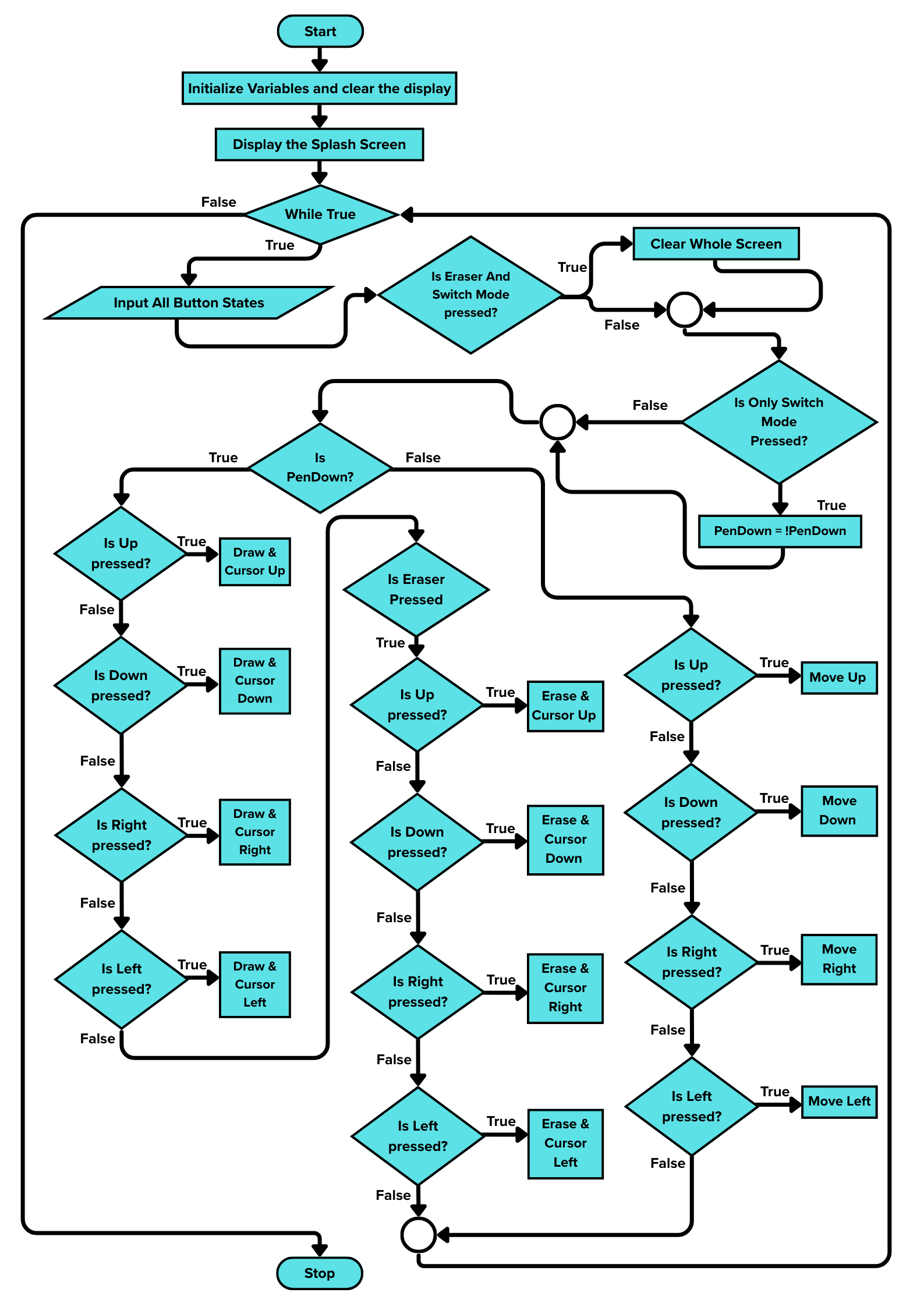
- Movement Function → Press any single arrow button to move the cursor in that direction.
- Diagonal Movement Function → Press any two buttons (ex- Up and Right) to move the cursor diagonally.
- Switch Mode Function → Press the Switch Mode button to switch between drawing mode and movement mode.
- Eraser Function → Press eraser button while using arrow keys to erase particular parts of the drawing.
- Clear Screen Function → Press the Switch Mode and Erase button simultaneously to wipe the entire screen clean instantly.
Pro tip: Combine pen toggle and careful movement for clean, precise lines.Step 6: Watch the YouTube TutorialStep 7: Power Up and Play!
Flip the slide switch to ON position. You should see the splash screen followed by the drawing canvas.
The images above are some example drawings made on the DoodlePi V2.
Step 8: Future ImprovementsDoodlePi is constantly evolving! The next planned version (V3) will soon feature a 3D-printed enclosure, Wi-Fi integration for saving art to the cloud, and a color OLED display.
The hardware powering DoodlePi is surprisingly capable; I am currently developing firmware to repurpose this console into a retro gaming platform for classics like Tetris, Pong, or Space Invaders. Follow me to be the first to get the codes for these upcoming game updates!
Step 9: ConclusionDoodlePi is all about creativity, whether you’re recreating pixel game sprites or making abstract art.
If you make your own version or design something cool, share it with the hashtag #DoodlePi or post it in the comments. Let’s see what you can create!
If you want to explore more, check out my profile for related projects, and don’t forget to follow me for updates on new tutorials and advanced projects!


Comments