




Hardware components | ||||||
 |
| × | 3 | |||
Software apps and online services | ||||||
| ||||||
It 's been eleven years since I first started learning and building my first Microchip PIC Microcontroller circuit. I really like this Microcontroller family. Recently, I started reading and trying some Arduino. Amazon DE
I really wished to build a similar circuit based on the Microchip PIC. Even I started to think to design a circuit of my own. I searched online and I found Pinguino. Just like Arduino Amazon DE, there are many versions of Pinguino using different Microcontrollers from Microchip. I wanted to build the version using PIC18F4550. I found Pinguino before this time and saw it among many other Arduino clones , but this time was really different. I was ready to start making circuits with the PIC18F4550chip after I completed building the PIC18F4550programmer . So I decided to start from where the others have reached. I 've decided to build this magnificent circuit that brings all my dreams together, PIC based , Arduinocompatible and Easy-to-build. I was such excited to build it and try all Arduinoprojects with it. So, I started to collect the data and components to start working. I also wanted to try the PC Software/Embedded Software communication. Although I was determined to build the circuit on a copper board to stay with me and use it many times, I wanted to quickly assemble it on a bread board to try it ASP !!! Here are some useful links:http://wiki.pinguino.cc/index.php/PIC18F4550_Pinguinohttp://wiki.pinguino.cc/index.php?title=File:Pin_pinguino_18F4550_%282%29.png&limit=500http://blog.pinguino.cc/http://www.hackinglab.org/pinguino/http://jpmandon.blogspot.com/https://sites.google.com/site/pinguinotutorial/home بدأت تعلم المتحكم الدقيق منذ إحدى عشر عاماً . و كان أول ما تعلمته هو المتحكم الدقيق من عائلة Microchip و منذ فترة قصيرة حاولت تجربة الاردوينو و كنت أود تصميم دائرة الكترونية بسيطة مشابهة باستخدام المتحكم الدقيق من عائلة Microchipيمكنك قراءة هذه المقالة باللغة العربية
http://arabic-embedded-egypt.blogspot.com/2014/03/pinguino-egypt.html
You can find this tutorial on my blog :
Here is my Channel on Youtube:
AeroArduinoStep 1: ComponentsMaterial I built my board with : 1 Copper Board ( VeroBoard or Stripboard or Perfboard) Banggood , Aliexpress 1 PIC 18F4550Amazon US, Amazon UK, Amazon CA, Amazon FR, Amazon DE or PIC 18F4550 (eBay)
1 40 Pin IC SocketAmazon US, Amazon UK, Amazon CA, Amazon FR, Amazon DE or 40 Pin IC Socket (eBay) , Aliexpress
1 USB Type B Socket Amazon US, Amazon UK, Amazon CA, Amazon FR, Amazon DE USB Type B Socket (eBay) Aliexpress , Banggood
1 20MHz Crystal Amazon US, Amazon UK, Amazon CA, Amazon FR, Amazon DE 20MHz Crystal (eBay) Aliexpress , Banggood
1 220nF CapacitorAmazon US, Amazon UK, Amazon CA, Amazon FR, Amazon DE 220nF Capacitor (eBay)
1 100nF Capacitor Amazon US, Amazon UK, Amazon CA, Amazon FR, Amazon DE 100nF Capacitor (eBay)
2 22pF Capacitors Amazon US, Amazon UK, Amazon CA, Amazon FR, Amazon DE 22pF Capacitors (eBay)
1 Push Button Amazon US, Amazon UK, Amazon CA, Amazon FR, Amazon DE Push Button (eBay)
1 Dip Switch Amazon US, Amazon UK, Amazon CA, Amazon FR, Amazon DE Dip Switch (eBay)
1 10k Ohm Resistor Amazon US, Amazon UK, Amazon CA, Amazon FR, Amazon DE 10k Ohm Resistor (eBay)
1 7805 Voltage Regulator Amazon US, Amazon UK, Amazon CA, Amazon FR, Amazon DE 7805 Voltage Regulator (eBay)
1 9v Battery Connector Amazon US, Amazon UK, Amazon CA, Amazon FR, Amazon DE 9v Battery Connector (eBay) , Banggood , Aliexpress
1 Female Pin Header Amazon US, Amazon UK, Amazon CA, Amazon FR, Amazon DE Female Pin Header (eBay)
1 1N4001 Diode ( or any other general purpose diode ) 2 Rows of Pin Headers Amazon Rows of Pin Headers (eBay)
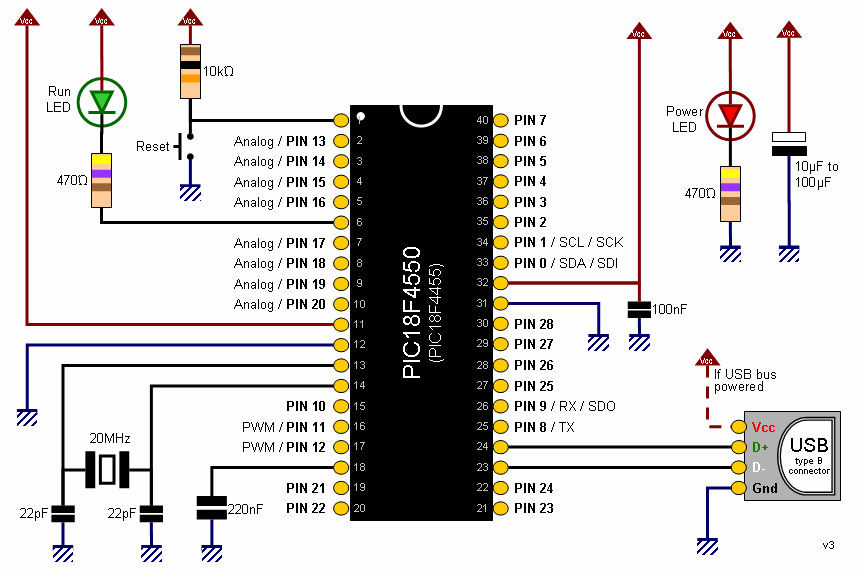
The first circuit is the circuit diagram on the Pinguino website. And the second circuit is the one I 've built in detail.
Step 2: Start SolderingThere are many tutorials and other online tutorials for soldering. I used a large verro board because I didn't know how exactly the circuit will occupy. I started to solder the components on the board. After I finished assembling and soldering, I used a fret sawto cut the board into the size which the components actually fit into.
Step 3: Install Pinguino Boot LoaderThe boot loader is the initial software that enables the Microcontroller to communicate with the PC through the USB port. It also enables the Microcontroller to self update its software sent on the USB port. This is the link were you can get the boot loaders of your circuit. In my circuit, I 've chosen the PIC18F4550Microcontroller with the 20MHz Crystal.http://pinguino32.googlecode.com/svn/bootloaders/8/usb/v4.x/hex/ The 18F4550 Microcontroller chip is a self programming Microcontroller. This means that the Pinguino board can be used to update its Firmware to a new one making it capable of doing a new function. Initially , the Microcontroller cannot directly communicate with PC using USB port. But it can be programmer as a normal Microcontroller. You can program your chip on an external USB or Serial Microcontroller programmer. You have to do this step only once. After this, when completing Pinguino, you will not have to use a programmer any more. I installed the bootloader using a simple programmer I previously built. It is called JDM Programmer. You can build it your self. It is simple and direct. Here is a link for the tutorial of the programmerhttps://www.instructables.com/id/18F4550-Programmer-in-Ten-years/ I used the PicPGM programmer with my serial JDM programmer to load the target bootloader file (Bootloader_v4.13_18f4550_X20MHz.hex) After successfully install the Bootlader Hex file on the Microcontroller chip , you can insert it into the Pinguino board.Congratulations , you have completed the Pinguino board Hardware part !!
Step 4: Pinguino IDE InstallationThe Pinguino IDE is the software part of the Pinguino where you can develop code for your project, compile it and then upload it into your Pinguino board. Here is how to install the Pinguino IDE on Windows Xphttp://wiki.pinguino.cc/index.php/Windows It may looks a little bit long. But believe me , it's not complicated. They are simple and strait forward steps. Here what I 've done simply : 1- Download and extract Pinguino IDE for window form herehttps://code.google.com/p/pinguino32/downloads/detail?name=Pinguino-IDE-snapshot-i386-unknown-win32-20131209-rev959.7z&can=2&q= 2- Download vcredist_x86.exe (for win32) --- If you encounter the message of not existing msvc*90.dll in Windows,it has to be installedfrom herehttp://www.microsoft.com/en-us/download/details.aspx?id=5582&WT.mc_id=MSCOM_EN_US_DLC_DETAILS_131Z4ENUS22004 3- Download and Install Python from here:http://www.python.org/ftp/python/2.6.6/python-2.6.6.msi 4- Download and install wxPython 2.8.12.1(unicode) for Python 2.6http://downloads.sourceforge.net/wxpython/wxPython2.8-win32-unicode-2.8.12.1-py26.exe 5- Download and install pyusb-1.0.0a2-py2.6http://sourceforge.net/projects/pyusb/files/PyUSB%201.0/1.0.0-alpha-2/pyusb-1.0.0a2.zip/download To install Pyusb module , you have to follow the next steps :
- Add python path to the PATH variable .. for example c:\python27
- Extract pyusb folder on any location of your hard disk
- Open the command prompt and change directory to the pyusb directory.
- Run the command python setup.py install
- Make sure that the Pyusb module is installed by python directory and look for site-packages folder .. for example : C:\Python27\lib\site-packages if you can find usb folder inside then pyusb is successfully installed.
- You can now remove the Pyusb source folder.
6 - Download and install libusb-win32http://downloads.sourceforge.net/libusb-win32/libusb-win32-filter-bin-0.1.12.1.exe?modtime=1174387137&big_mirror=0 (Don't discard this file yet. In some cases the library has to be installed twice to work.) 7- Download and install pyserialhttp://sourceforge.net/projects/pyserial/files/pyserial/2.5/pyserial-2.5.win32.exe/download Now , with a printer USB cable, connect your Pinguino board to the PC. You 'll get the Found New Hardware popup message. 8- Download and Extract Driver from here:http://www.hackinglab.org/pinguino/download/driver%20pinguino%20windows/driver%20pinguino%20windows.tar.gz Now, from the folder of Pinguino IDE ( ..\PINGUINO\x4-easy-rev959\ ) start pinguino.exe file. That's it. Now you can open any example or Arduinosketch, compile it and then upload it into your Pinguino board and start your application. Thank you for visiting my tutorial. Have fun.
You can also find my book Learn By Making on Amazon website.
If you like this tutorial you can support us by many ways:
1. Leave comments stating your point of view about this article.
2. Buy our book on Amazon Learn By Making.
Thank you for visiting our tutorial.
Here are some of my latest books on Amazon.
Step 5: Hello WorldThe example herehttp://wiki.pinguino.cc/index.php/Basics#Hello_World Show you how to send text on the USB port using CDC emulated RS232 Just copy and paste the code/* ------------------------------------------------- HELLO WORLD CDC ------------------------------------------------- */ void setup() { // put your setup code here, to run once: } void loop() { // put your main code here, to run repeatedly: if (CONTROL_LINE) CDC.println("\n\r Hello World !!!"); } And windows xp will ask for a driver software . You can find it under Pinguino IDE Folder ..\PINGUINO\x4-easy-rev959\extra\drivers\CDC Run Hyper terminal with the following settings: Speed (Baud): 115200 Data bits: 8 Stop bits: 1 Parity: None Flow control: XON/XOFF That's it.
.
Thank you for reading my tutorial.


Comments