


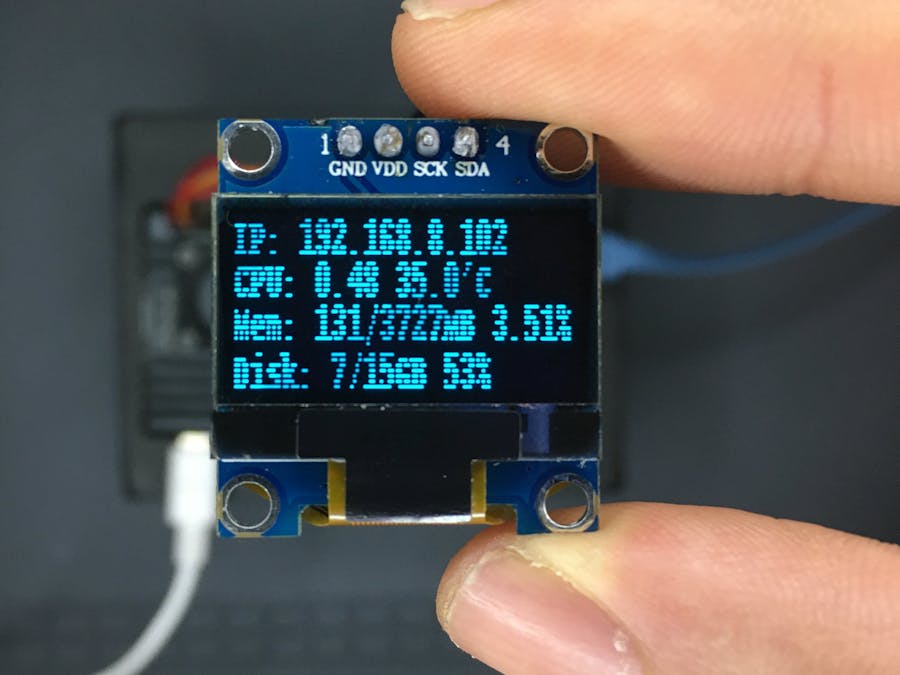
In this tutorial I’ll explain how to setup 0.96 inch OLED display module for showing system information of Raspberry Pi 4 Model B using its I2C interface.
Hardware Required:- Raspberry Pi 4 Model B
- 128×64 OLED display module (SSD1306)
- Connecting Wires
Below are the connections of OLED module with Raspberry Pi 4 Model B:
- SDA ==> GPIO 2(pin 3)
- SCL ==> GPIO 3(pin 5)
- VCC ==> 3.3V(pin 1)
- GND ==> GND(pin 14)
The I2C interface is disabled by default so you need to enable it. You can do this within the raspi-config tool on the command line by running:
sudo raspi-configA blue screen will appear. Now select Interfacing option.
After this, we need to select I2C option.
After this, we need to select Yes and press enter and then ok
After this, we need to reboot Raspberry Pi by typing below command:
sudo rebootThe following libraries may already be installed but run these commands anyway to make sure :
sudo apt-get install python-smbus
sudo apt-get install i2c-tools
To find a list of the devices connected to the I2C bus on the Raspberry Pi you can use the following command:
sudo i2cdetect -y 1On the older Raspberry Pi type the following command:
sudo i2cdetect -y 0Here is the output I see on my Raspberry Pi 4 Model B :
0 1 2 3 4 5 6 7 8 9 a b c d e f
00: -- -- -- -- -- -- -- -- -- -- -- -- --
10: -- -- -- -- -- -- -- -- -- -- -- -- -- -- -- --
20: -- -- -- -- -- -- -- -- -- -- -- -- -- -- -- --
30: -- -- -- -- -- -- -- -- -- -- -- -- 3c -- -- --
40: -- -- -- -- -- -- -- -- -- -- -- -- -- -- -- --
50: -- -- -- -- -- -- -- -- -- -- -- -- -- -- -- --
60: -- -- -- -- -- -- -- -- -- -- -- -- -- -- -- --
70: -- -- -- -- -- -- -- --
It showed the device had been detected with an address of 0x3c. This is the default hex address for this type of device.
Install Adafruit Python Library for OLED display moduleTo install the library we will clone the Adafruit git repository.
git clone https://github.com/adafruit/Adafruit_Python_SSD1306.gitOnce completes navigate to the library’s directory:
cd Adafruit_Python_SSD1306and install the library for Python 2:
sudo python setup.py installor for Python 3:
sudo python3 setup.py installNavigate into the examples directory:
cd examplesIn this folder you should find example script:
- stats.py
python3 stats.pyBy default it shows memory usage, disk usage, CPU load and ip address. Also, b-prefix in front of each strings can be seen.
It will be slightly modified in order to get rid of the b-prefix and add CPU temperature of Raspberry Pi 4 Model B as well.
cmd = "hostname -I | cut -d\' \' -f1"will be replaced by the following line:
cmd = "hostname -I |cut -f 2 -d ' '"This code is perfect on boot when you want to find your Raspberry Pi's IP address for SSH or VNC.
The following lines will be added to show CPU temperature on OLED display module:
cmd = "vcgencmd measure_temp |cut -f 2 -d '='"
temp = subprocess.check_output(cmd, shell = True )
Below code was modified accordingly to remove 'b' character from the OLED display.
draw.text((x, top),  "IP: " + str(IP,'utf-8'), font=font, fill=255)
draw.text((x, top+8),  str(CPU,'utf-8') + " " + str(temp,'utf-8') , font=font, fill=255)
draw.text((x, top+16), str(MemUsage,'utf-8'), font=font, fill=255)
draw.text((x, top+25), str(Disk,'utf-8'), font=font, fill=255)
Finally, you should see something similar to the following output on OLED display:
You can easily make it so this program runs every time you boot your Raspberry Pi.
The fastest and easiest way is to put it in /etc/rc.local. Run the bellow command on terminal:
sudo nano /etc/rc.localScroll down, and just before the exit 0 line, enter the following:
sudo python /home/pi/stats.py &- Save and exit.
- Reboot to verify that the screen comes up on boot!

Comments