


Hardware components | ||||||
 |
| × | 1 | |||
 |
| × | 1 | |||
| × | 1 | ||||
 |
| × | 1 | |||
 |
| × | 1 | |||
 |
| × | 1 | |||
 |
| × | 1 | |||
 |
| × | 1 | |||
Software apps and online services | ||||||
 |
| |||||
 |
| |||||
| ||||||
| ||||||
I am a pet lover. At my house we have a open room for birds on the terrace. so, when it rains we have to clear all the bird cages to a safe place to make sure that birds doesn't get wet. But sometimes it rained during midnight when i was not awake and on some other day i was not at home. so in these typical situations my pets got wet in rain. so i thought of making a rain detector system, which intimates me through Voice notification, Mail, Telegram and SMS through which i can make sure my pets are safe. And this is my intention of doing this project, besides this water detector system can also be used to "monitor the level of water in water tanks" ,through which we can save water by switching off the motor when the water reaches the maximum level. it can also be used in industries or at home to "detect any liquid leakage from pipelines".
Thanks to BOLT !I thank Bolt platform which made my work easier to complete my project. it is a very user friendly and convenient platform. it made me clarify my doubts and issues by posting them in the bolt forum.
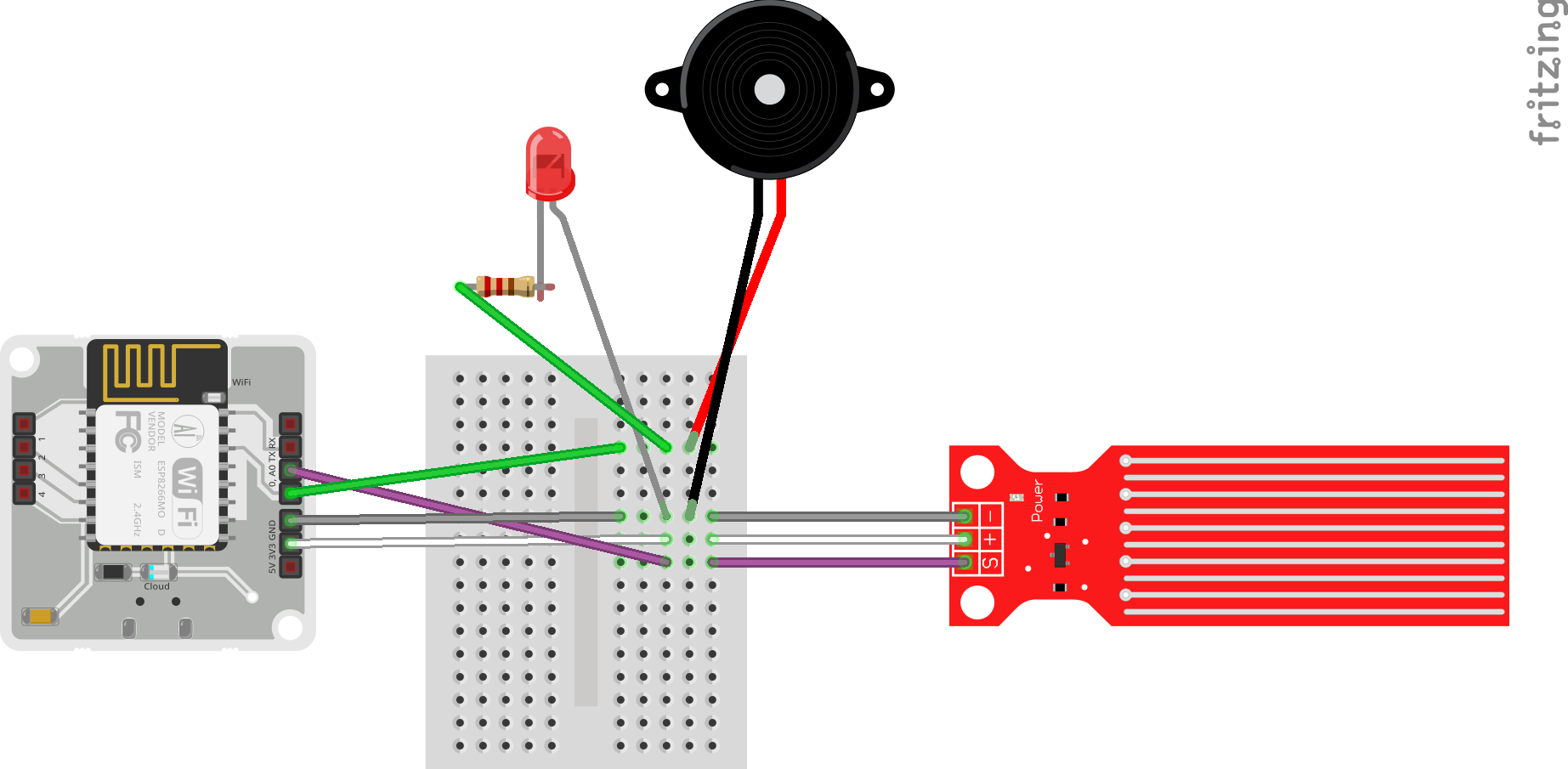
Project:I used a REES52 Water Sensor in this project which is an easy-to-use, cost-effective high level/drop recognition sensor which is obtained by having a series of parallel wires exposed traces measured droplets/water volume in order to determine the water level.
The Python Script checks the REES52 Water Sensor value sent from bolt device to the Bolt Cloud for every 10 sec and the sensor value doesn't exceed 10 until the water comes in contact with the sensor and as soon as the water falls on the sensor it crosses threshold value then it switches on the BUZZER and LED which goes off in 1 min during that time it requests the Twillio API to send SMS to your phone number. The telegram bot you created sends a message to channel that has your employees and we even get a VOICE notification, and we will even get a MAIL from the python program through Mailgun.
Message:Open www.cloud.boltiot.com on your web browser.
you can sign up by filling your details. Then you will be getting the following page.
Step 1: Open the playstore app on your mobile and search for Bolt Iot app and install it.
Step 2: Login using the bolt cloud credentials and Follow the instructions specified by the app, using those instructions Link your Bolt Module to the cloud.
After linking your bolt cloud page would be looking like...
Twilio is a third-party SMS functionality provider. It is a cloud communications platform as a service (PaaS) company. Twilio allows software developers to programmatically make and receive phone calls and also send and receive text messages using its web service APIs.
Step 1: Open https://www.twilio.com/ In browser.
Step 2: Sign up, choose language as Python and we are building account notification. After filling the details press next and verify your number.
Step 3: After verifying the number you will be redirected to Twillio home page, then click on products choose programmable sms, click continue give appropriate name for your project. by giving appropriate name.
Step 4: Then you can go to dash board. Create a new number. click on choose this number. Copy the ACCOUNT SID and AUTH TOKEN, FROM_NUMBER to your python conf file.
Telegram is a messaging app similar to Whatsapp. You can send and receive messages along with files also. It is FREE to use. You can access the platform via your Android/iOS/Windows phone and also your PC or Mac.
A)Steps to sign-up for/sign-in to Telegram:1)Go to the Playstore or App Store on your phone and search for Telegram
2)Download and Install the latest version of Telegram app.
3)Signup for a new account or sign in to Telegram by providing your mobile number
4)Telegram will call you OR send you a SMS to verify your mobile number.
5)Get your account verified and approve any permissions if required.
B)Create a telegram channel1)Go to the home screen of the Telegram app.
2)Swipe from the left side to reveal the menu.Click on "New Channel".
3)It will ask you for a Name and Description for your channel. Give a suitable name and description. Adding photo is optional.
4)In the next screen set the channel as Public.
5)On the same screen, it will ask you to enter a permanent link for your channel. You can use lowercase letters and numbers 0-9 to create the channel link
6)Please note that the channel link name is global and you will be able to create a channel link only if the link name is available. The channel link name is something similar to an email address, i.e. only one unique email ID can exist at one time.
- 7)keep a note of this Channel permanent link name. It will be required later on to send messages to this channel. For example, the channel link name is "temperature_alert"
Telegram allows us to create a new bot with the help of a bot called as "BotFather". It is a single bot to create and manage other bots.
1)On the Home screen of the app, click on the search icon on the top right and type in "botfather".
2)In the search results, click on the correct result for "BotFather" as shown below. The correct "BotFather" will have a blue tick mark next to its name. This will take you to a chat window with the "BotFather".
3)Since we need to create a new Bot, go ahead and type in "/newbot" in the window.It will ask you to type in few more details like Bot name and Bot username.
4)This token is used to control your Bot as well as send messages on behalf of it. Please keep this token secure as it will allow anyone to access your Bot.
Click on the Administrators button so that we can add the newly created bot to your channel and then search for bot you created.Select it and add to your channel.
You will be asked to confirm the rights for the bot. Press on the tick mark on the top right to continue adding the bot to the channel. Make sure that the bot has the rights to "Post Messages".
Mailgun is an Email automation service. It has a very powerful set of inbuilt functions for sending emails. Developers can process their email with the help of Mailgun API. We require Mailgun in order to send emails from a python program.
Step 1 - Go to MailgunOpen www.mailgun.com on your browser. Click on the "Start Sending" button to register for an account.
Step 2 - Sign up for an accountFill in the signup form with your details. For the "Company" field, you can put "Student" if you are a student. You can enter your personal email ID for the "Work email" field.
Click on "Create Account" once you have entered all your details.
Step 3 - Verify your accountOnce you have clicked on "Create Account" button on the sign up page, you will be redirected to your dashboard where you will be asked to verify your email ID. Check your email inbox for an email from them asking to verify your Mailgun account. Follow the instructions in the email and verify your account.
Once you have verified your email ID, you will be asked to verify your mobile number also. This verification is required in order to stop spam emails being sent out by robots or other people with malicious intent.
Select your country and enter your 10 digit mobile number. Click on "Send verification code" to start the verification process. You will receive an OTP from Mailgun and will need to enter it in the next screen in order to verify your mobile number.
Step 4 - Get API credentialsOnce you have verified your mobile number, you will now be redirected to the Mailgun dashboard.
Now, since we will be sending an email using python code, we will need API credentials for it. To get your credentials, on the sidebar, click on "Sending" and then click on "Overview".
On the Overview page, you will be asked which method we would be using to send emails. Since we are programmatically sending emails using Python code, we will choose the options accordingly.
Select "API" option and then choose "Python" in the next step.
Once you have done the above steps, you will now be presented with your API credentials. From this, we will need two credentials i.e. the Sandbox URL and the API key.
In the picture below, the credentials are highlighted. Save both of them as it will be required in the next lecture to send the emails.
Since this is trial account, you cannot send emails to everyone. You can only send emails to yourself, i.e. the same email ID you have registered on Mailgun.
To send emails to any other email ID, you will need to add them to the Authorized recipients list. They will be sent an email confirming the same and if they accept, you will then be able to send emails to them.
8. To get a Voice notificationImagine you are sleeping and it's raining outside, you left your pet or you kept your wet clothes to dry in open space. In such situations just a normal message buzz sound will not wake you up , so in this case voice notification which can be repeated 2 to 3 times as per our settings will make us awake and we can perform our required action,
Step 1 : download the "Notification Reader - Shouter" app from play store.(link has been provided above).
Step 2: Give access to the app through phone settings.
Step 3: Enable the app to make voice notifications.
Step 4: Select Telegram in the App Notification option of the Manage Shouts section.
Step 5: We can repeat the voice notification 2-3 times through Repeat announcement option in the App Notification field.

Comments