


Hardware components | ||||||
 |
| × | 1 | |||
 |
| × | 1 | |||
 |
| × | 1 | |||
 |
| × | 1 | |||
Software apps and online services | ||||||
 |
| |||||
 |
| |||||
| ||||||
 |
| |||||
| ||||||
Project Objective:
Build the circuit for temperature monitoring
system, using the BOLT module and LM35
sensor.
However I divided this entire project into two
parts: one is responsible for predict the
temperature and the second part is
responsible if temperature crosses the
threshold value so it sends the alert via email
for this process we use here software name
mailgun with the bolt module.
Now from here I’m going to describe our
project , in order to describe it I describe it in
various steps .
STEP NO: 01
In beginning of project firstly we form our
hardware , which requires three things:
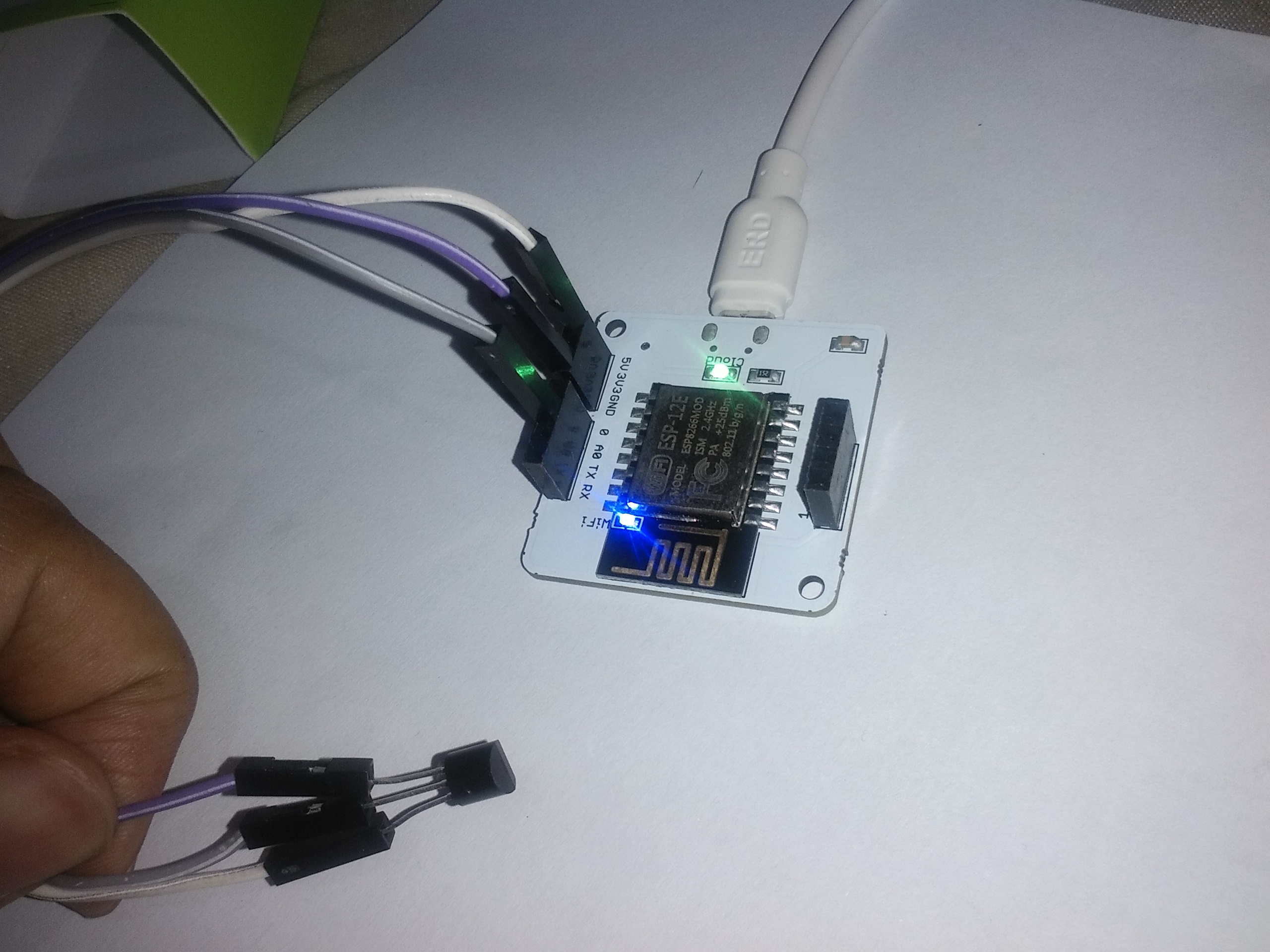
1.LM35 sensor which detect the temperature
value.
2. female male wire for connection from
sensor to Bolt module.
3. Bolt module.
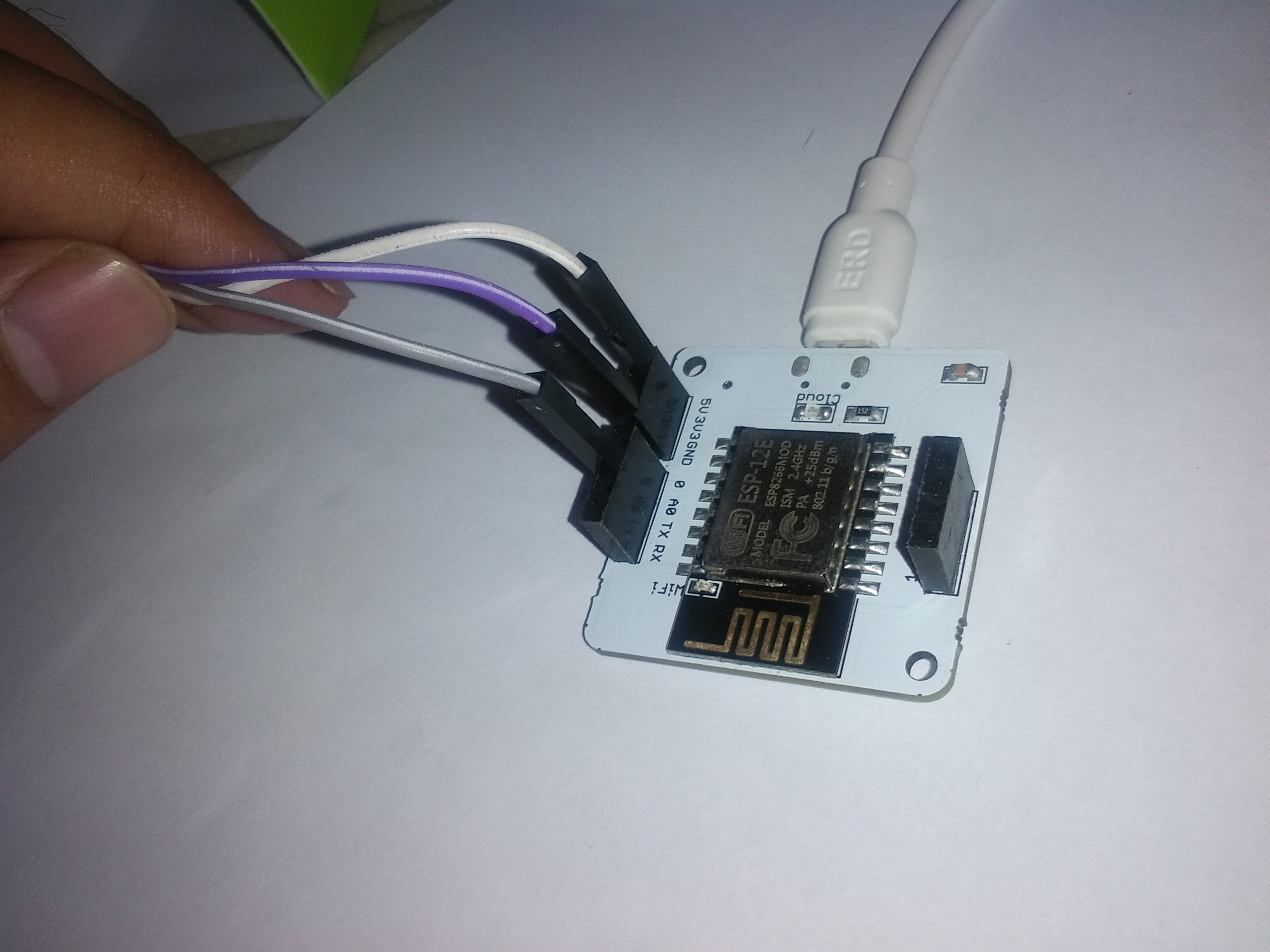
Now we make a proper connection
When connection with LM35 IS DONE then
we connect wires with the bolt module and
connect appropriately.
Now the connection with Bolt module is done
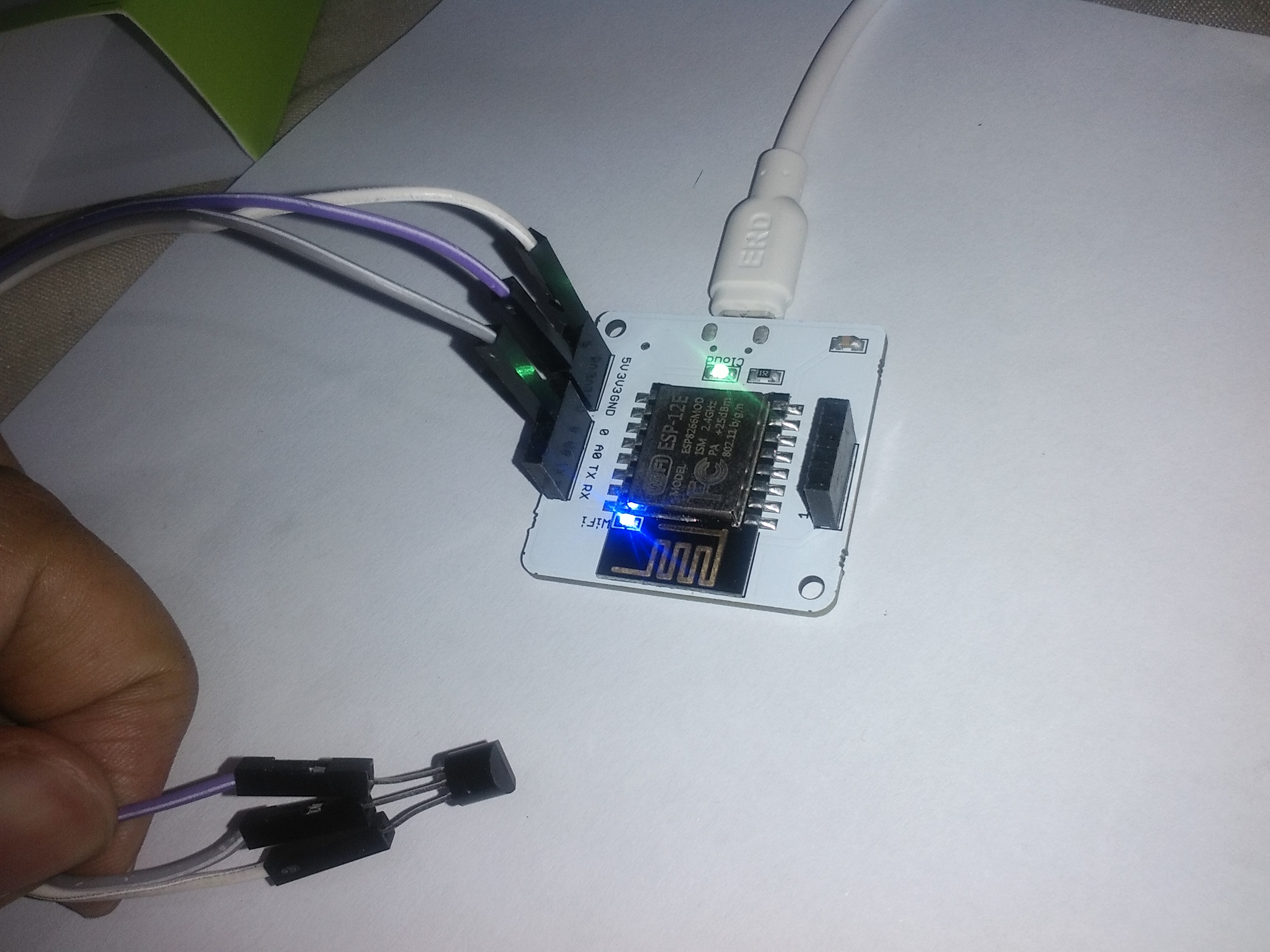
Now it is time to connect our Bolt module
with the laptop for the power supply and at
the time , when we provide the power supply
we also provide the internet connection to
the our Bolt module and result is , we get that
our bolt module both light green and blue is
on and they consistently glow , which means
everything is fine.
Now finally our hardware module is done .
STEP 02:
Here we go to the our Bolt cloud and try to
create a product
With the product name is : predict
_temperature. Here we also select typ of
connection and type of data and than further
proceed.
Now we go our home page of our bolt
module and click on the configure icon.
Now here when we click on configure icon
than it shows hardware and code section.
Here we set pin as A0 variable as ‘temp’.
STEP NO: 03
Till now our hardware section completed now
we go further for the code section , here we
choose the file name as well as file extension.
Here we write file name as “predict”
And the file extension is “.js” which means
javascript.
And now in code section we write the code in
The javascript language and after writing the
complete code we have to save this file and
than click on the cross button.
Now we save this and click the cross button.
So we get the our home page of bolt cloud
Now we click on link button and link the our
Bolt cloud with the Bolt module .
For this firstly we select the our bolt module
and than link to the our cloud .
Now we click on “deploy configuration”.
button so that the data which sense by our
sensor (LM35) get upload on the bolt cloud.
STEP NO: 04
Now when data uploaded on cloud
completely than we click on “action” button
so appropriate output we will get..
And on basis of this we can predict some
future values
And after that we wait some time bt which
some sufficient amount of data will uploaded
on bolt cloud .
Now we wait some time and after that we
receive some effective output.
And on basis of that we can predict
After some time we get such effective output
and now the turn of prediction which occurs
in between time and temperature.
Wherever our normal output;
Now our one section is over and our other
main concern is IF TEMPERATURE CROSSES
THE THRESHOLD SO IT SEND ALERT via email
or msg.
Now instead of Bolt cloud here we use linux
Ubuntu server .
Before this firstly we make our account on the
mailgun.org and take all the required
credentials .
STEP NO: 05
Now we open the virtual box and than open
the Ubuntu linux operating sys, now we open
command line or terminal..
Firstly we create a python file by using
command “ sudo nano email_conf.py”
Now after this we enter in this file and we
write all the required credentials , like api id ,
bolt id , url etc.
Now after this we must save this file, by ctrl+x
than Y than enter.
Now again command line open , here we
must create one other file
Here the file name is “temp_email.py”
And we use the command “ sudo nano
temp_email.py”.
After writing command we must enter the
password
Than our new file will created successfully
and we go inside it and now we write the
appropriate code here.
Now writing the complete code
Now we save this file via ;
Cntrl+X than Y than enter.
Finaly our second file will save and again the
linux command line open in front of us;
Now it is the time to run the code ;
To run the code ;
We use the command
“sudo python3 temp_email.py”
Now after providing the appropriate
command to the command line our code will
successfully run and provide us the output.
what temp at a particular time.

Comments