




Hardware components | ||||||
 |
| × | 1 | |||
| × | 1 | ||||
 |
| × | 1 | |||
Software apps and online services | ||||||
 |
| |||||
Hand tools and fabrication machines | ||||||
| ||||||
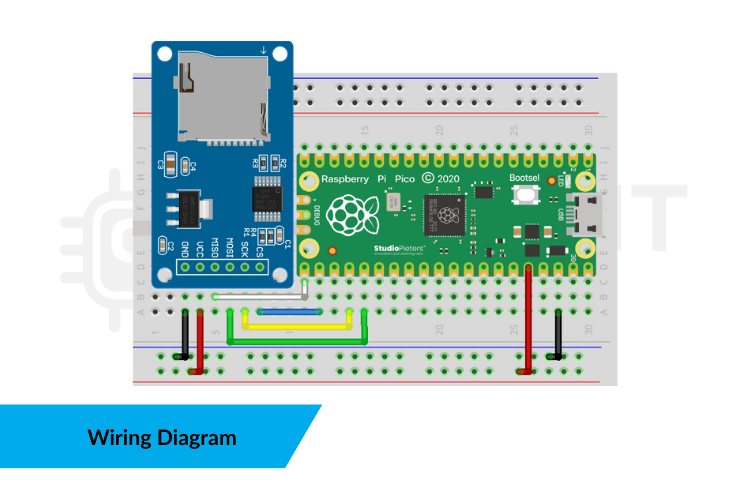
Adding the Raspberry Pi Pico sd card Module opens up powerful possibilities — from logging sensor data to saving settings or text files. This project walks you through building an SD card storage interface for the Pico using an inexpensive microSD card module and the SPI bus. You’ll end up with a fully interactive Serial menu that lets you create, edit, read, and delete files on the SD card.
The Pico’s onboard storage is limited. By connecting a microSD card via SPI:
- You get gigabytes of removable storage for your projects.
- You learn how embedded systems manage FAT32 file systems.
- You unlock real-world use cases like data logging, configuration files, and persistent settings.
This setup works with any standard SD card module that includes a 3.3 V regulator and level shifting, ensuring safe operation with the Pico.
You’ll need:
- Raspberry Pi Pico (RP2040 microcontroller)
- MicroSD card module (with 3.3 V support)
- MicroSD card (FAT32 formatted)
- Breadboard + jumper wires
- USB cable (for power and programming)
Before using the card:
- Remove existing partitions.
- Create one primary partition.
- Format as FAT32 (use Rufus or GUIFormat if needed).Larger than 32 GB cards often default to exFAT and won’t work without reformatting.
⚠️ If the card isn’t FAT32, initialisation will fail, and the Pico will report SD init FAILED.
The provided Arduino sketch uses the standard SPI and SD libraries to:
- Initialise the SD card
- Create a file
- Write text
- Read from a file
- Delete a file
Here’s a high-level look at the core idea:
#include <SPI.h>
#include <SD.h>

const uint8_t CSPIN = 17;      // SD chip select
const char *FILENAME = "demo.txt";

void setup() {
  Serial.begin(115200);
  SD.begin(CSPIN, SPI);
  printMenu();
}
#include <SPI.h>
#include <SD.h>

const uint8_t CSPIN = 17;      // SD chip select
const char *FILENAME = "demo.txt";

void setup() {
  Serial.begin(115200);
  SD.begin(CSPIN, SPI);
  printMenu();
}
The loop waits for Serial input (1–4) and triggers the corresponding file operation.
👉 File operations include:
- Create & write default text
- Write custom text from Serial
- Read every character
- Delete the file
Once your Pico is wired and programmed:
- The Serial Monitor shows an easy menu.
- Choose an option by typing a number.
- The Pico performs the file action immediately.
- Results appear in real time.
This responsiveness makes it great for debugging and learning how file I/O works on a microcontroller
Bharani Dharan Rangaraj
 Electroscope Archive
Comments